Dashboard | Purchase Order System
The dashboard is the first window you see when logging into the purchase order system. It acts as a homepage for your system. Every system comes with a dashboard, however you can control what appears on it
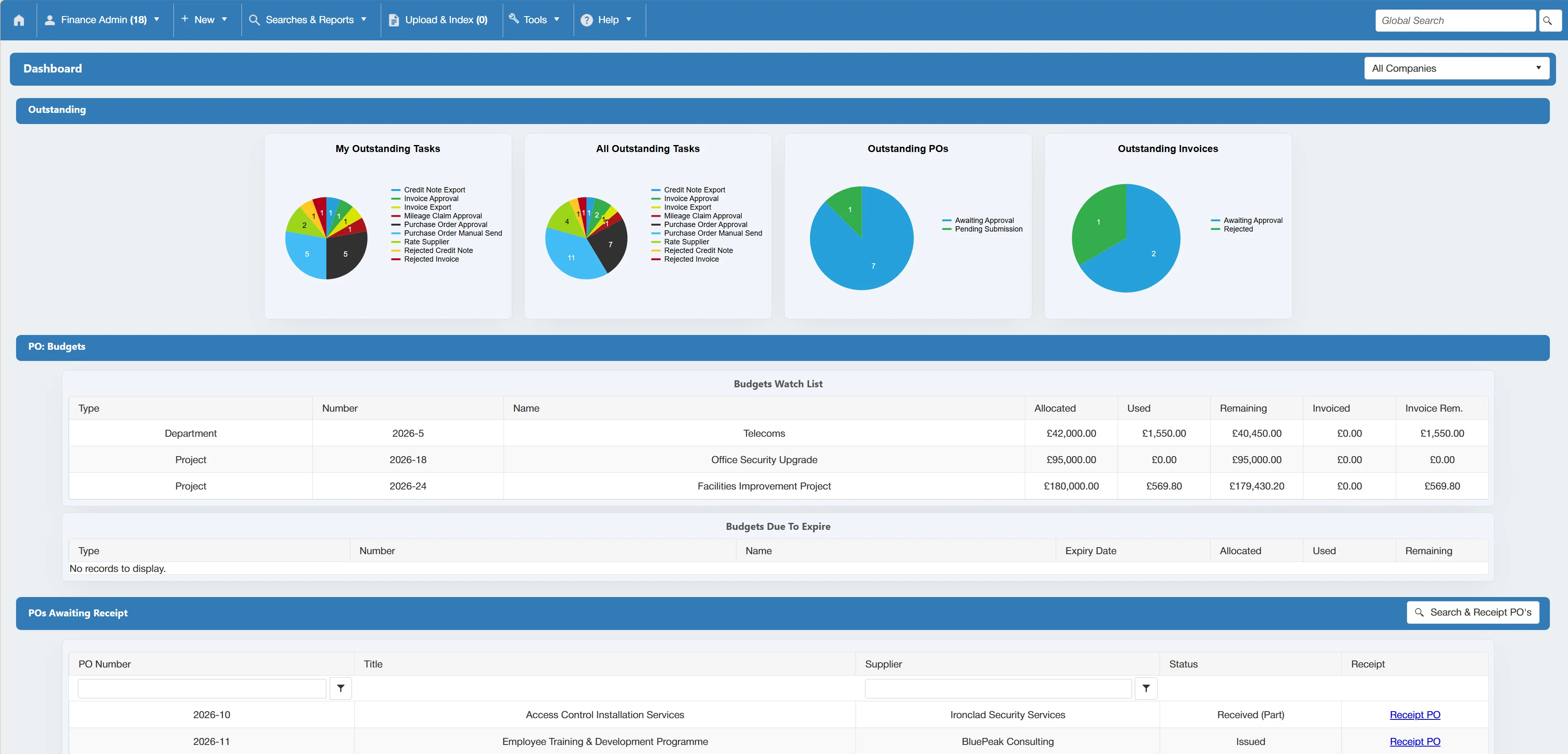
For more information on Dashboard content configuration, click here.
Global Search
At the top of the dashboard, there is a search bar on the right hand side of the navigation bar.
This search bar allows you to search the entire system for items. For example, if you type a purchase order number into this field, the results will consist of any item relating to that purchase order number.
Companies Drop Down
The Dashboard contains a Companies drop down menu, this allows you to switch between your companies on the system. (This is only applicable if you have more than one company set up on the system).

For more information on setting up another company, click here
Selecting another company from this list will refresh the dashboard with information relating to the specified company.
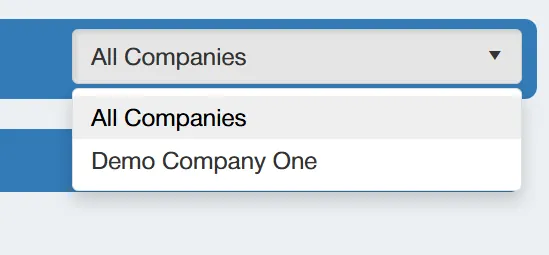
There is an All Companies option available if you wish to see information relating to both companies within the dashboard.
Outstanding Section
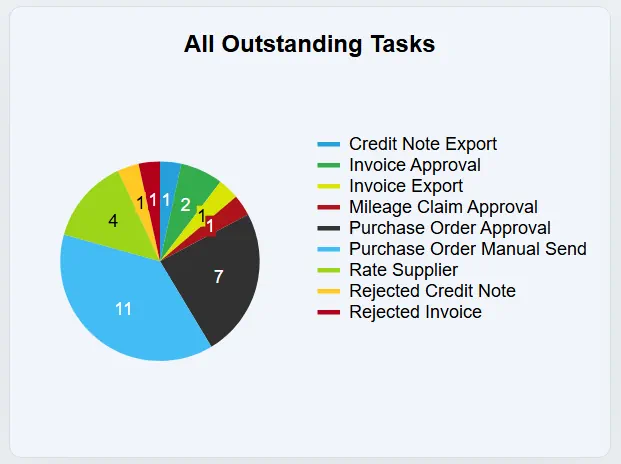
The Outstanding Section contains information relating to outstanding tasks and items within the system. This information is displayed in pie chart format for ease of navigation.

There are four standard pie charts visible:
- My Outstanding Tasks: This displays your own outstanding tasks. The chart contains a separate section for each type of task. The sections are colour coded accordingly.
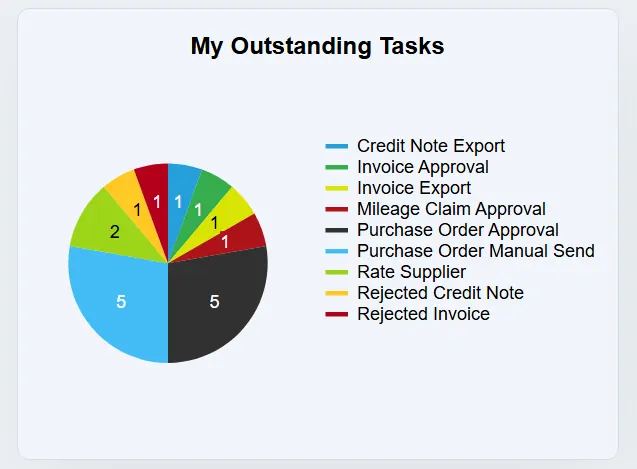
- All Outstanding Tasks: This displays the total number of outstanding tasks within the system (not just your own). Again, the sections are colour coded accordingly.
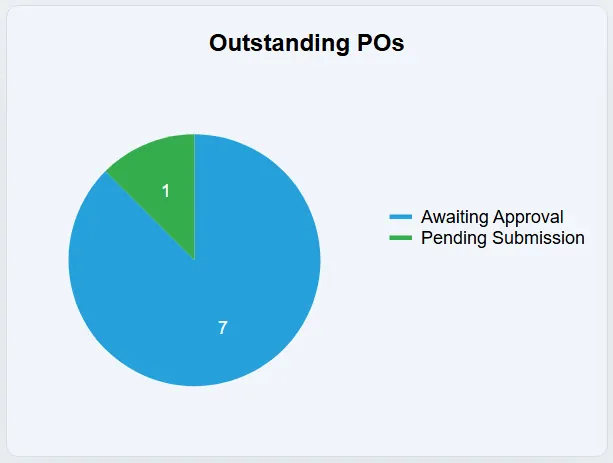
- Outstanding POs: This displays any outstanding purchase orders along with their relevant status (i.e. Awaiting Approval, Pending Submission or Rejected).
- Outstanding Invoices: This displays any outstanding invoices along with their relevant status (i.e. Awaiting Approval or Rejected).
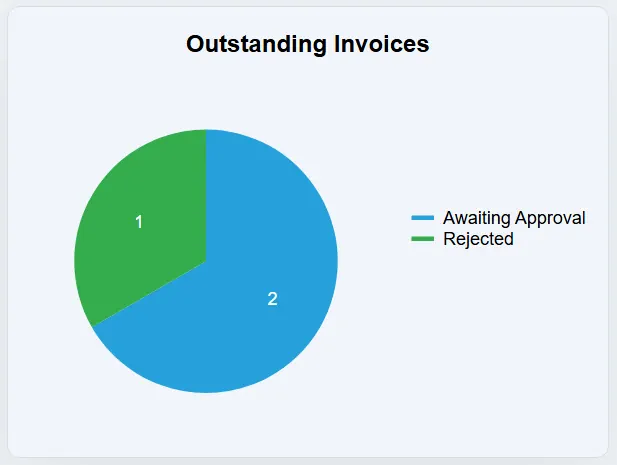
The Outstanding Invoices Chart is only applicable to systems with the Invoice Processing module enabled.
You can drill down into any section on the charts by simply clicking on the relevant one. This takes you to the relevant grid, from which you can access the desired task or item.
It is important to note, that you are only able to view items for which your user permissions allow. (If you do not have the relevant permissions on your account, you will not be able to view restricted items.) For information on User Permissions, click here.
Budgets Section
For systems with budgets enabled, the dashboard will contain a Budgets section.

This section consists of the following:
This grid contains information on budgets that have been assigned to the watch list.

The watch list is for budgets that you would like to see each time you view the dashboard. They are typically budgets that are high use and require regular monitoring.
For information on adding budgets to a watch list, click here.
The watch list grid includes information about each budget such as; name, cost code, nominal code, budget number, name, and relevant values.
This grid contains information on budgets that are due to expire within the next 30 days.

The grid shows all relevant budget information and values. It also includes the Expiry Date, allowing you to see how long the budget has left to run.
For information on setting a budget expiry date during budget creation, click here
For information on setting a budget expiry date for existing budgets, click here
If a budget is due to expire and you would like to keep it live past the current expiry date, you can simply amend the date or remove it by editing the budget.
Only users with the Budget Admin permission enabled can edit budgets. For information on user permissions, click here.
POs Awaiting Receipt Section
For systems with the Goods Receipting (GR) module enabled, the dashboard will contain a POs Awaiting Receipt section.

This grid will display any purchase orders that have been issued and are not yet fully receipted. It contains columns detailing the PO Number, Title, Supplier and Status.
POs with a status of "Issued" have not yet had any items receipted. POs with a status of "Received (Part)" have had some items receipted but not all.
You can receipt POs directly from this grid by clicking on Receipt PO at the end of the desired line. This will take you to the Goods Receipting window.
For more information on the Goods Receipting process, click here.
Suppliers Section
The dashboard includes a Supplier Ratings section, this consists of two tables; Top Lowest Rated Suppliers and Top Highest Rated Suppliers.
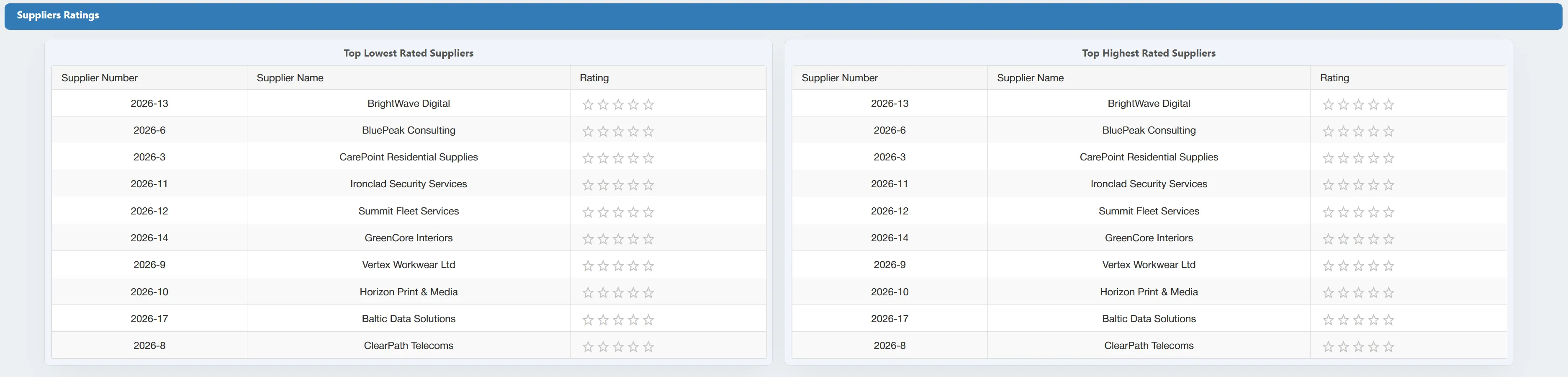
This section allows you to quickly review which suppliers are performing well and which suppliers are performing poorly.
To view the supplier in more detail along with any applicable comments, simply click on the corresponding row.
For more information on supplier ratings, click here.