Searches & Reports | Purchase Order System
Every PO system has a Searches & Reports section available. This allows you to carry out searches and generate reports on a wide array of items within the system such as; Purchase Orders, Purchase Order Lines, Delivery notes, Invoices, Invoice Lines, Credit Notes, Projects, Budgets, Suppliers and Addresses.
Click below to watch a video guide on Searching & Reporting within the purchase order system:
Purchase Orders Search
Hovering over will expand another menu consisting of:
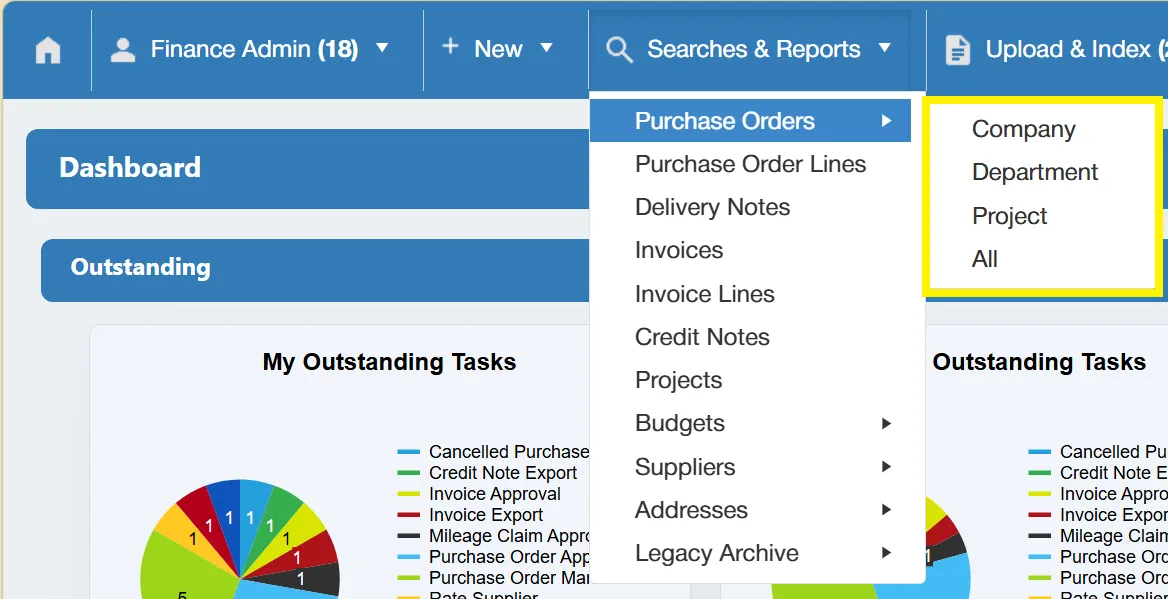
This allows you to specify which type of purchase order you would like to search for. If you would like to search for all purchase orders regardless of level, select the option.
Company Purchase Orders Search
To search within Company level purchase orders, select from the Purchase Orders menu.
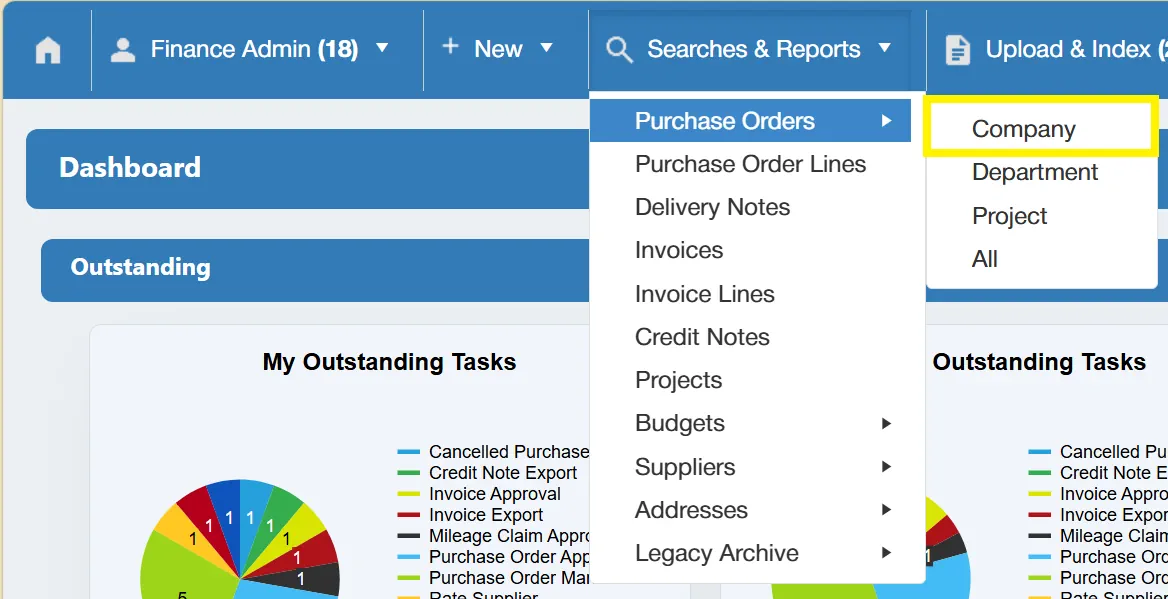
This opens a new window with various filters allowing you to search all Company Level purchase orders.
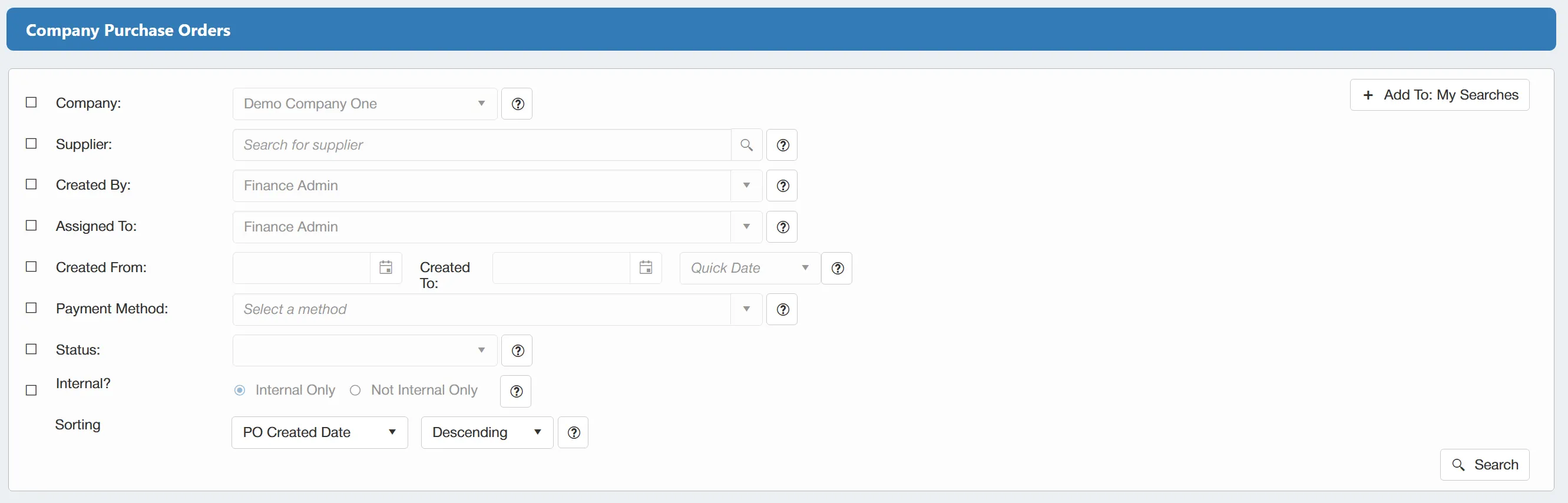
The available filters are as follows:
- ☐ Company: This allows you to filter the search by Company.
- ☐ Supplier: This allows you to filter the search by Supplier.
- ☐ Created By: This allows you to filter the search by the PO creator.
- ☐ Assigned To: This allows you to filter the search by the user who the PO was assigned to for approval.
- ☐ Created From: This allows you to filter the search by the creation date.
- ☐ Payment Method: This allows you to filter the search by the payment method.
- ☐ Status: This allows you to filter the search by the PO's current status. This filter supports multiple selection, allowing you to specify multiple statuses.
- ☐ Internal?: This allows you to specify whether you would like the results to consist of internal or external purchase orders.
There is also a sorting option that allows you to sort your results by PO Created Date or PO Number in an ascending or descending manner.
There is a button available which will save your set filter parameters for future use. This is particularly useful if you are regularly carrying out the same searches. For more information on My Searches click here
If you want to carry out a search for ALL Company Purchase Orders with no filters enabled, simply click on the button without any filters ticked.
Once you have carried out the search, a new window will open showing a grid containing the relevant purchase orders.
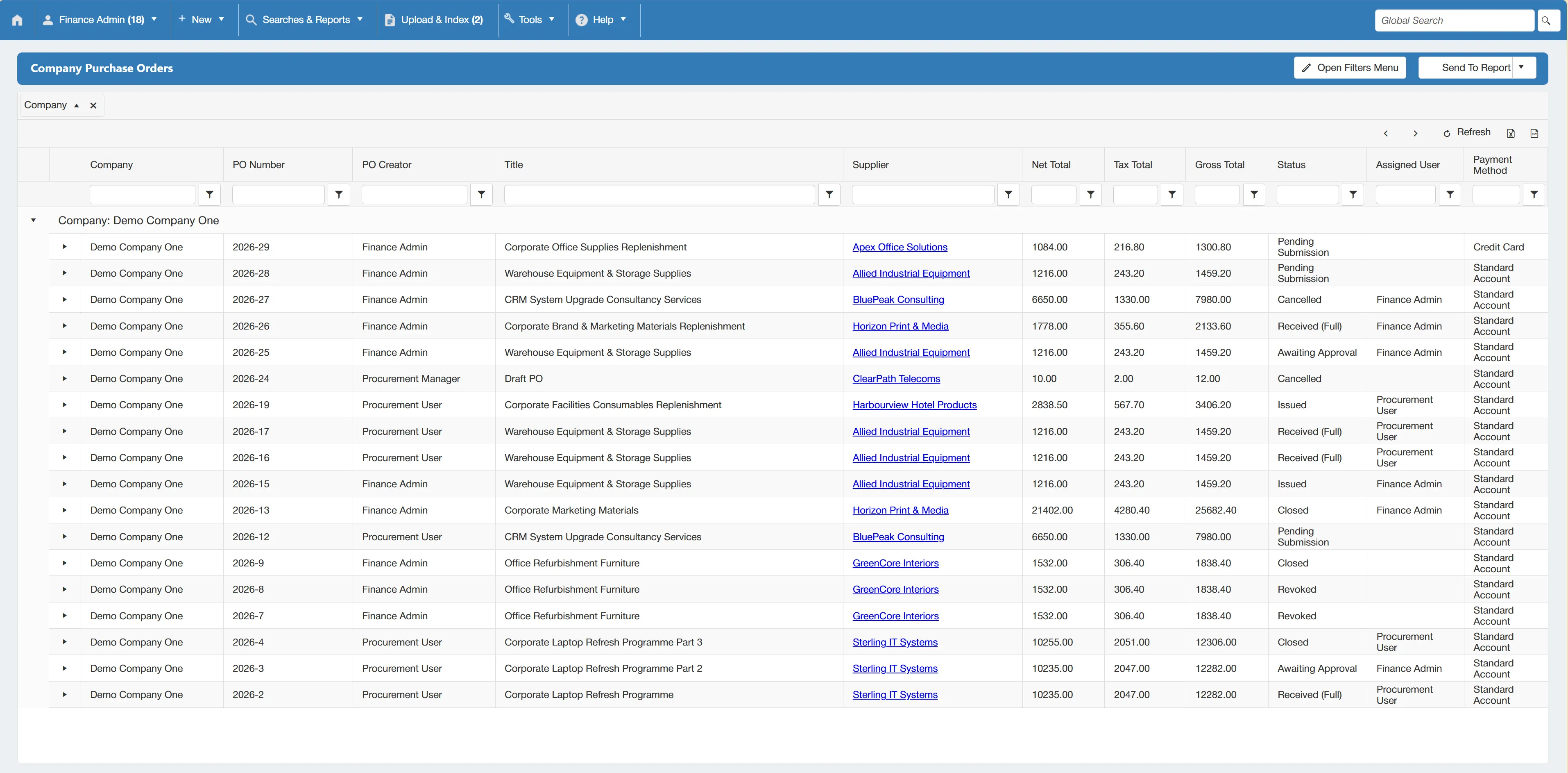
There are several columns providing an overview of each purchase order's details. Each column can be sorted and filtered using the parameters at the top.
Department Purchase Orders Search
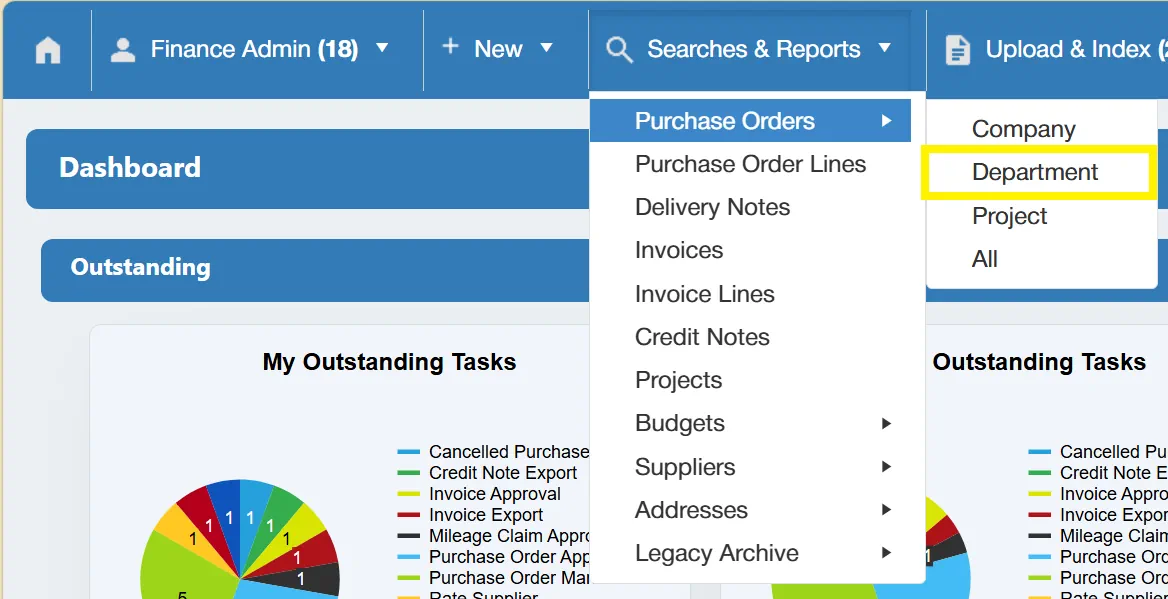
To search within Department level purchase orders, select from the Purchase Orders menu.
This opens a new window with various filters allowing you to search all Department Level purchase orders.
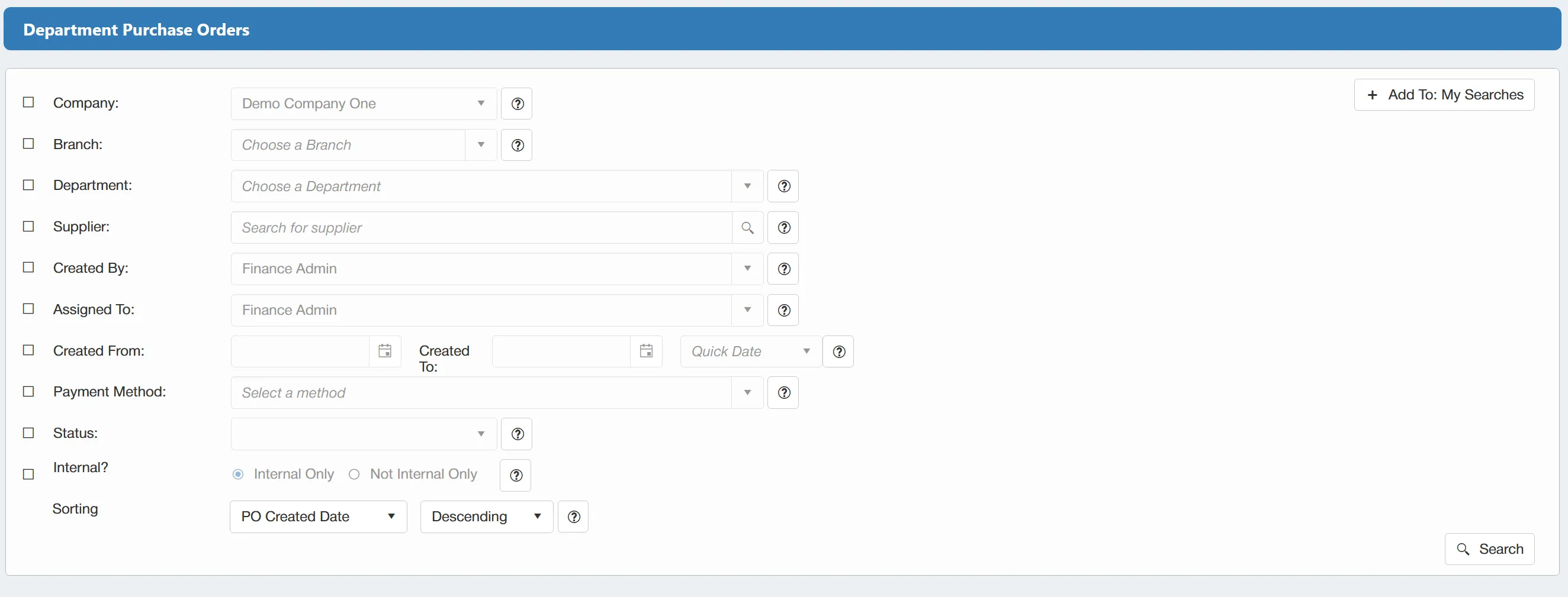
The available filters are as follows:
- ☐ Company: This allows you to filter the search by Company.
- ☐ Branch: This allows you to filter the search by Branch.
- ☐ Department: This allows you to filter the search by Department.
- ☐ Supplier: This allows you to filter the search by Supplier.
- ☐ Created By: This allows you to filter the search by the PO creator.
- ☐ Assigned To: This allows you to filter the search by the user who the PO was assigned to for approval.
- ☐ Created From: This allows you to filter the search by the creation date.
- ☐ Payment Method: This allows you to filter the search by the payment method.
- ☐ Status: This allows you to filter the search by the PO's current status. This filter supports multiple selection, allowing you to specify multiple statuses.
- ☐ Internal?: This allows you to specify whether you would like the results to consist of internal or external purchase orders.
There is also a sorting option that allows you to sort your results by PO Created Date or PO Number in an ascending or descending manner.
There is a button available which will save your set filter parameters for future use. This is particularly useful if you are regularly carrying out the same searches. For more information on My Searches click here
If you want to carry out a search for ALL Department Purchase Orders with no filters enabled, simply click on the button without any filters ticked.
Once you have carried out the search, a new window will open showing a grid containing the relevant purchase orders.
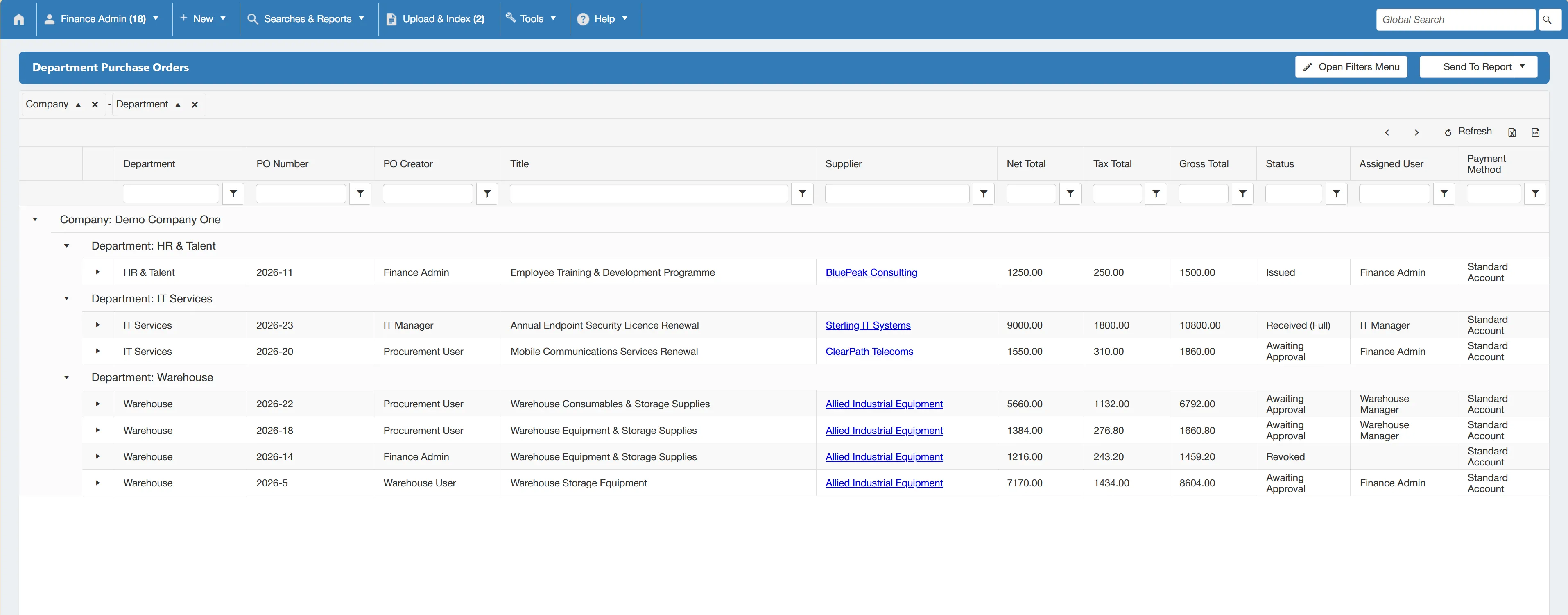
There are several columns providing an overview of each purchase order's details. Each column can be sorted and filtered using the parameters at the top.
Project Purchase Orders Search
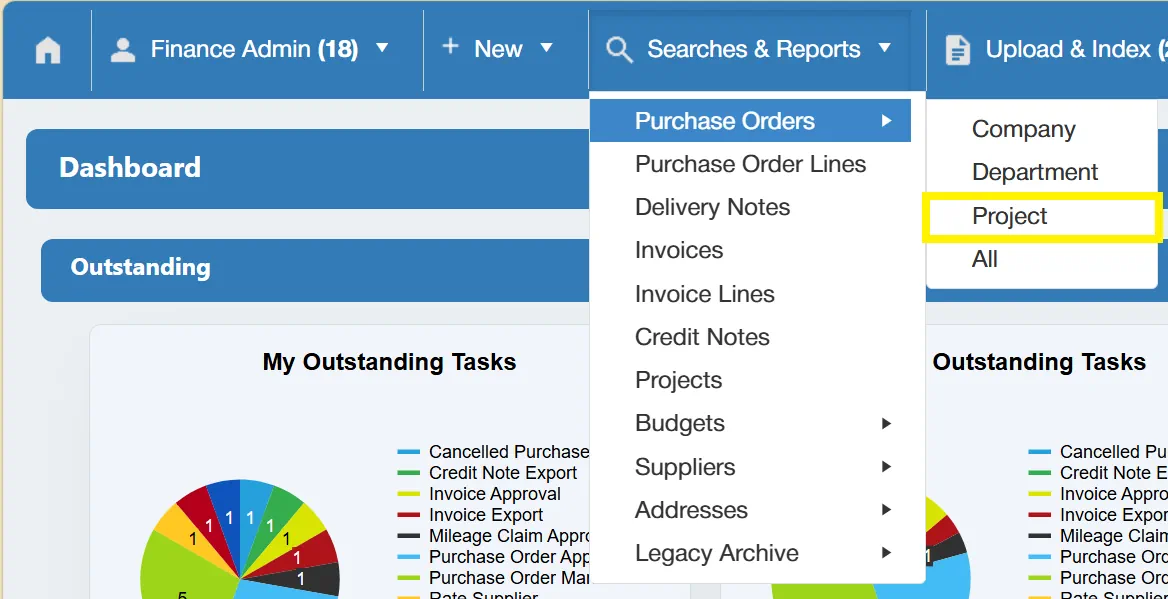
To search within Project level purchase orders, select from the Purchase Orders menu.
This opens a new window with various filters allowing you to search all Project Level purchase orders.
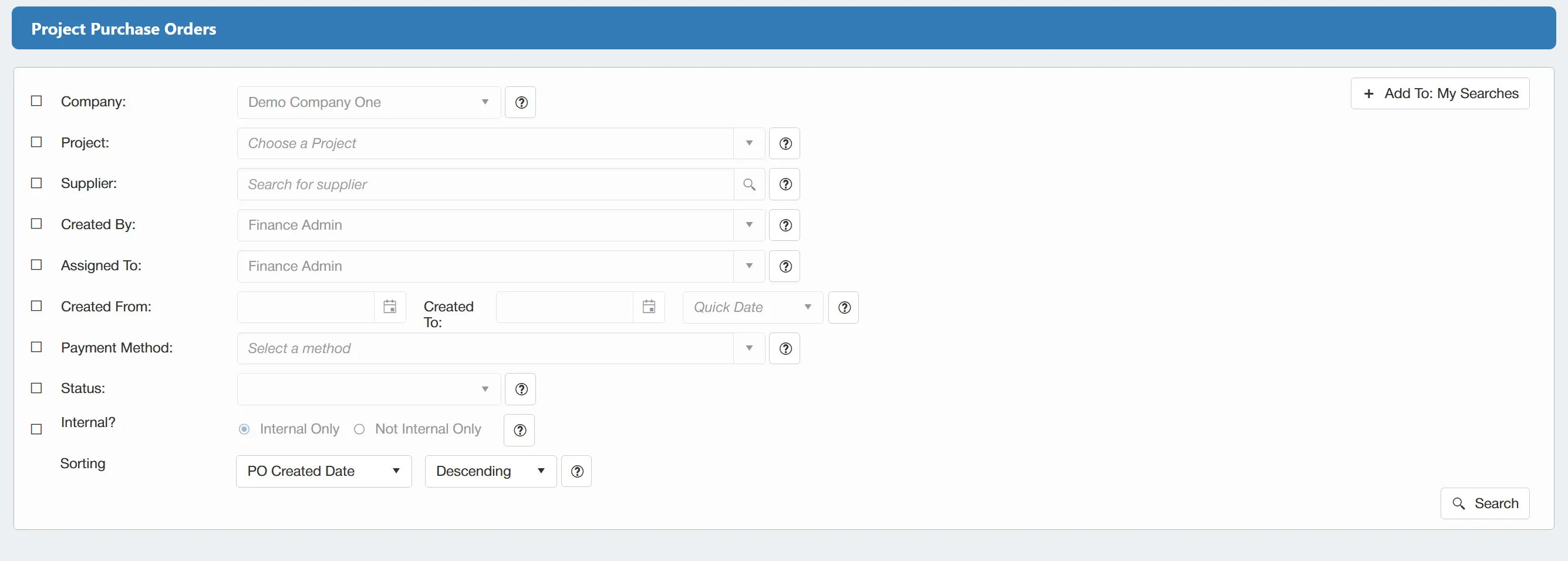
The available filters are as follows:
- ☐ Company: This allows you to filter the search by Company.
- ☐ Project: This allows you to filter the search by Project.
- ☐ Supplier: This allows you to filter the search by Supplier.
- ☐ Created By: This allows you to filter the search by the PO creator.
- ☐ Assigned To: This allows you to filter the search by the user who the PO was assigned to for approval.
- ☐ Created From: This allows you to filter the search by the creation date.
- ☐ Payment Method: This allows you to filter the search by the payment method.
- ☐ Status: This allows you to filter the search by the PO's current status. This filter supports multiple selection, allowing you to specify multiple statuses.
- ☐ Internal?: This allows you to specify whether you would like the results to consist of internal or external purchase orders.
There is also a sorting option that allows you to sort your results by PO Created Date or PO Number in an ascending or descending manner.
There is a button available which will save your set filter parameters for future use. This is particularly useful if you are regularly carrying out the same searches. For more information on My Searches click here
If you want to carry out a search for ALL Project Purchase Orders with no filters enabled, simply click on the button without any filters ticked.
Once you have carried out the search, a new window will open showing a grid containing the relevant purchase orders.
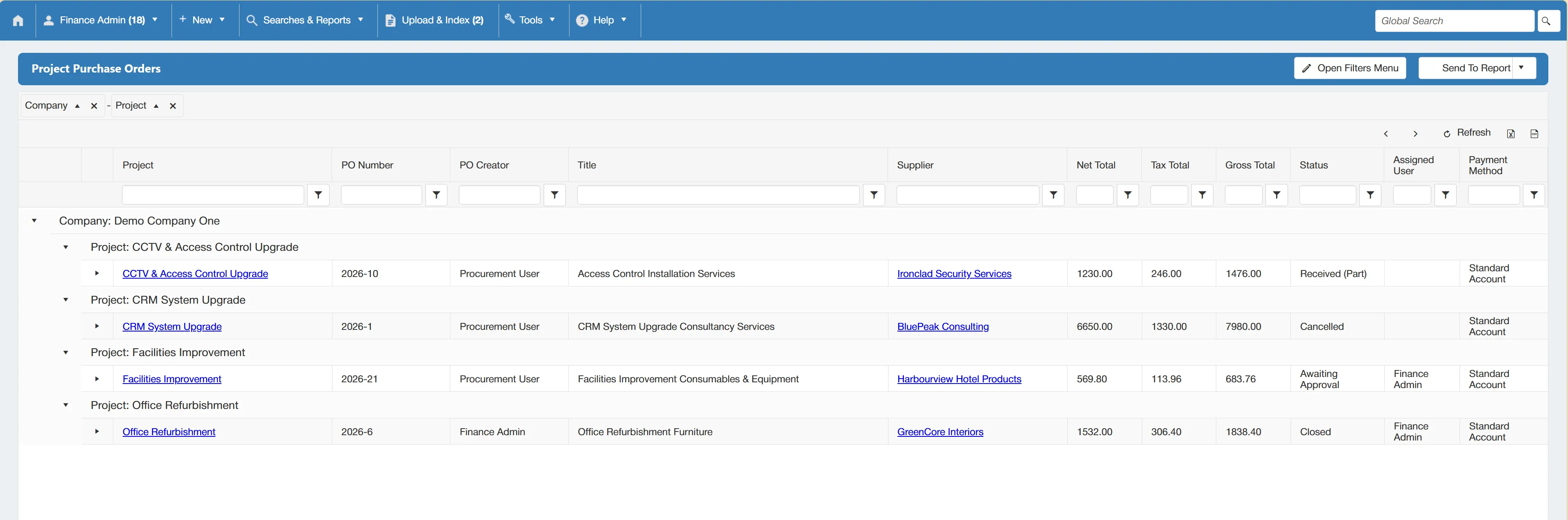
There are several columns providing an overview of each purchase order's details. Each column can be sorted and filtered using the parameters at the top.
All Purchase Orders Search
To search for All purchase orders regardless of level, select from the Purchase Orders menu.
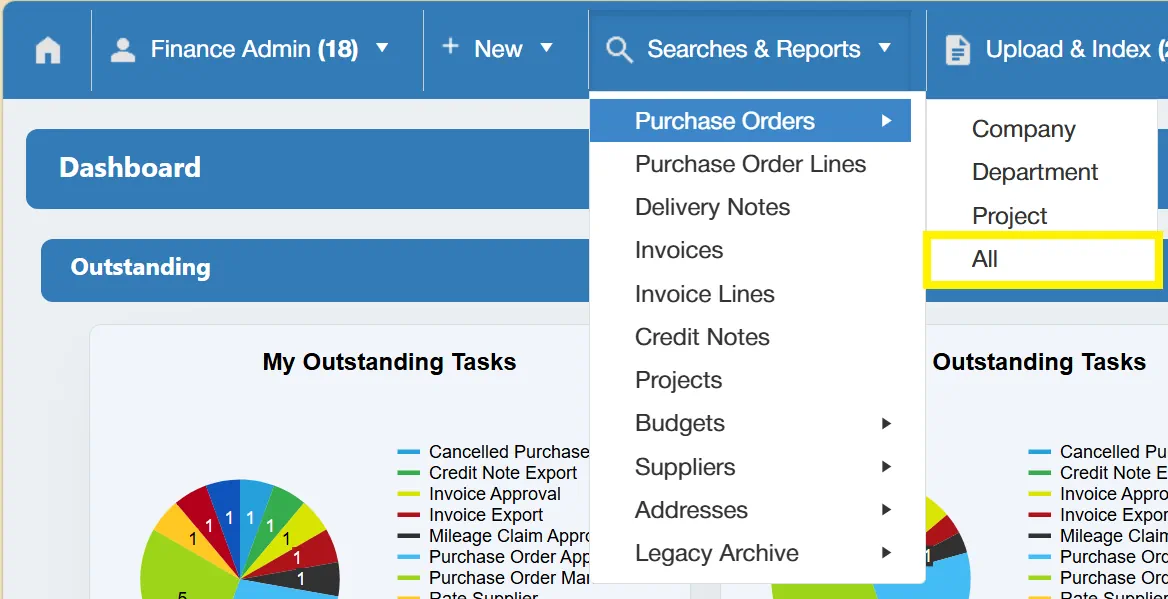
This opens a new window with various filters allowing you to search all purchase orders.
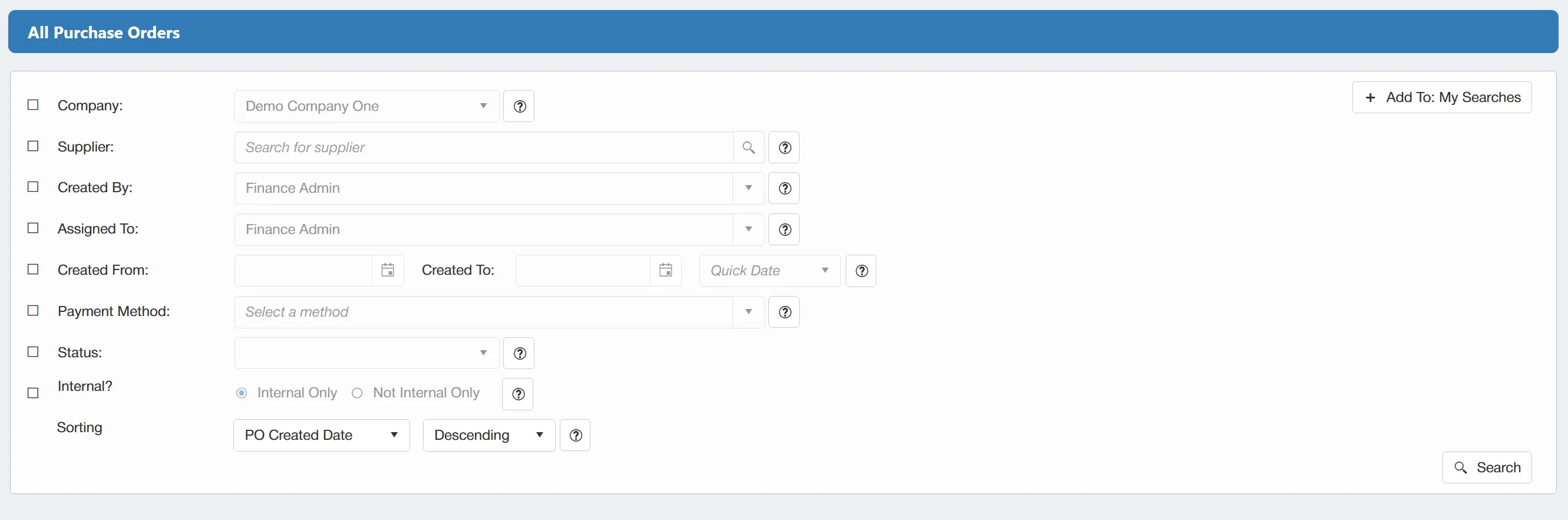
The available filters are as follows:
- ☐ Company: This allows you to filter the search by Company.
- ☐ Supplier: This allows you to filter the search by Supplier.
- ☐ Created By: This allows you to filter the search by the PO creator.
- ☐ Assigned To: This allows you to filter the search by the user who the PO was assigned to for approval.
- ☐ Created From: This allows you to filter the search by the creation date.
- ☐ Payment Method: This allows you to filter the search by the payment method.
- ☐ Status: This allows you to filter the search by the PO's current status. This filter supports multiple selection, allowing you to specify multiple statuses.
- ☐ Internal?: This allows you to specify whether you would like the results to consist of internal or external purchase orders.
There is also a sorting option that allows you to sort your results by PO Created Date or PO Number in an ascending or descending manner.
There is a button available which will save your set filter parameters for future use. This is particularly useful if you are regularly carrying out the same searches. For more information on My Searches click here
If you want to carry out a search for ALL Purchase Orders with no filters enabled, simply click on the button without any filters ticked.
Once you have carried out the search, a new window will open showing a grid containing the relevant purchase orders.
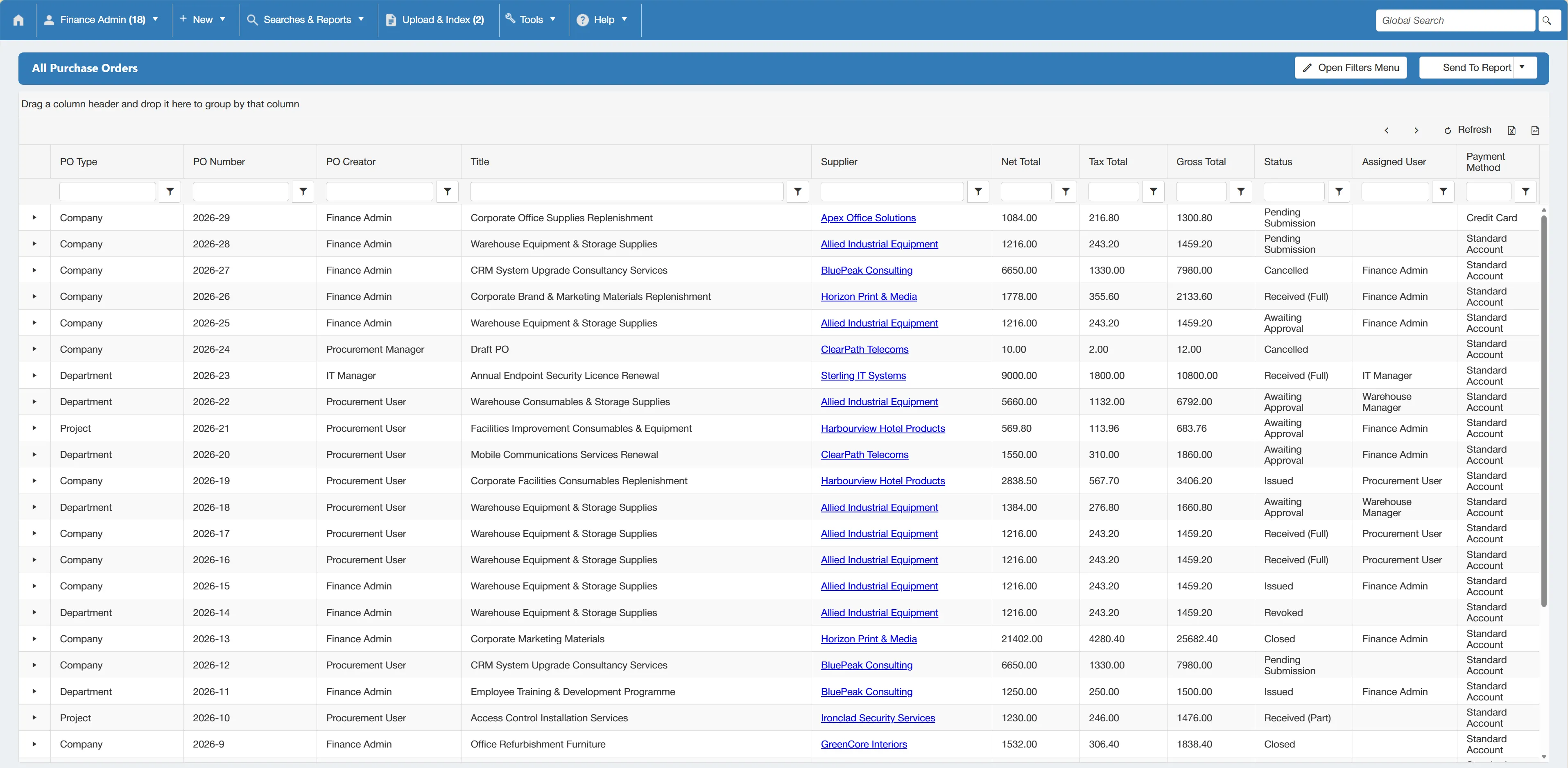
There are several columns providing an overview of each purchase order's details. Each column can be sorted and filtered using the parameters at the top.
Running a Purchase Order Search Report
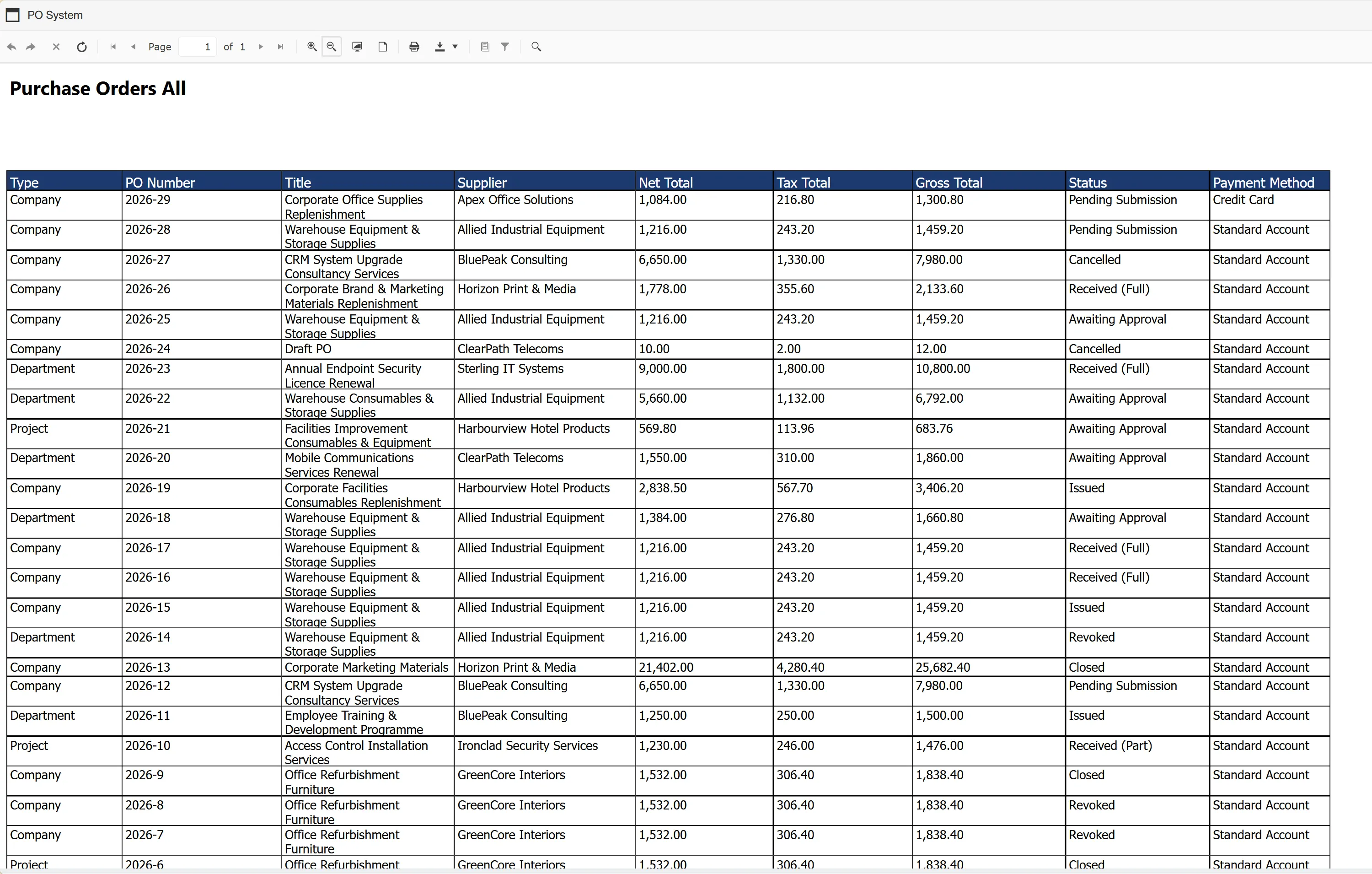
To create a purchase orders search report from the Purchase Orders grid, simply click and select .

This is the same process for all levels of purchase order search.
This will generate an easy-to-read, formatted report which can be printed or downloaded in various formats.
Purchase Order Lines Search
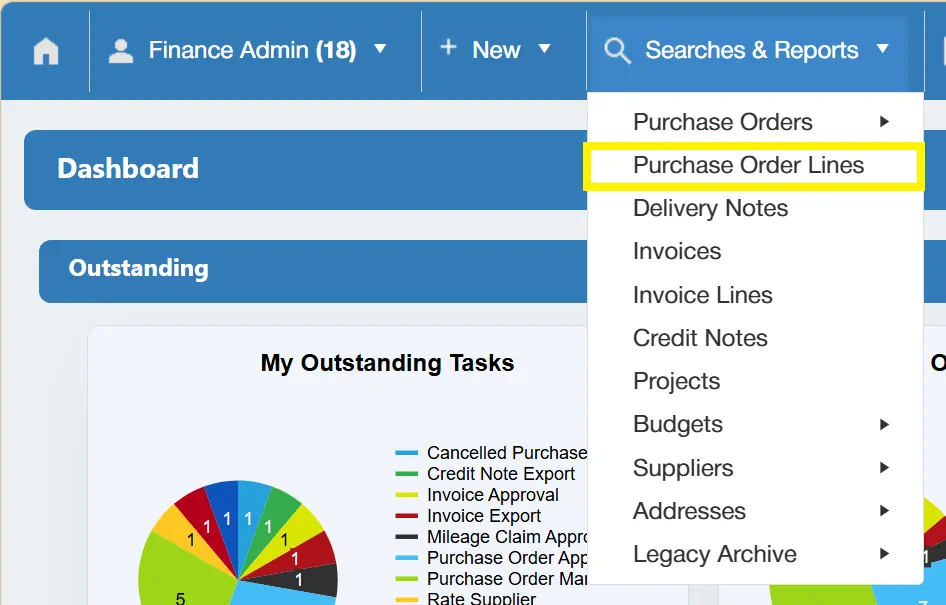
The system also allows you to search for individual purchase order lines rather than just complete purchase orders. To do this, simply select from the Searches & Reports menu.
This opens a new window with some parameters allowing you to search for individual purchase order lines.
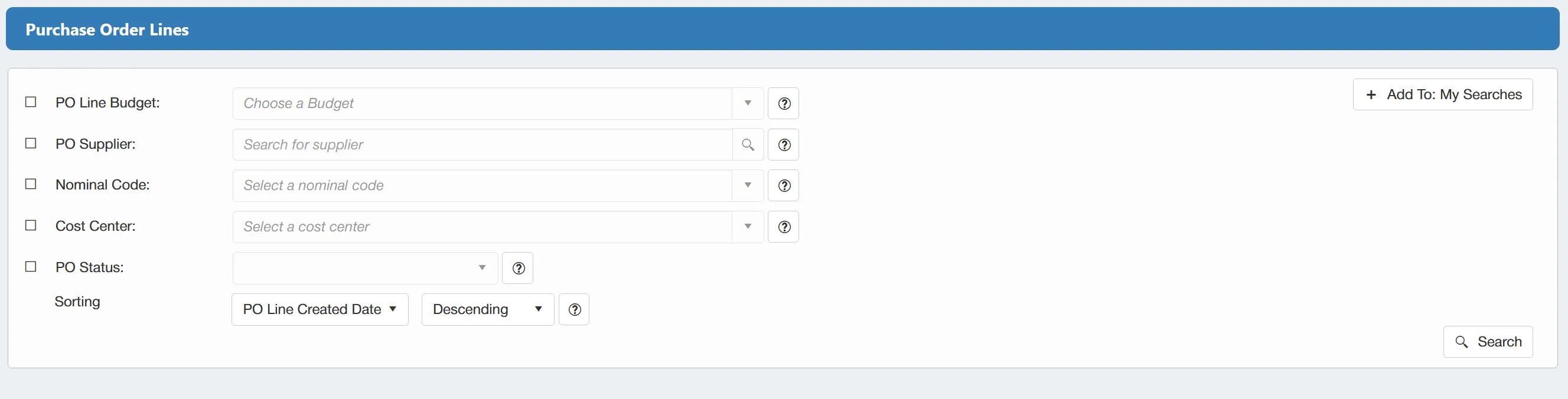
The available filters are as follows:
- ☐ PO Line Budget: This allows you to filter the search by relevant budgets.
- ☐ PO Line Supplier: This allows you to filter the search by the supplier.
- ☐ Nominal Code?: This allows you to filter the search by nominal code.
- ☐ PO Status?: This allows you to filter the results by the status of the PO that the PO line belongs to. This filter supports multiple selection, allowing you to specify multiple statuses.
There is also a sorting option that allows you to sort your results by PO Line Created Date or PO Number in an ascending or descending manner.
There is a button available which will save your set filter parameters for future use. This is particularly useful if you are regularly carrying out the same searches. For more information on My Searches click here
If you want to carry out a search for ALL PO Lines with no filters enabled, simply click on the button without any filters ticked.
Once you have carried out the search, a new window will open showing a grid containing the relevant PO lines.
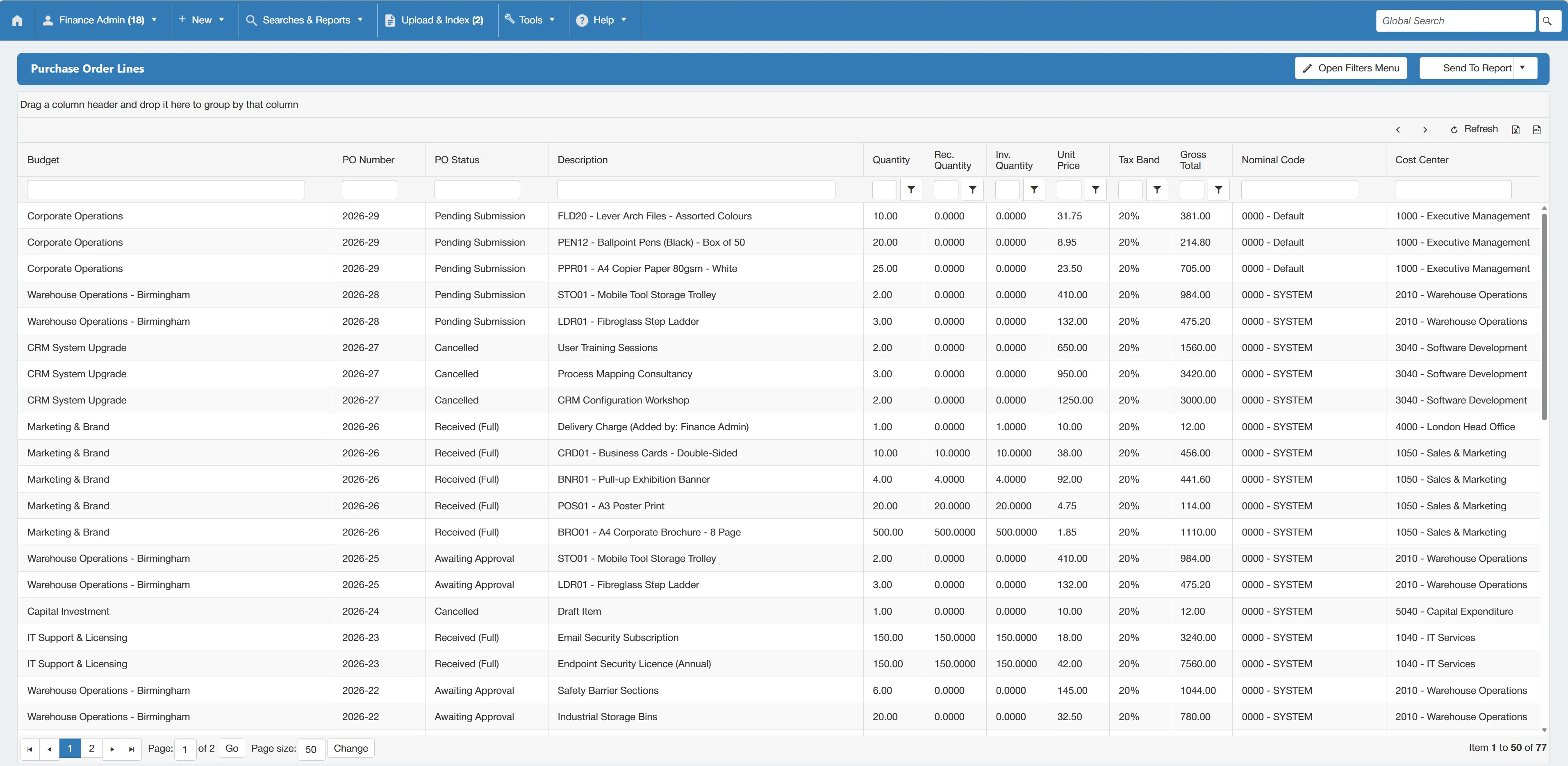
There are several columns providing an overview of each PO line's details. Each column can be sorted and filtered using the parameters at the top.
You can amend the search results by enabling filters within this window. Simply click to expand the filter options.
Running a PO Lines Search Report
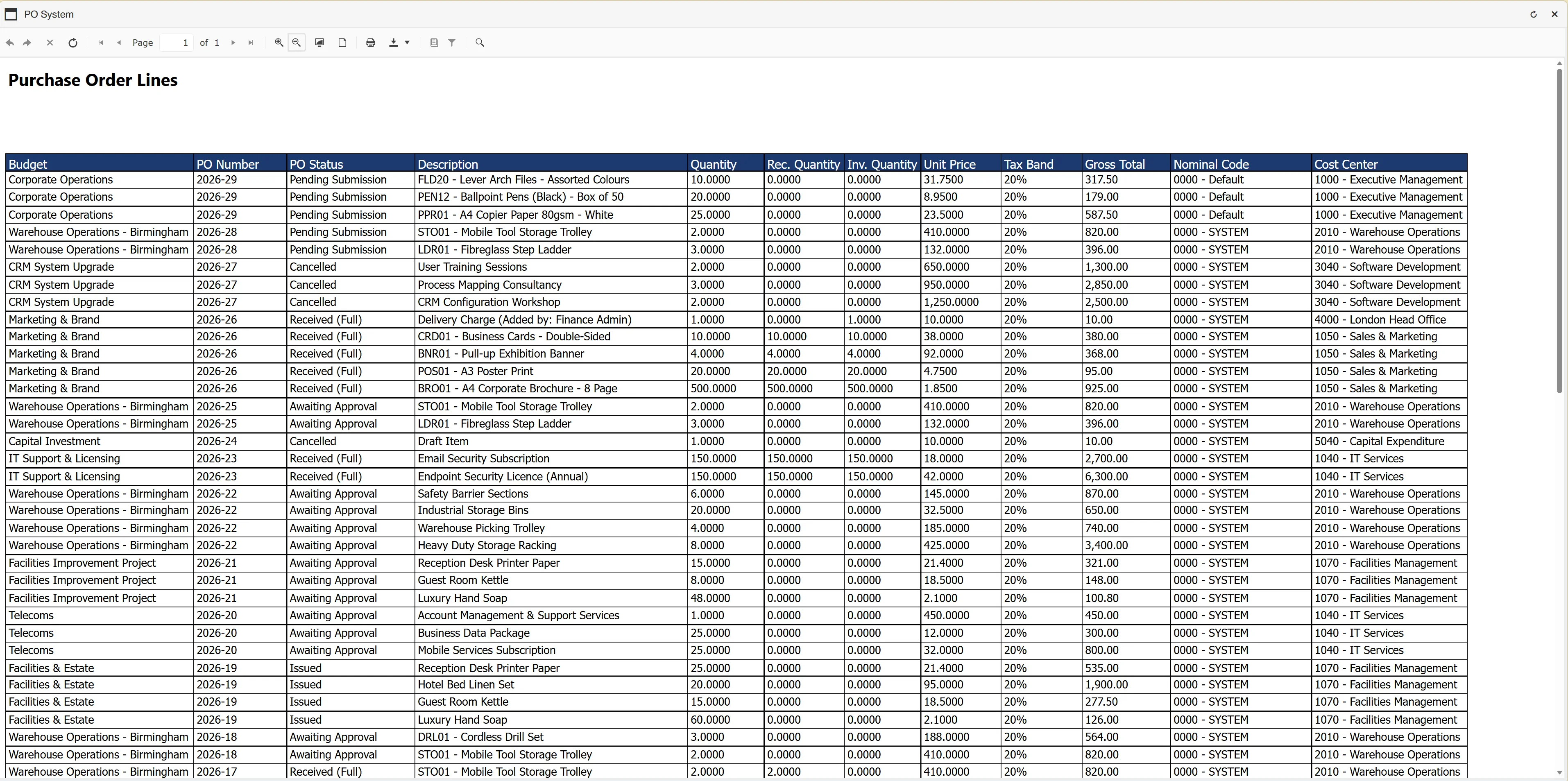
To create a PO lines search report from the Purchase Order Lines grid, simply click and select .

This will generate an easy-to-read, formatted report which can be printed or downloaded in various formats.
Delivery Notes Search
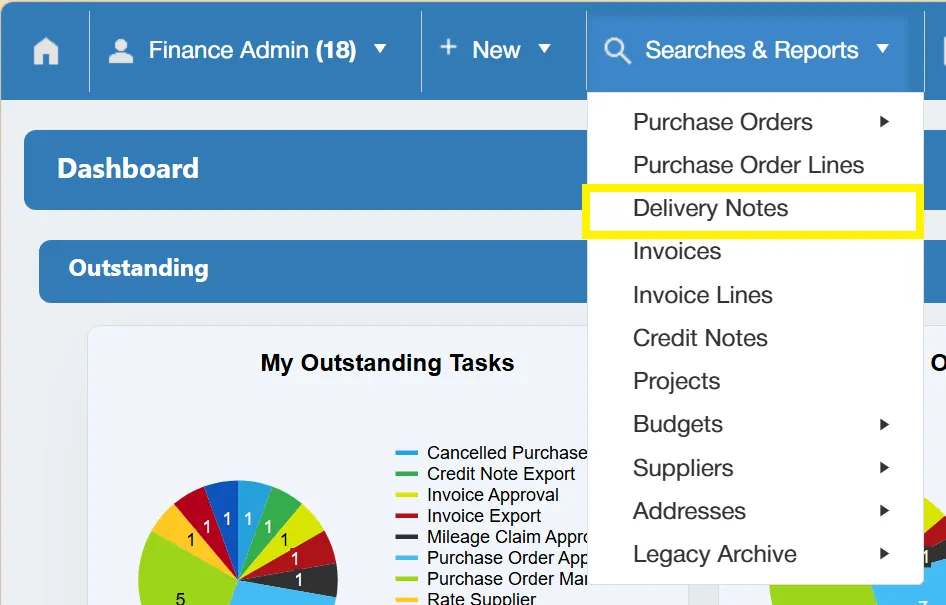
To search for Delivery Notes within the system, click from the Searches & Reports menu.
This opens a new window with some parameters allowing you to search for delivery notes.
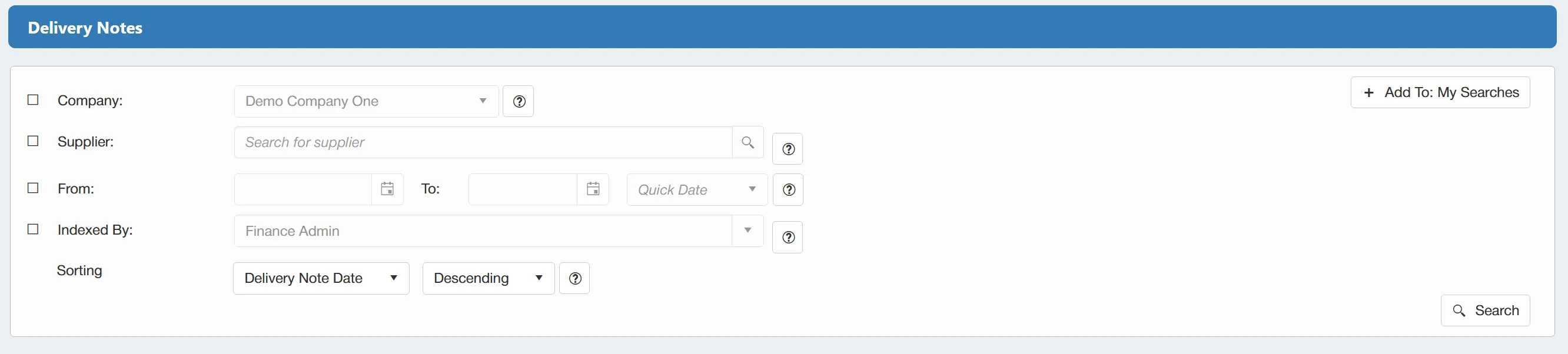
The available filters are as follows:
- ☐ Company: This allows you to filter the search by company.
- ☐ Supplier: This allows you to filter the search by supplier.
- ☐ From & To: This allows you to specify the dates that the system should search between.
- ☐ Indexed By: This allows you to filter the search by the user who indexed the delivery note.
There is also a sorting option that allows you to sort your results by Delivery Note Date or Delivery Note Number in an ascending or descending manner.
There is a button available which will save your set filter parameters for future use. This is particularly useful if you are regularly carrying out the same searches. For more information on My Searches click here
If you want to carry out a search for ALL Delivery Notes with no filters enabled, simply click on the button without any filters ticked.
Once you have carried out the search, a new window will open showing a grid containing the relevant delivery notes.
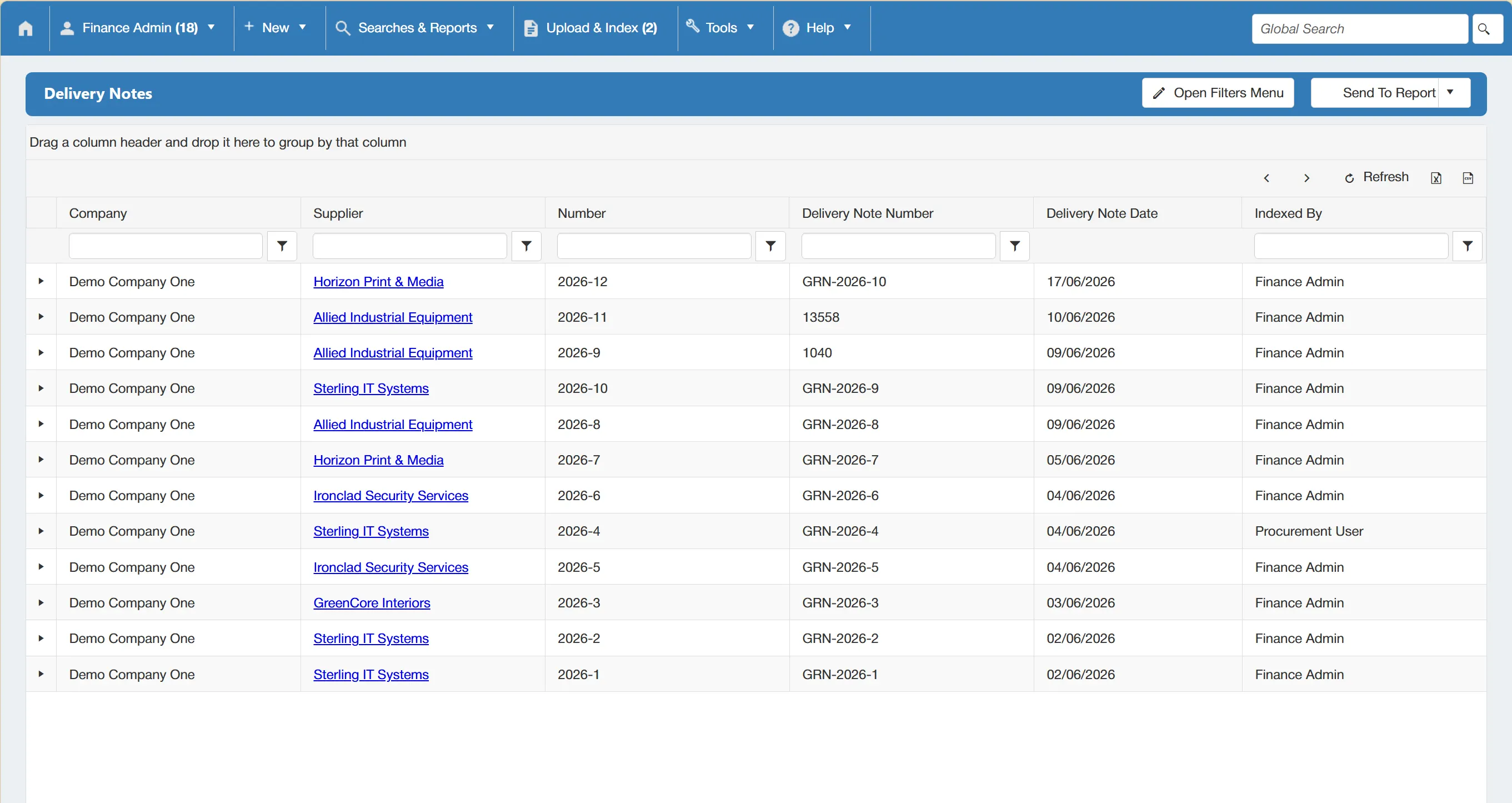
There are several columns providing an overview of each delivery note's details. Each column can be sorted and filtered using the parameters at the top.
You can amend the search results by enabling filters within this window. Simply click to expand the filter options.
Running A Delivery Notes Search Report
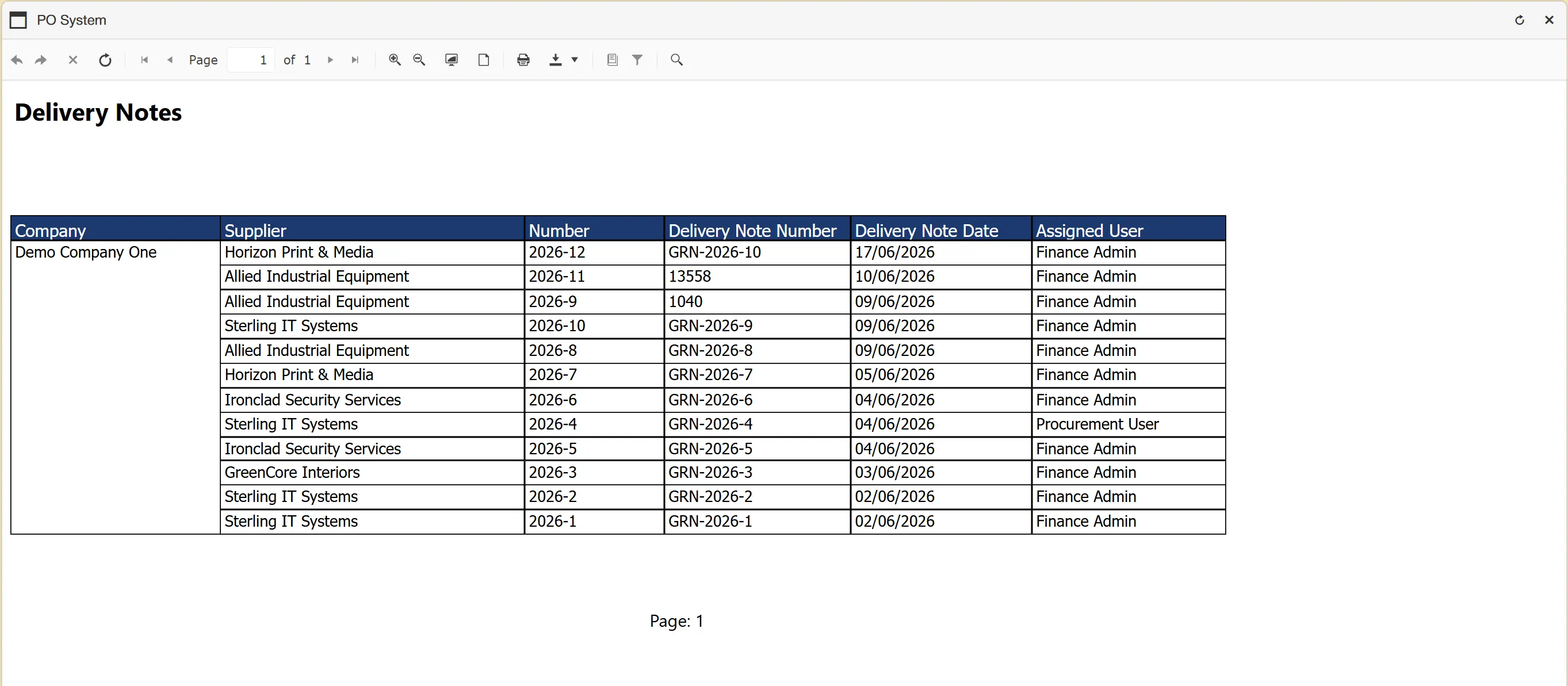
To create a delivery notes search report from the Deliver notes grid, simply click and select .

This will generate an easy-to-read, formatted report which can be printed or downloaded in various formats.
Invoices Search
Invoice search & report functionality is only available on systems with Invoice Processing features enabled.
To search for Invoices within the system, click from the Searches & Reports menu.
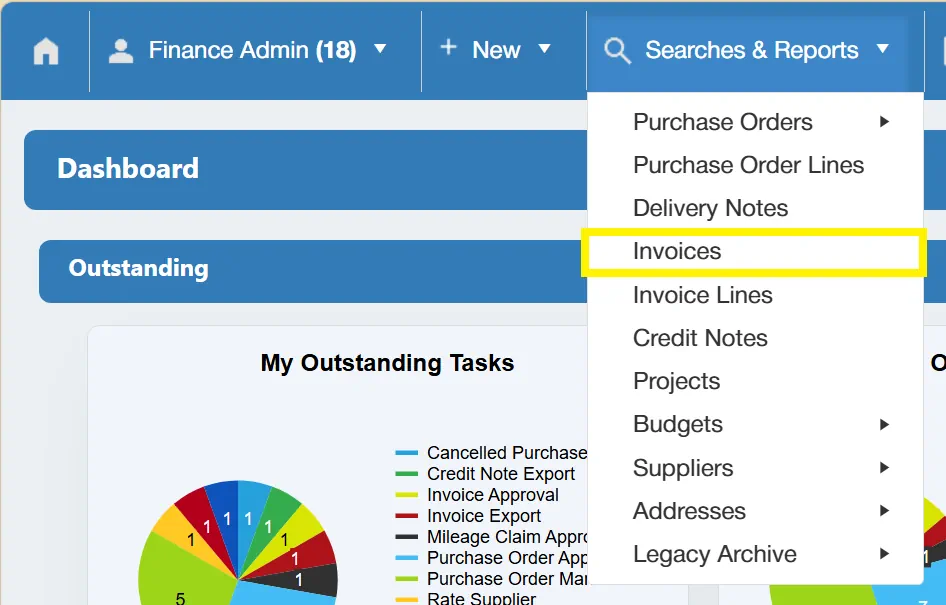
This opens a new window with some parameters allowing you to search for invoices.
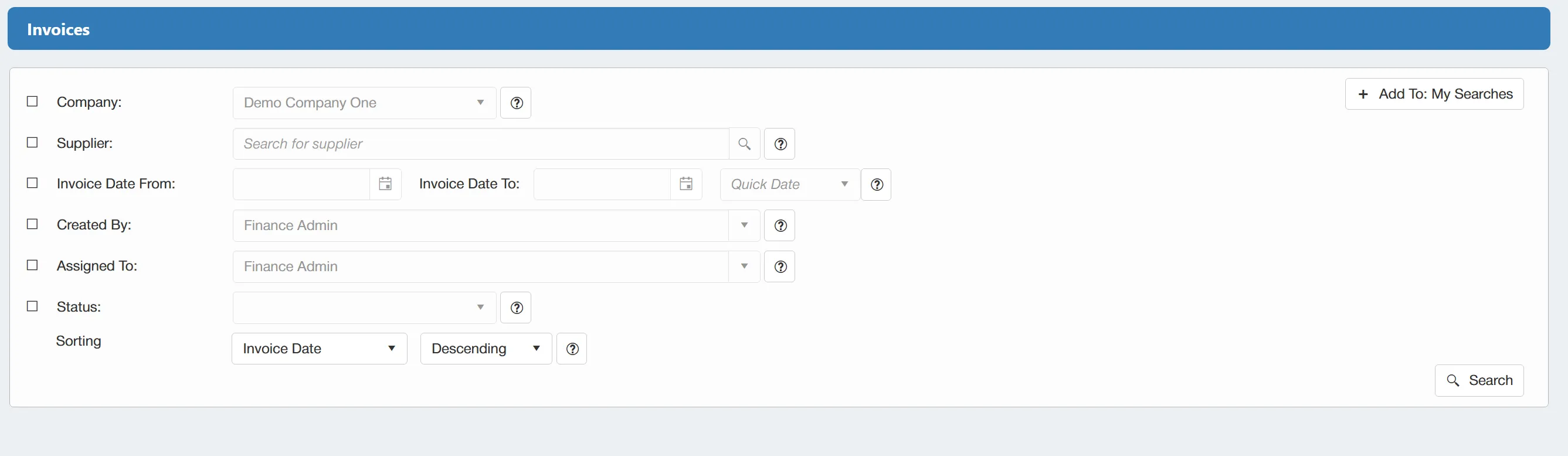
The available filters are as follows:
- ☐ Company: This allows you to filter the search by company.
- ☐ Supplier: This allows you to filter the search by supplier.
- ☐ Invoice Date From & To: This allows you to specify the dates that the system should search between.
- ☐ Created By: This allows you to filter the search by the user who created the invoice.
- ☐ Assigned To: This allows you to filter the search by the user who the invoice was assigned to.
- ☐ Status: This allows you to filter the search by the current status of the invoice. This filter supports multiple selection, allowing you to specify multiple statuses.
There is also a sorting option that allows you to sort your results by Invoice Date or Invoice Number in an ascending or descending manner.
There is a button available which will save your set filter parameters for future use. This is particularly useful if you are regularly carrying out the same searches. For more information on My Searches click here
If you want to carry out a search for ALL Invoices with no filters enabled, simply click on the button without any filters ticked.
Once you have carried out the search, a new window will open showing a grid containing the relevant invoices.
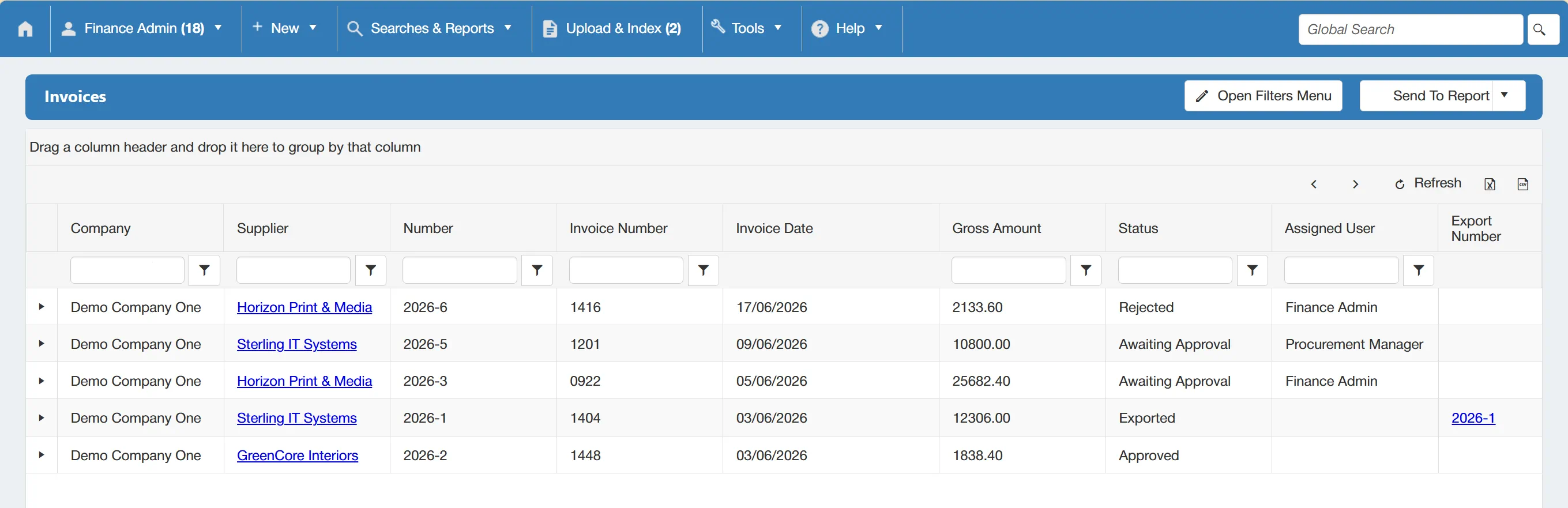
There are several columns providing an overview of each invoice's details. Each column can be sorted and filtered using the parameters at the top.
You can amend the search results by enabling filters within this window. Simply click to expand the filter options.
Running an Invoice Search Report
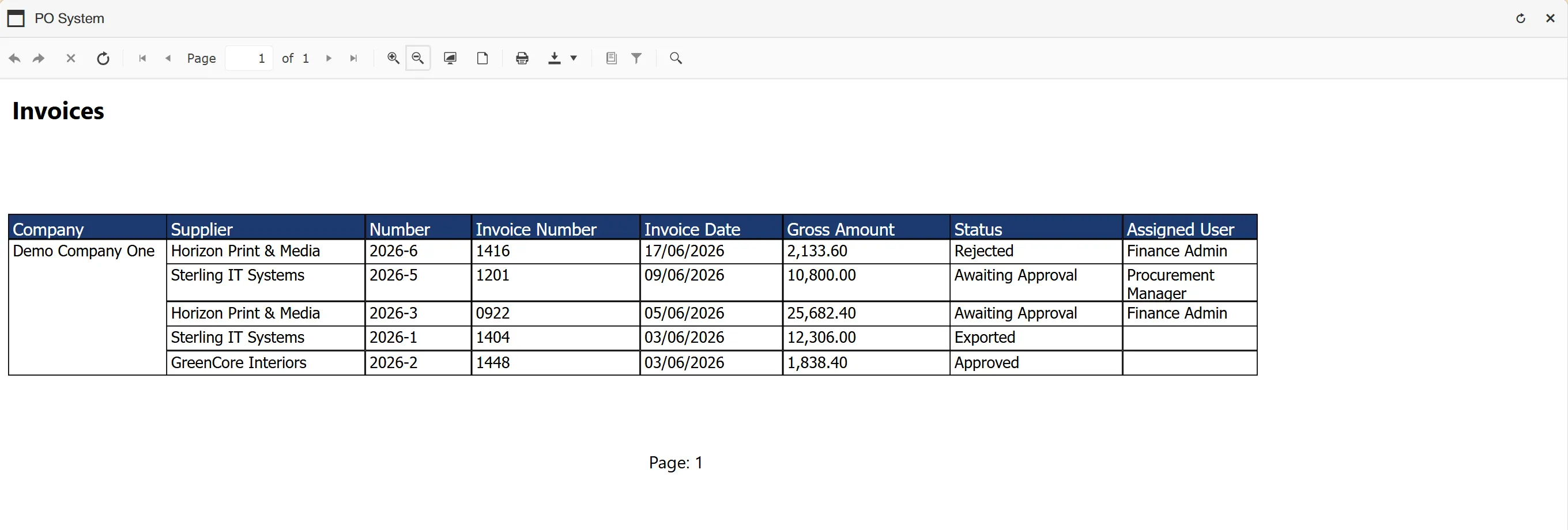
To create an invoice search report from the invoices grid, simply click and select .

This will generate an easy-to-read, formatted report which can be printed or downloaded in various formats.
Invoice Lines Search
Invoice Lines search & report functionality is only available on systems with Invoice Processing features enabled.
To search for Invoice Lines within the system, click from the Searches & Reports menu.
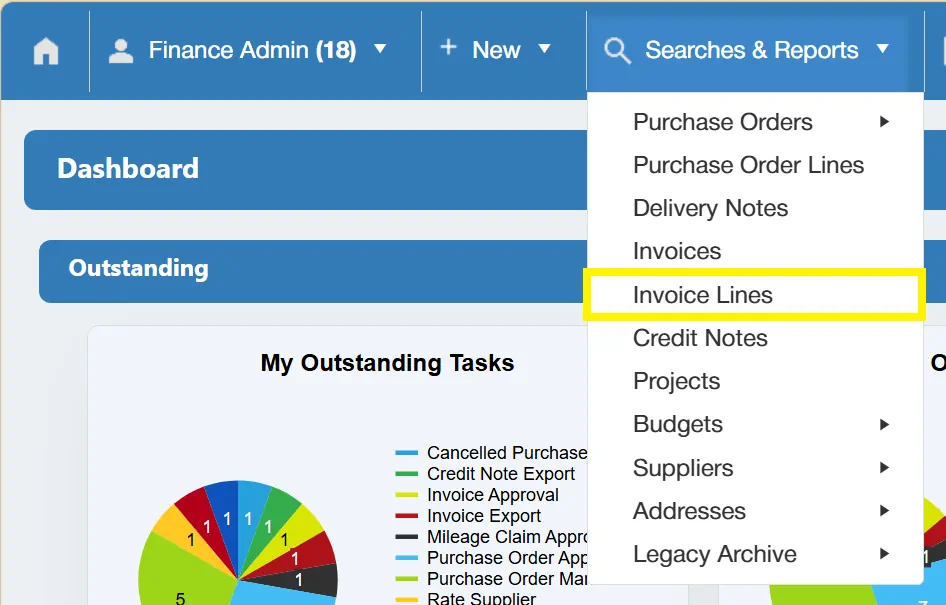
This opens a new window with some parameters allowing you to search for invoice lines.
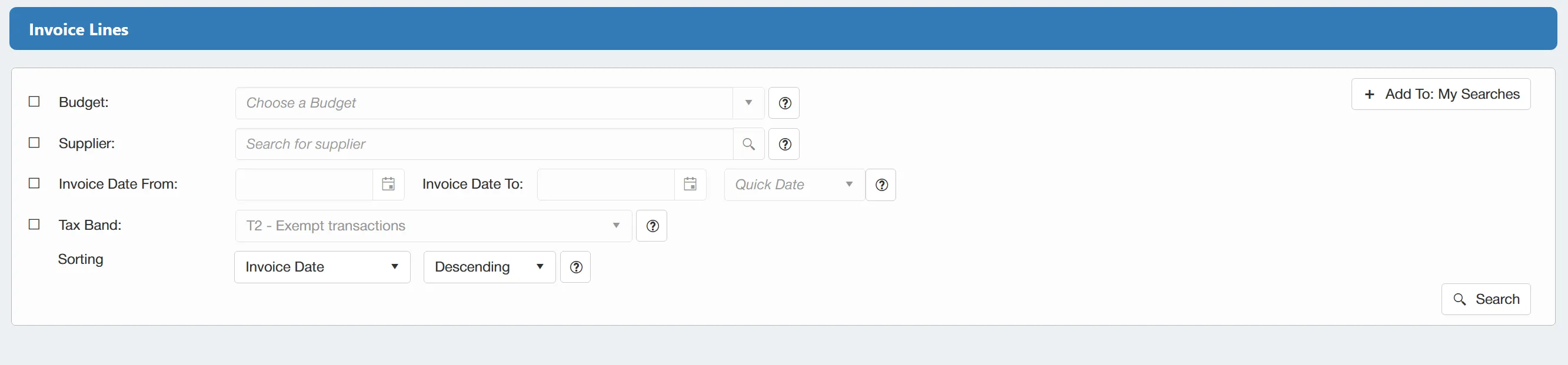
The available filters are as follows:
- ☐ Budget: This allows you to filter the search by budget.
- ☐ Supplier: This allows you to filter the search by supplier.
- ☐ Invoice Date From & To: This allows you to specify the dates that the system should search between.
- ☐ Tax Band: This allows you to filter the search by the tax band.
There is also a sorting option that allows you to sort your results by Invoice Date or Invoice Number in an ascending or descending manner.
There is a button available which will save your set filter parameters for future use. This is particularly useful if you are regularly carrying out the same searches. For more information on My Searches click here
If you want to carry out a search for ALL Invoice Lines with no filters enabled, simply click on the button without any filters ticked.
Once you have carried out the search, a new window will open showing a grid containing the relevant invoice lines.
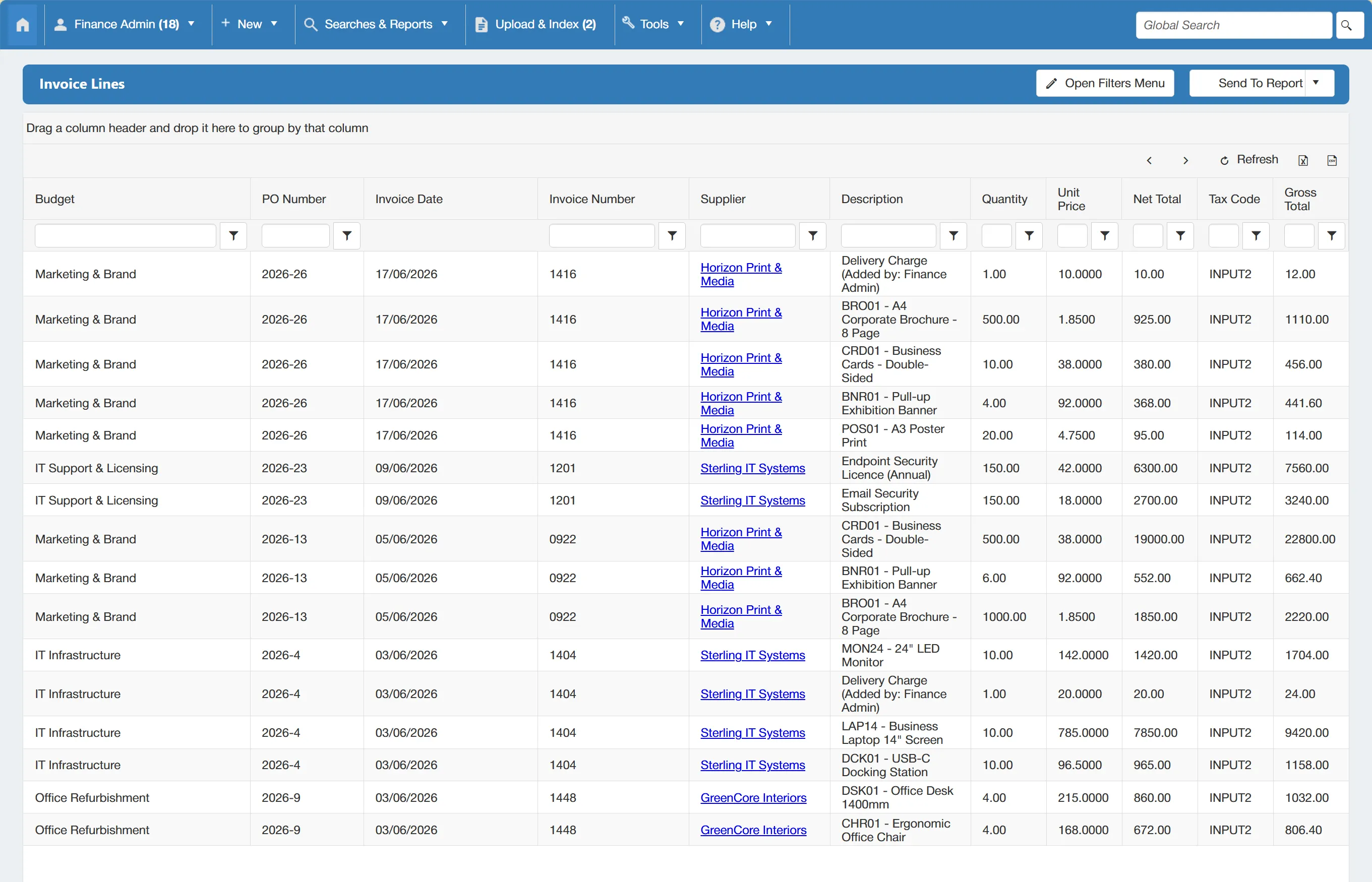
There are several columns providing an overview of each invoice line's details. Each column can be sorted and filtered using the parameters at the top.
You can amend the search results by enabling filters within this window. Simply click to expand the filter options.
Running an Invoice Line Search Report
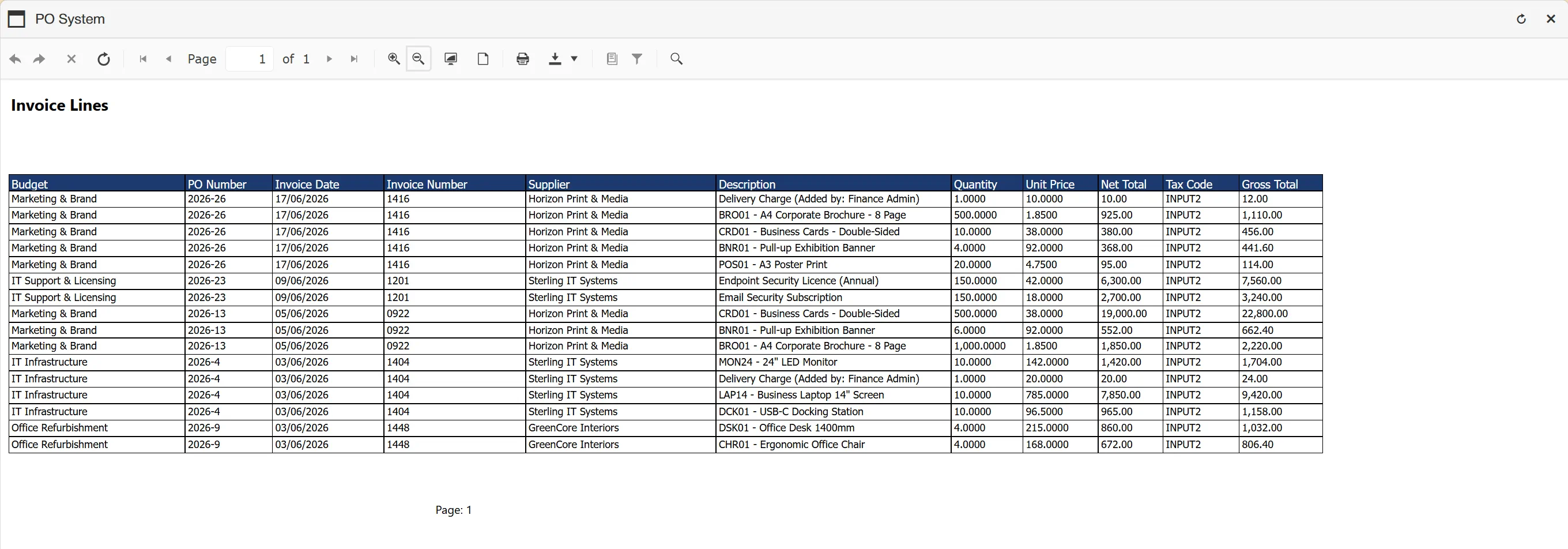
To create an invoice lines search report from the invoice lines grid, simply click and select .

This will generate an easy-to-read, formatted report which can be printed or downloaded in various formats.
Credit Notes Search
Credit Note search & report functionality is only available on systems with Invoice Processing features enabled.
To search for Credit Notes within the system, click from the Searches & Reports menu.
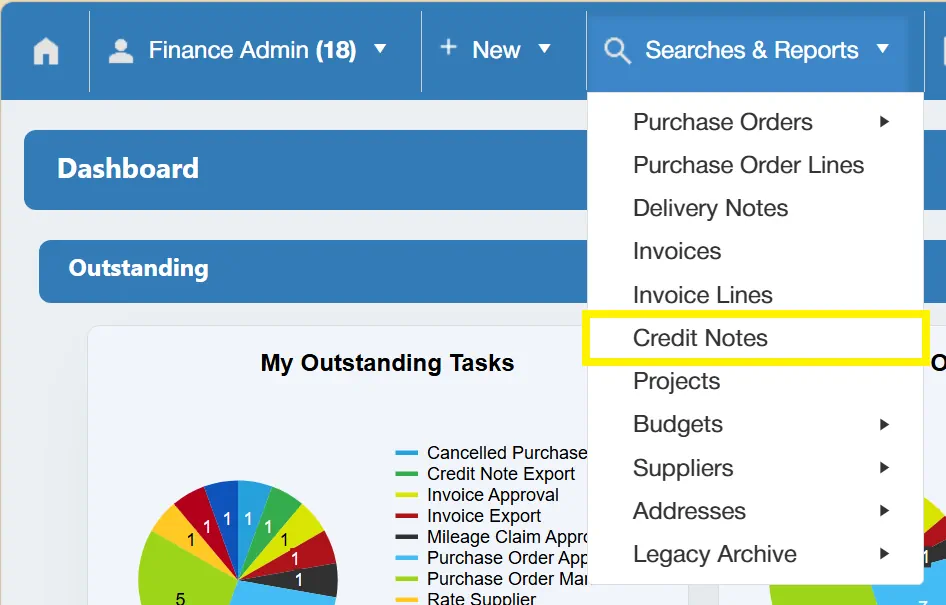
This opens a new window with some parameters allowing you to search for credit notes.
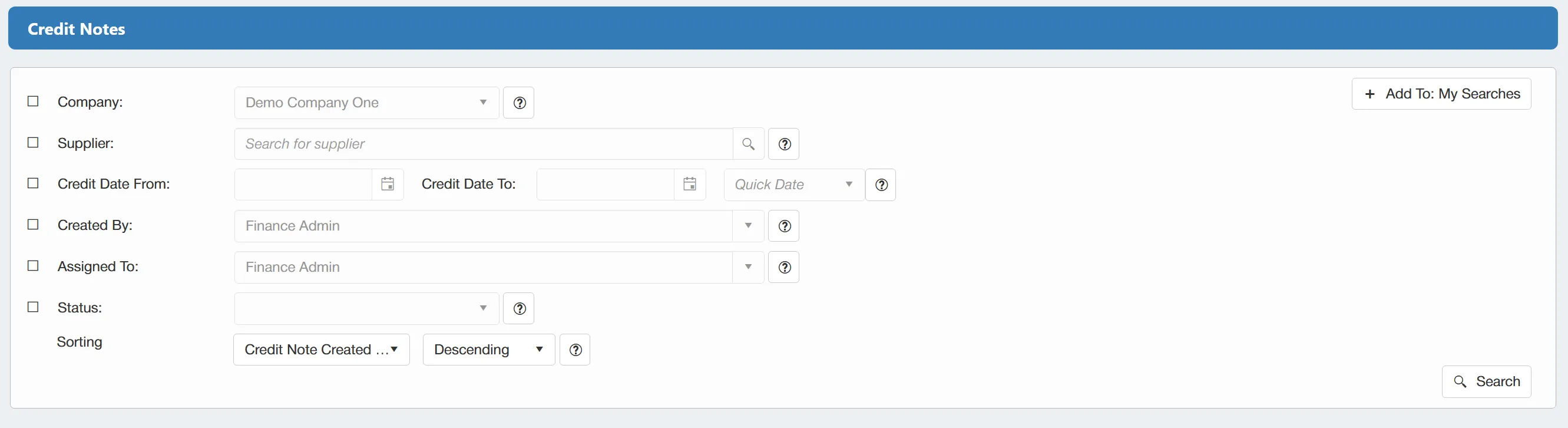
The available filters are as follows:
- ☐ Company: This allows you to filter the search by company.
- ☐ Supplier: This allows you to filter the search by supplier.
- ☐ Credit Date From & To: This allows you to specify the dates that the system should search between.
- ☐ Created By: This allows you to filter the search by the user who created the credit note.
- ☐ Assigned To: This allows you to filter the search by the user that the credit note was assigned to.
- ☐ Status: This allows you to filter the search by the status of the credit note. This filter supports multiple selection, allowing you to specify multiple statuses.
There is also a sorting option that allows you to sort your results by Credit Note Created Date or Credit Note Number in an ascending or descending manner.
There is a button available which will save your set filter parameters for future use. This is particularly useful if you are regularly carrying out the same searches. For more information on My Searches click here
If you want to carry out a search for ALL Credit Notes with no filters enabled, simply click on the button without any filters ticked.
Once you have carried out the search, a new window will open showing a grid containing the relevant credit notes.
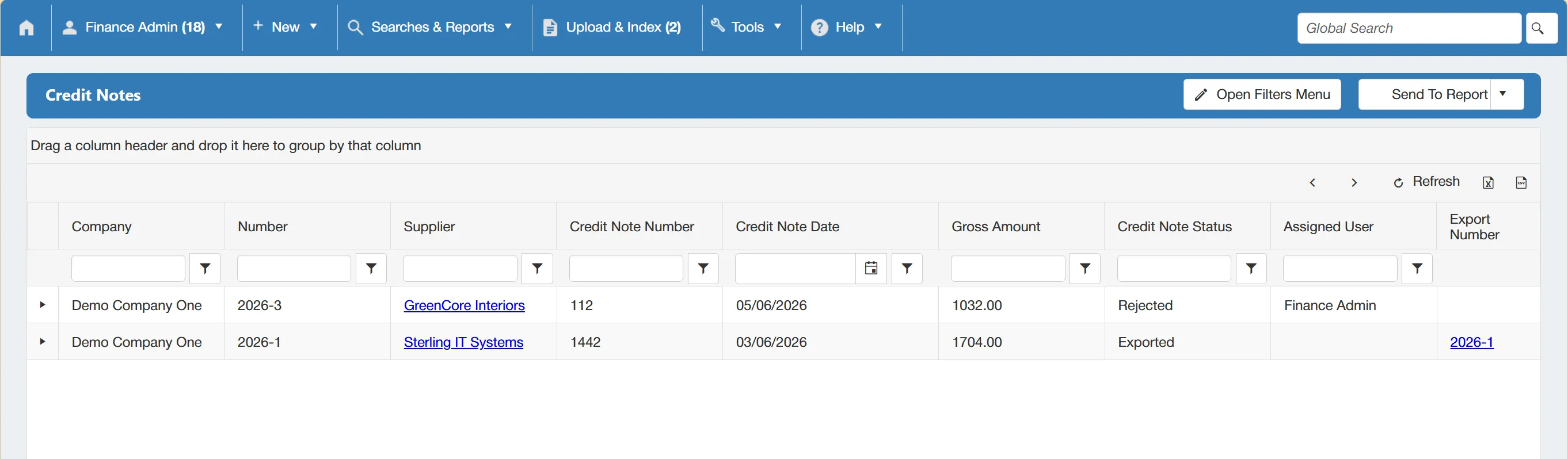
There are several columns providing an overview of each credit note's details. Each column can be sorted and filtered using the parameters at the top.
You can amend the search results by enabling filters within this window. Simply click to expand the filter options.
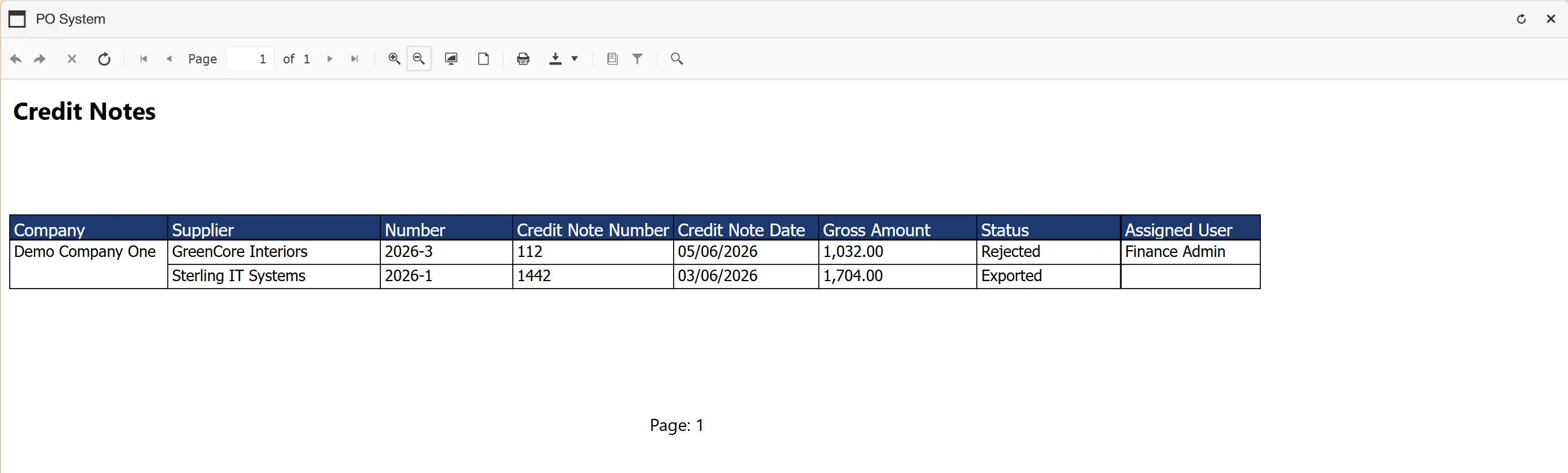
Running a Credit Note Search Report
To create an credit notes search report from the credit notes grid, simply click and select .

This will generate an easy-to-read, formatted report which can be printed or downloaded in various formats.
Projects Search
To search for Projects within the system, click from the Searches & Reports menu.
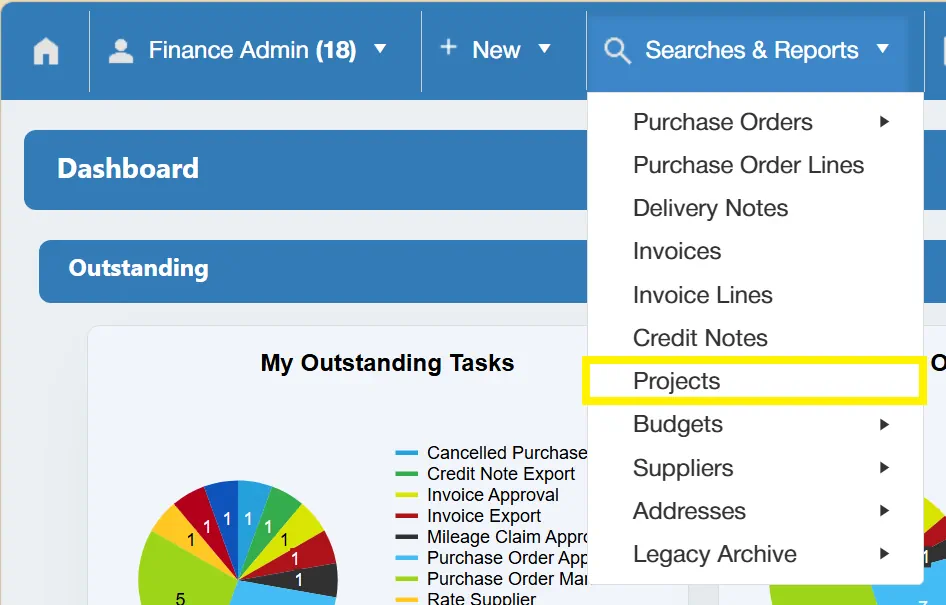
This opens a new window with some parameters allowing you to search for projects.

The available filters are as follows:
- ☐ Company: This allows you to filter the search by company.
- ☐ Active?: This allows you to determine whether you would like results to include active or inactive projects.
There is also a sorting option that allows you to sort your results by Project Code or Project Name in an ascending or descending manner.
There is a button available which will save your set filter parameters for future use. This is particularly useful if you are regularly carrying out the same searches. For more information on My Searches click here
If you want to carry out a search for ALL Projects with no filters enabled, simply click on the button without any filters ticked.
Once you have carried out the search, a new window will open showing a grid containing the relevant projects.
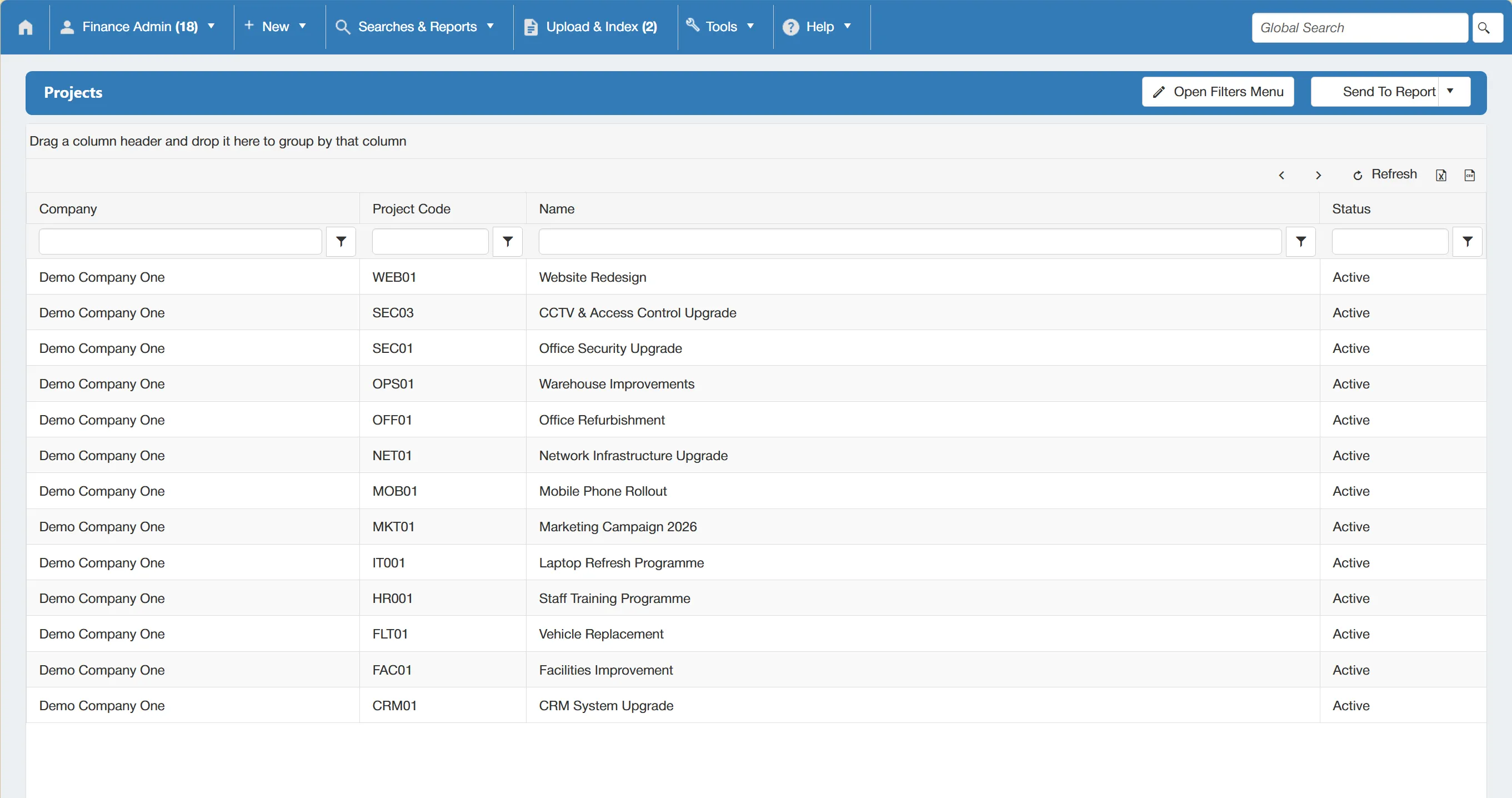
There are several columns providing an overview of each project's details. Each column can be sorted and filtered using the parameters at the top.
You can amend the search results by enabling filters within this window. Simply click to expand the filter options.
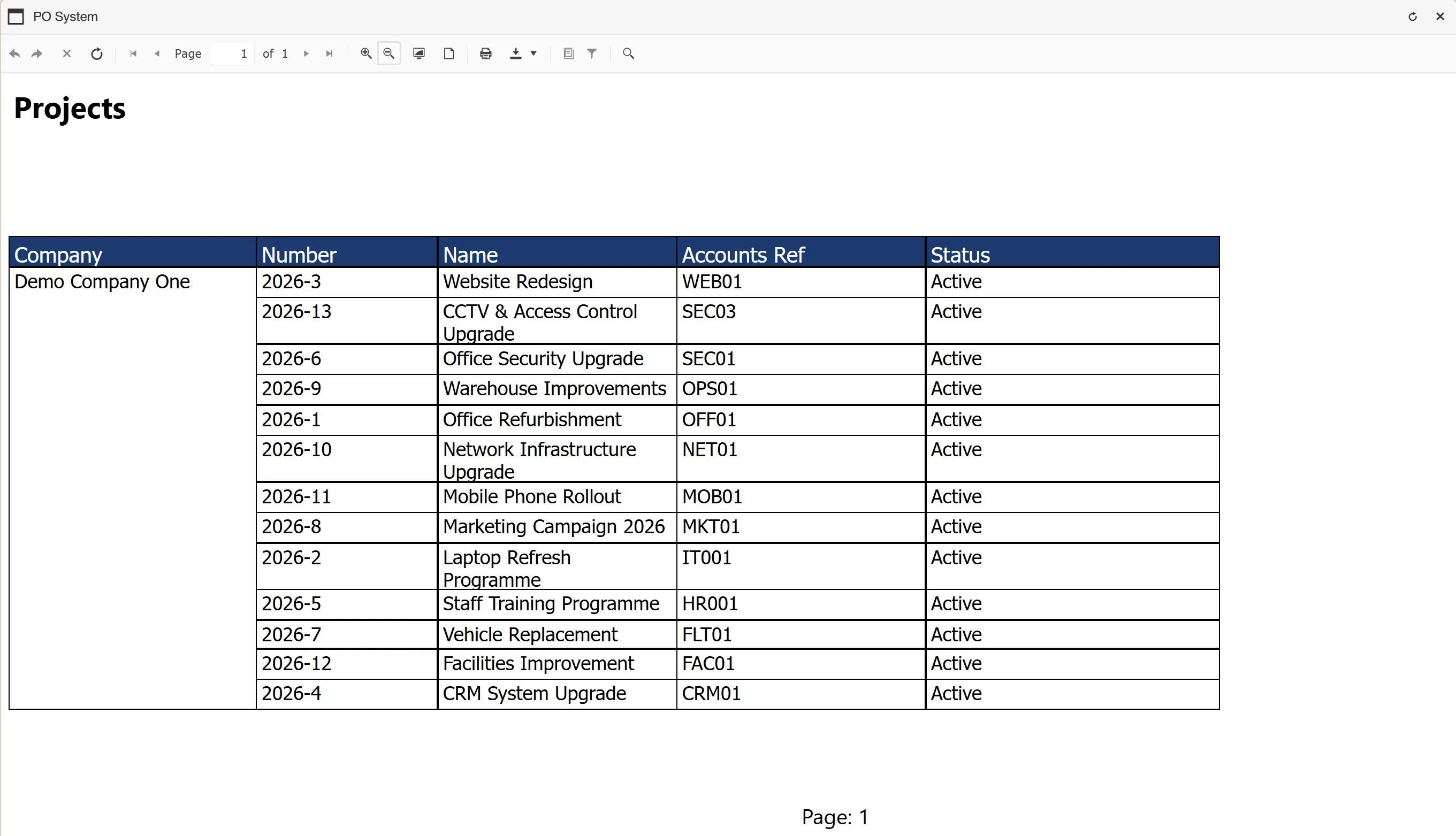
Running a Project Search Report
To create an Project search report from the projects grid, simply click and select .

This will generate an easy-to-read, formatted report which can be printed or downloaded in various formats.
Budgets Search
Hovering over will expand another menu consisting of:
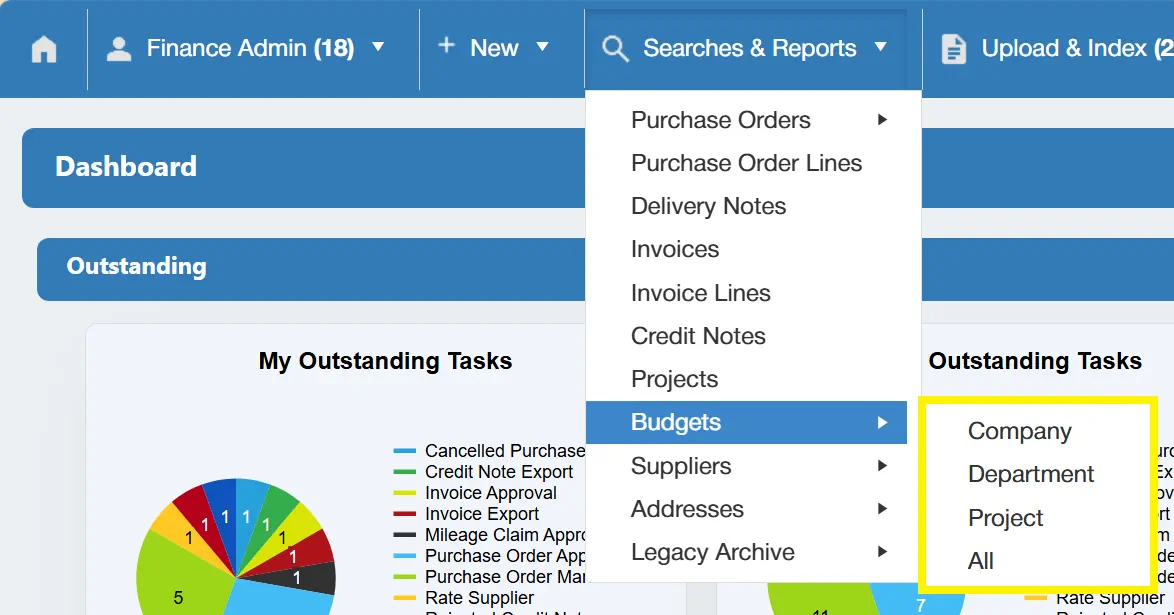
This allows you to specify which type of budget you would like to search for. If you would like to search for all budgets regardless of level, select the option.
Company Budgets Search
To search within Company level budgets, select from the Budgets menu.
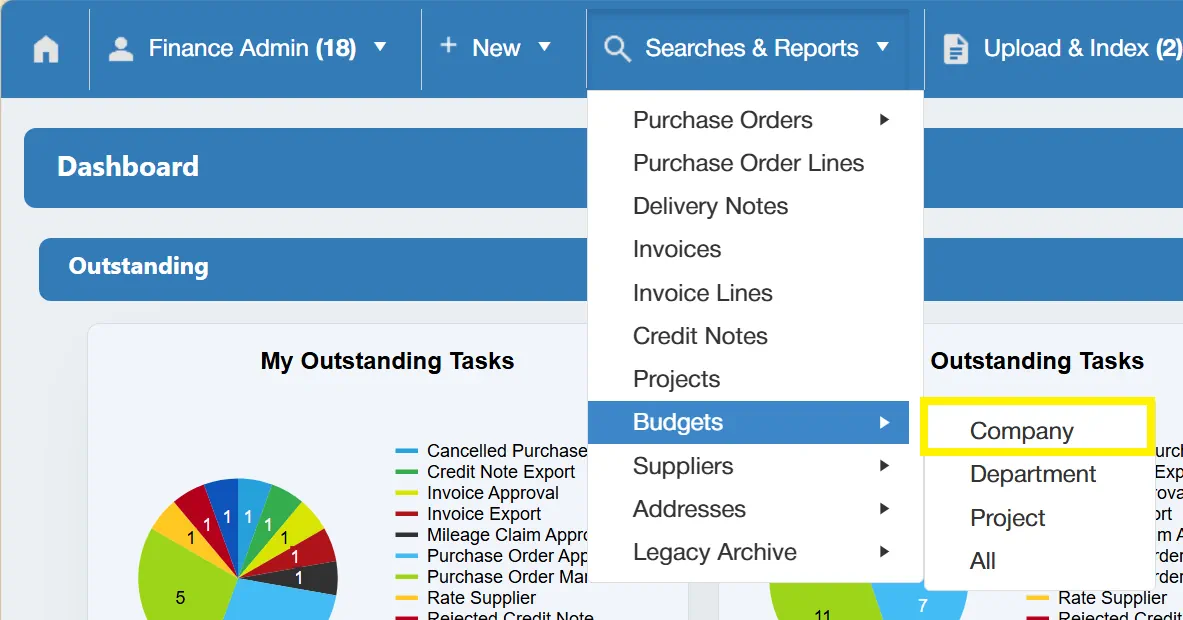
This opens a new window with various filters allowing you to search all Company Level budgets.
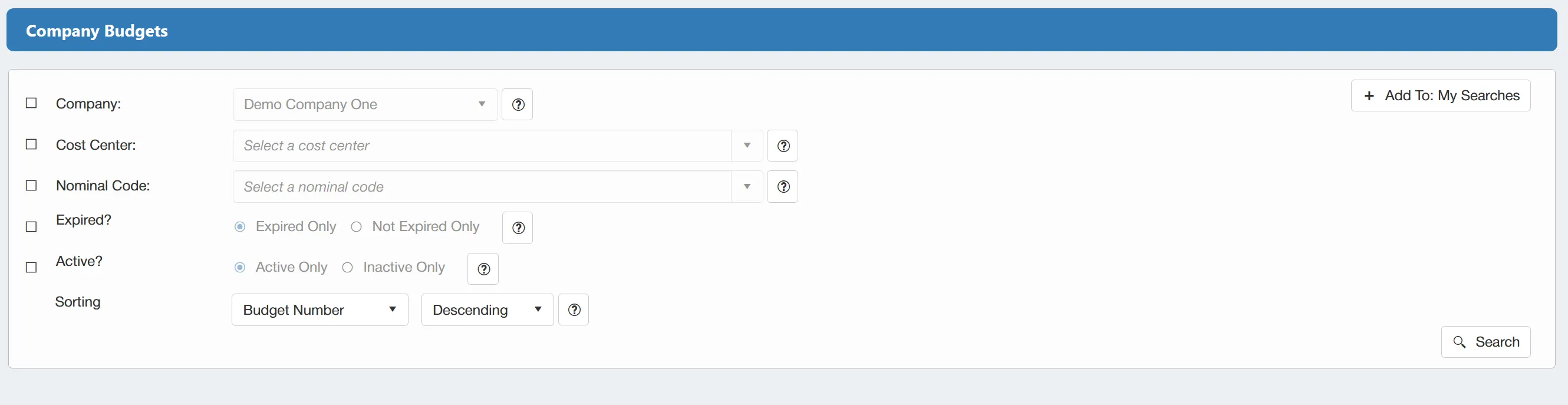
The available filters are as follows:
- ☐ Company: This allows you to filter the search by Company.
- ☐ Cost Center: This allows you to filter the search by Cost Center.
- ☐ Nominal Code: This allows you to filter the search by the Nominal Code.
- ☐ Expired?: This allows you to determine whether or not the results consist of expired budgets.
- ☐ Active?: This allows you to determine whether the results consist of active or inactive budgets.
There is also a sorting option that allows you to sort your results by Budget Number, Budget Name or Budget Expiry Date in an ascending or descending manner.
There is a button available which will save your set filter parameters for future use. This is particularly useful if you are regularly carrying out the same searches. For more information on My Searches click here
If you want to carry out a search for ALL Company level Budgets with no filters enabled, simply click on the button without any filters ticked.
Once you have carried out the search, a new window will open showing a grid containing the relevant budgets.
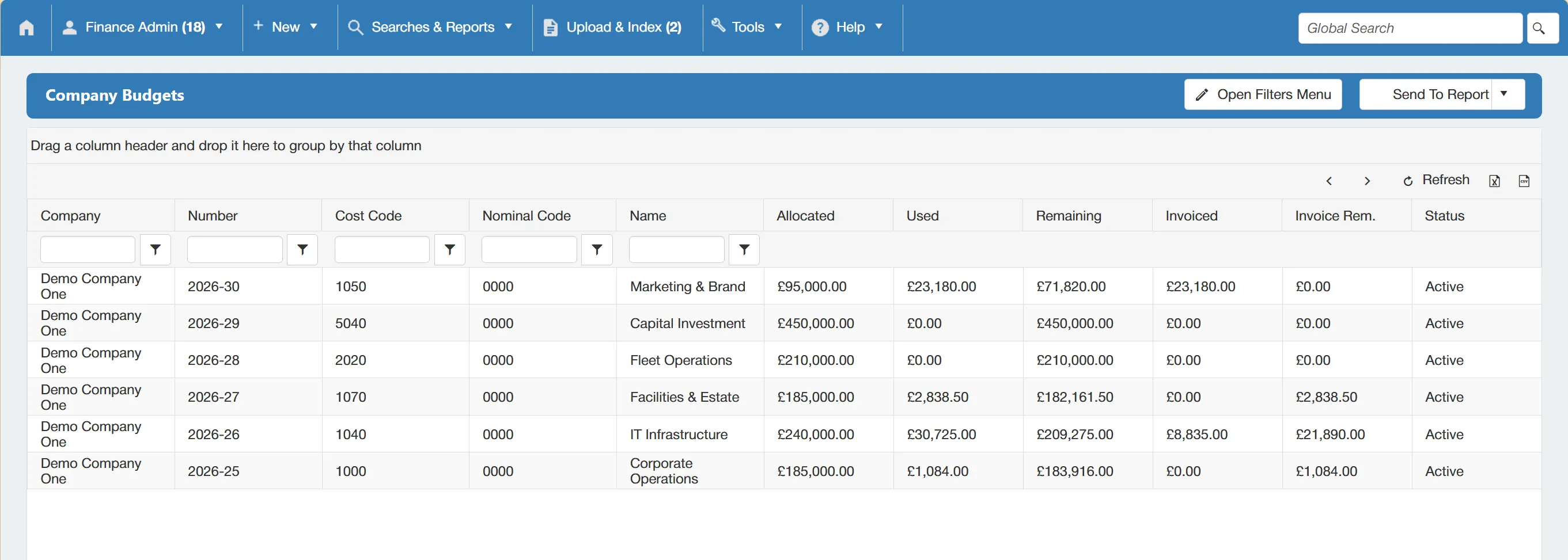
There are several columns providing an overview of each budget's details. Each column can be sorted and filtered using the parameters at the top.
Department Budgets Search
To search within Department level budgets, select from the Budgets menu.
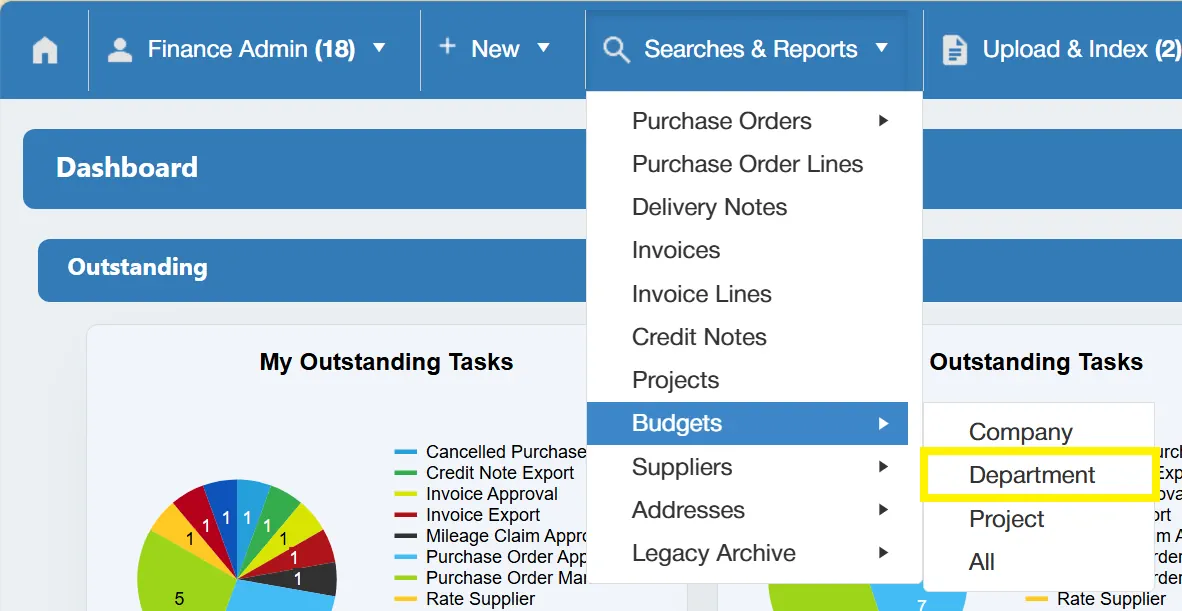
This opens a new window with various filters allowing you to search all Department Level budgets.
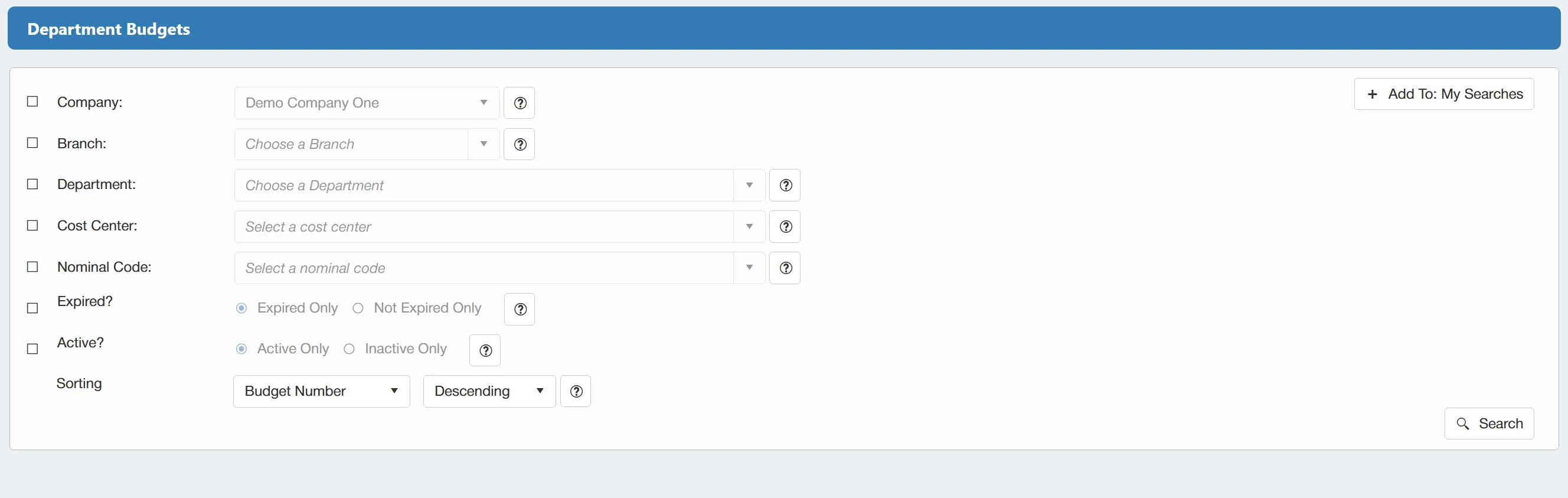
The available filters are as follows:
- ☐ Company: This allows you to filter the search by Company.
- ☐ Branch: This allows you to filter the search by Branch.
- ☐ Department: This allows you to filter the search by Department.
- ☐ Cost Center: This allows you to filter the search by Cost Center.
- ☐ Nominal Code: This allows you to filter the search by the Nominal Code.
- ☐ Expired?: This allows you to determine whether or not the results consist of expired budgets.
- ☐ Active?: This allows you to determine whether the results consist of active or inactive budgets.
There is also a sorting option that allows you to sort your results by Budget Number, Budget Name or Budget Expiry Date in an ascending or descending manner.
There is a button available which will save your set filter parameters for future use. This is particularly useful if you are regularly carrying out the same searches. For more information on My Searches click here
If you want to carry out a search for ALL Department level Budgets with no filters enabled, simply click on the button without any filters ticked.
Once you have carried out the search, a new window will open showing a grid containing the relevant budgets.
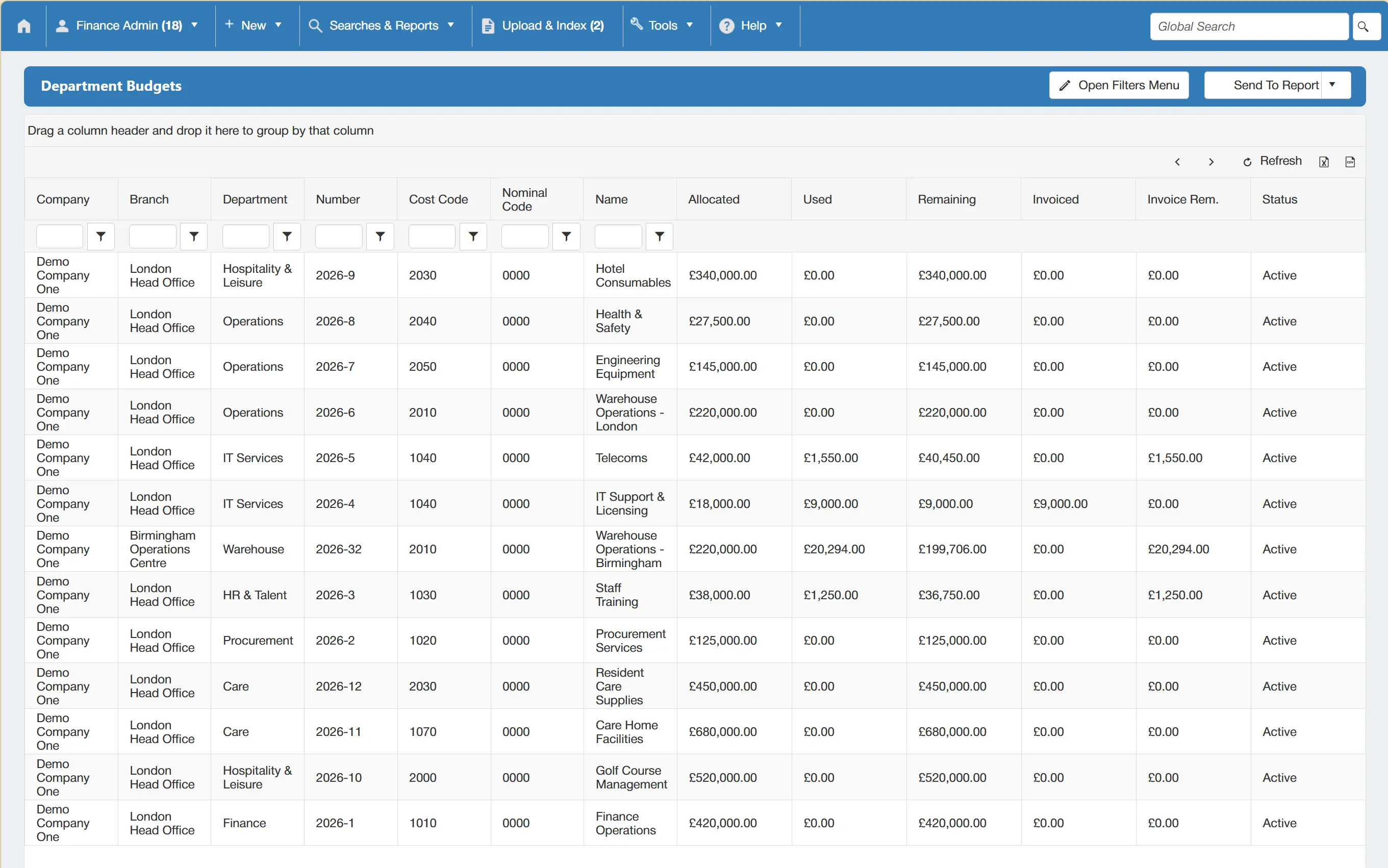
There are several columns providing an overview of each budget's details. Each column can be sorted and filtered using the parameters at the top.
Project Budgets Search
To search within Project level budgets, select from the Budgets menu.
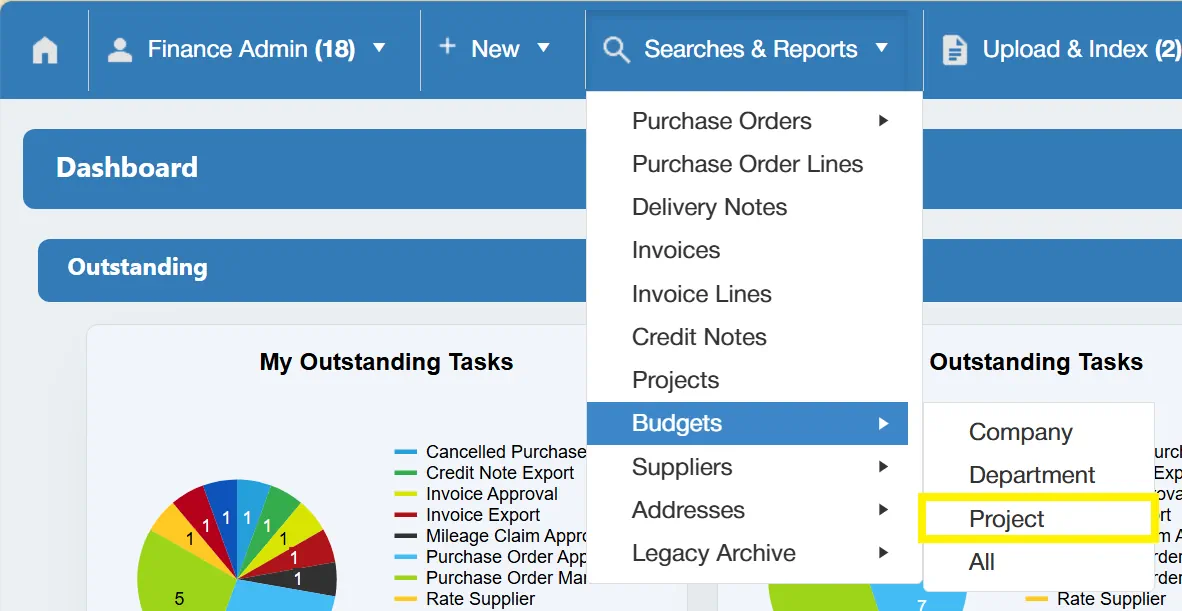
This opens a new window with various filters allowing you to search all Project Level budgets.
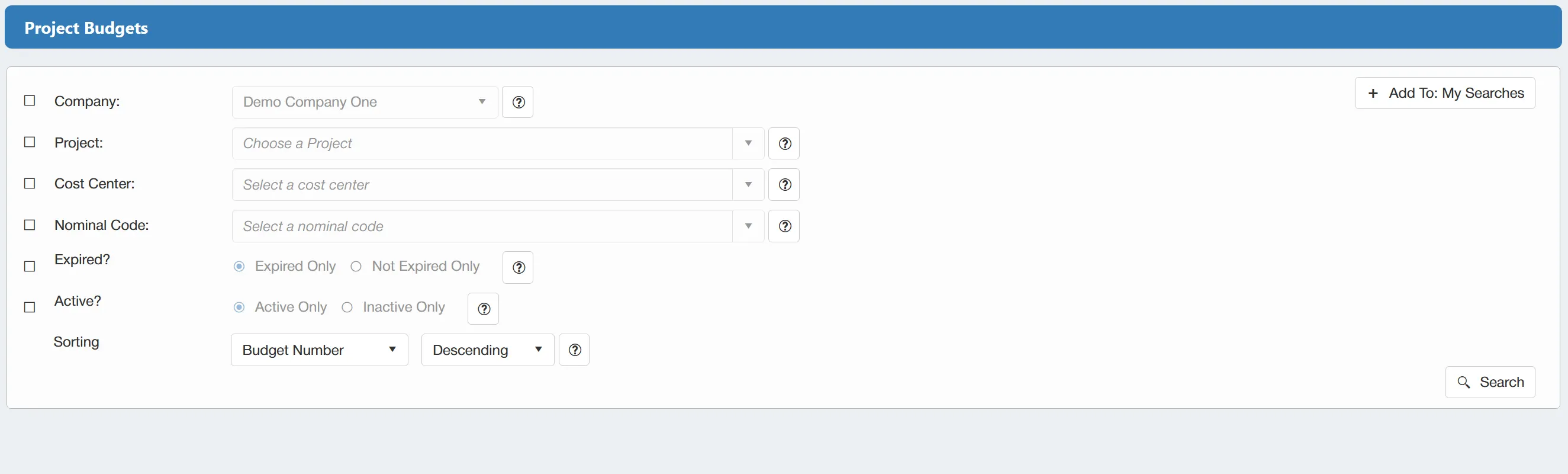
The available filters are as follows:
- ☐ Company: This allows you to filter the search by Company.
- ☐ Project: This allows you to filter the search by Project.
- ☐ Cost Center: This allows you to filter the search by Cost Center.
- ☐ Nominal Code: This allows you to filter the search by the Nominal Code.
- ☐ Expired?: This allows you to determine whether or not the results consist of expired budgets.
- ☐ Active?: This allows you to determine whether the results consist of active or inactive budgets.
There is also a sorting option that allows you to sort your results by Budget Number, Budget Name or Budget Expiry Date in an ascending or descending manner.
There is a button available which will save your set filter parameters for future use. This is particularly useful if you are regularly carrying out the same searches. For more information on My Searches click here
If you want to carry out a search for ALL Project level Budgets with no filters enabled, simply click on the button without any filters ticked.
Once you have carried out the search, a new window will open showing a grid containing the relevant budgets.
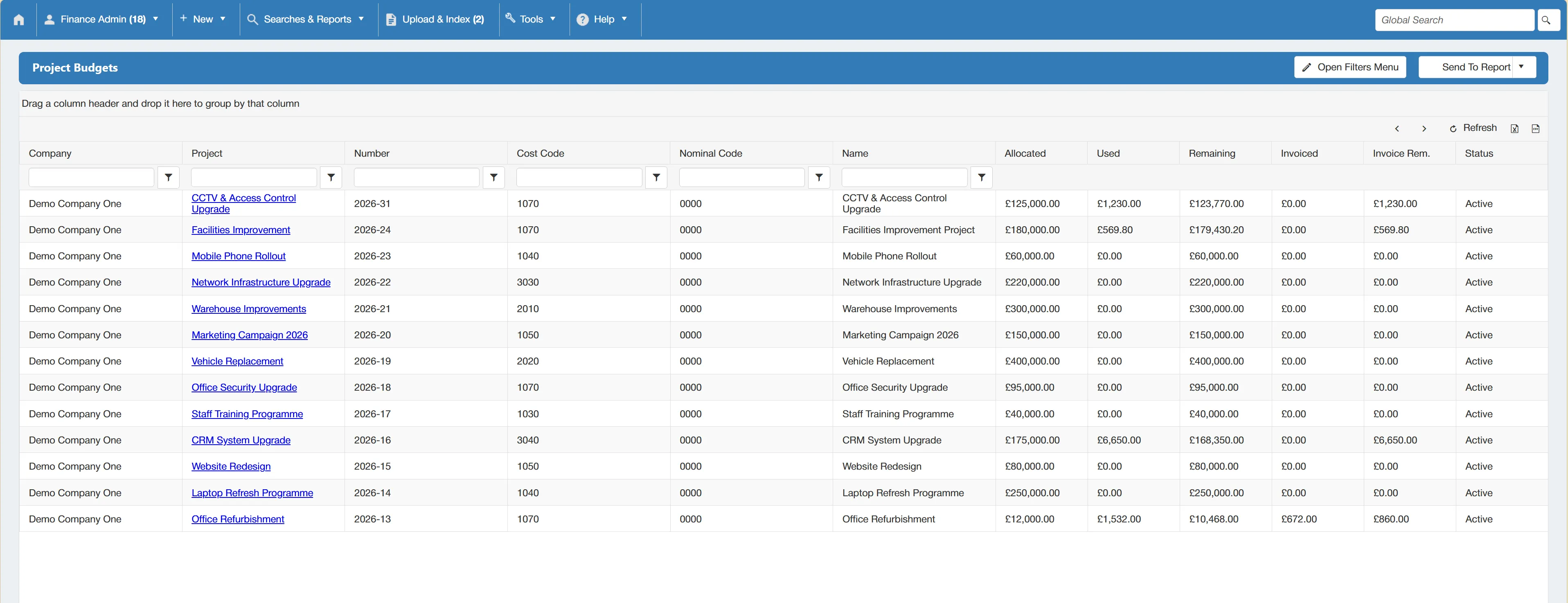
There are several columns providing an overview of each budget's details. Each column can be sorted and filtered using the parameters at the top.
All Budgets Search
To search within for all budgets regardless of level, select from the Budgets menu.
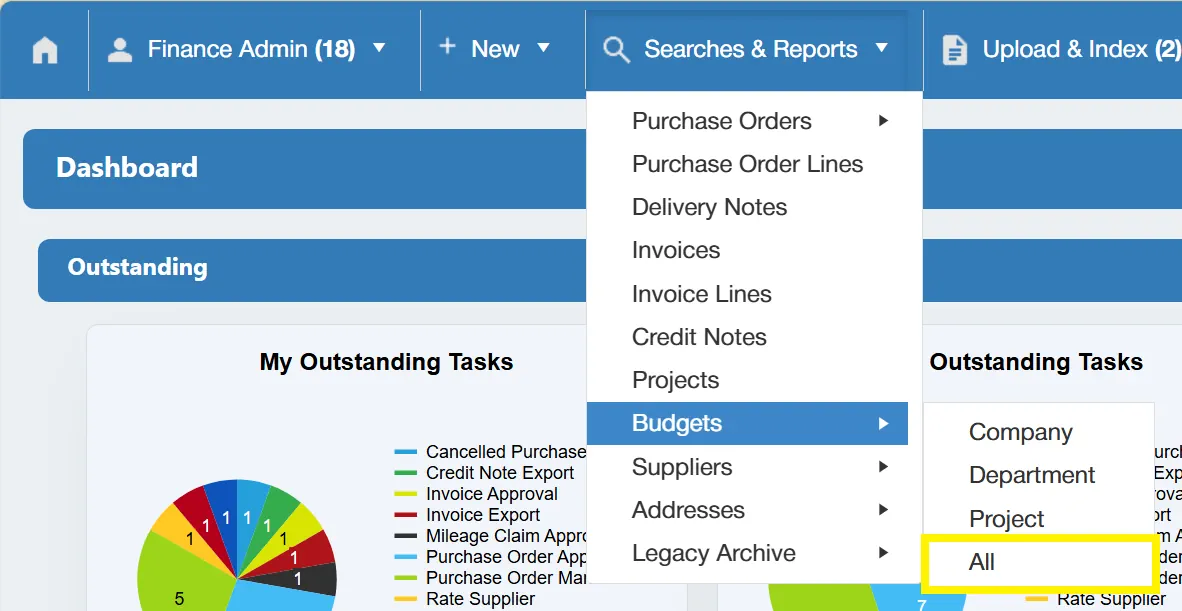
This opens a new window with various filters allowing you to search all budgets.
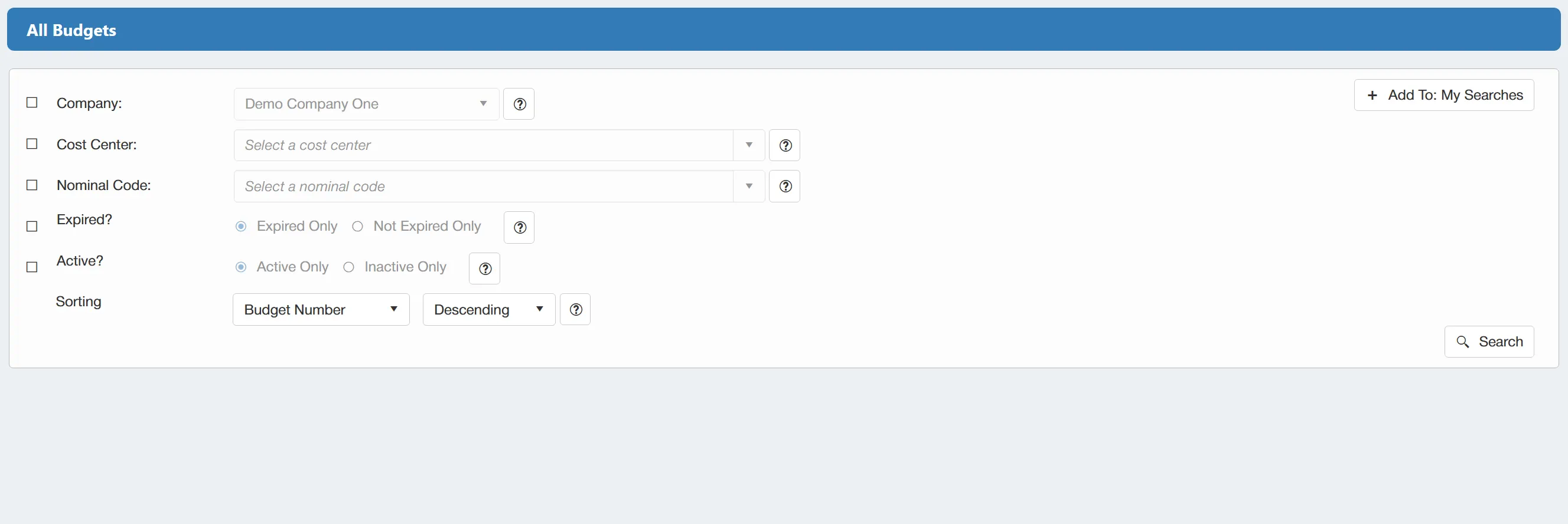
The available filters are as follows:
- ☐ Company: This allows you to filter the search by Company.
- ☐ Cost Center: This allows you to filter the search by Cost Center.
- ☐ Nominal Code: This allows you to filter the search by the Nominal Code.
- ☐ Expired?: This allows you to determine whether or not the results consist of expired budgets.
- ☐ Active?: This allows you to determine whether the results consist of active or inactive budgets.
There is also a sorting option that allows you to sort your results by Budget Number, Budget Name or Budget Expiry Date in an ascending or descending manner.
There is a button available which will save your set filter parameters for future use. This is particularly useful if you are regularly carrying out the same searches. For more information on My Searches click here
If you want to carry out a search for ALL Budgets with no filters enabled, simply click on the button without any filters ticked.
Once you have carried out the search, a new window will open showing a grid containing the relevant budgets.
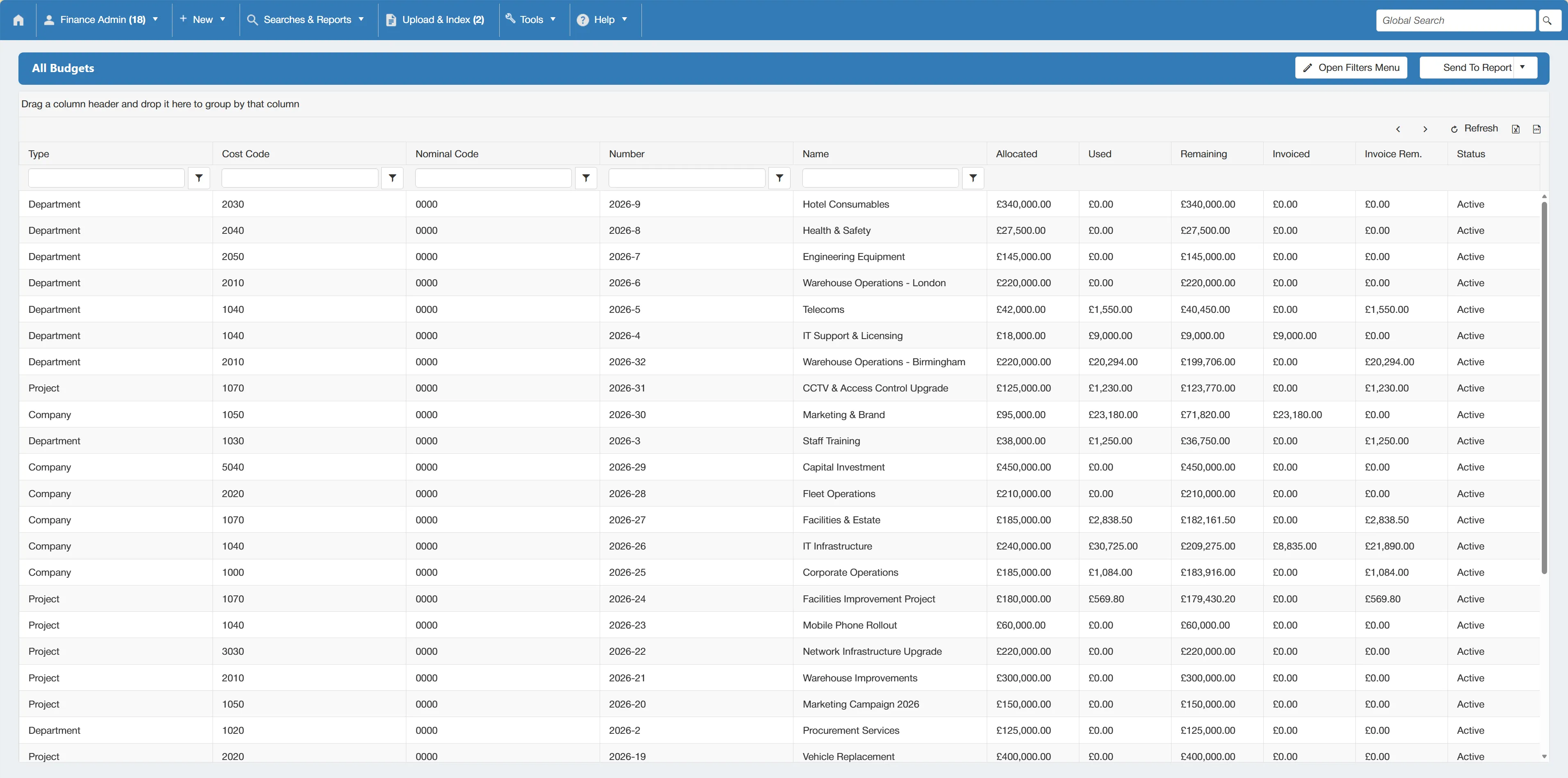
There are several columns providing an overview of each budget's details. Each column can be sorted and filtered using the parameters at the top.
Running a Budget Search Report
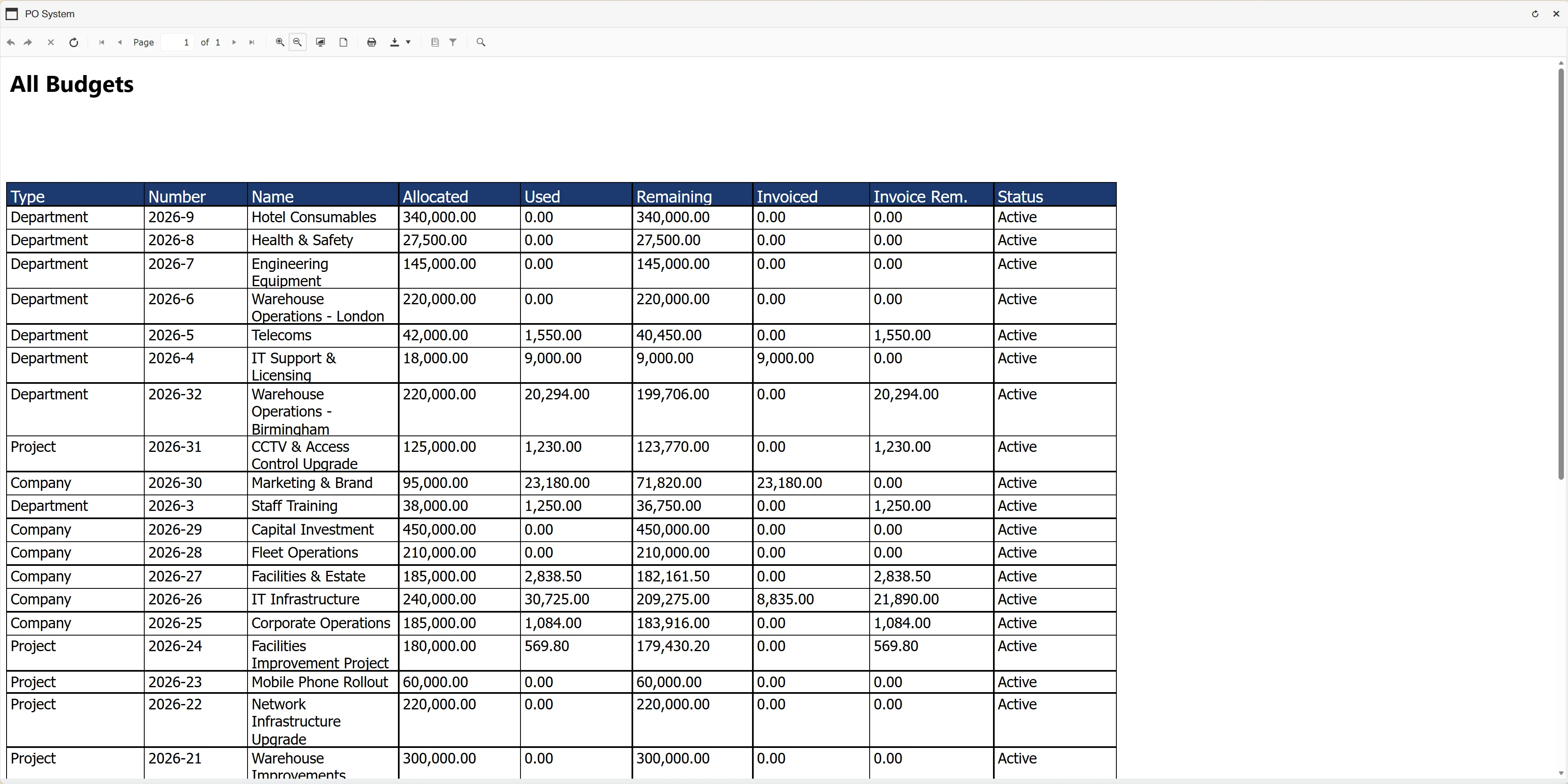
To create a budget search report from the Budgets grid, simply click and select .

This is the same process for all levels of budget search.
This will generate an easy-to-read, formatted report which can be printed or downloaded in various formats.
Suppliers Search
Hovering over will expand another menu consisting of:
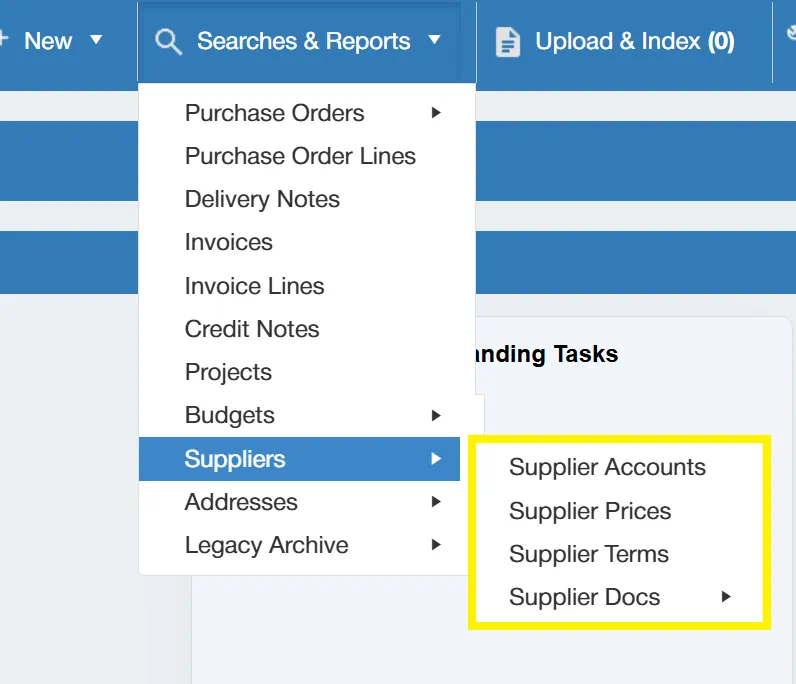
This allows you to not only search for suppliers but also individual prices and terms.
Supplier Accounts Search
To search for Supplier Accounts, select from the Suppliers menu.
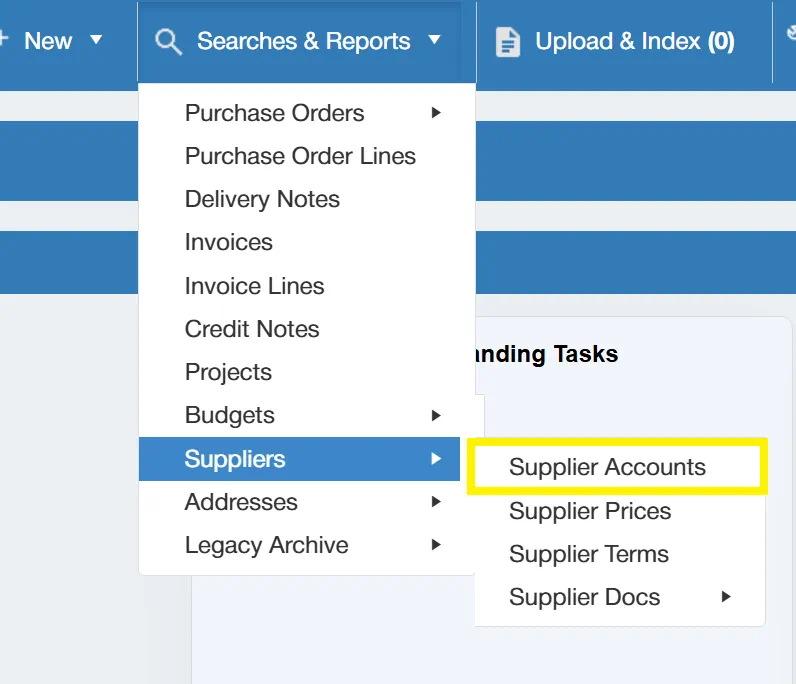
This opens a new window, with some parameters allowing you to search through all suppliers in the system.

The available filters are as follows:
- ☐ Company: This allows you to filter the search by Company.
- ☐ Currency: This allows you to filter the search by Currency - particularly helpful if you deal with suppliers from multiple countries.
- ☐ Active?: This allows you to specify whether you to search for Active or Inactive suppliers.
There is also a sorting option that allows you to sort your results by Supplier Name or Supplier Number in an ascending or descending manner.
There is a button available which will save your set filter parameters for future use. This is particularly useful if you are regularly carrying out the same searches. For more information on My Searches click here
If you want to carry out a search for ALL suppliers with no filters enabled, simply click on the button without any filters ticked.
Once you have carried out the search, a new window will open showing a grid containing the relevant suppliers.
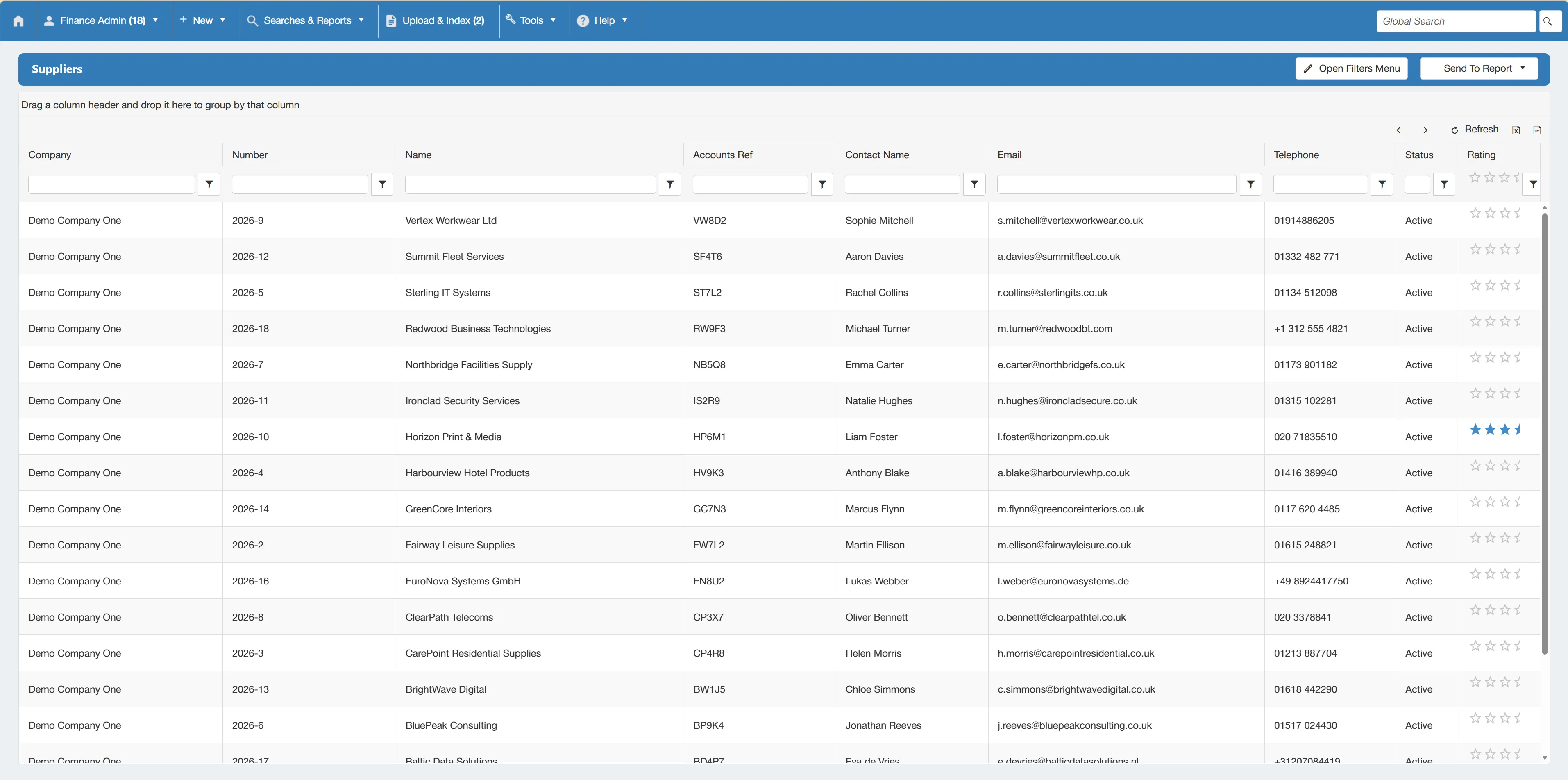
There are several columns providing an overview of each supplier's details. Each column can be sorted and filtered using the parameters at the top.
You can amend the search results by enabling filters within this window. Simply click to expand the filter options.
Opening a Supplier Account
To open a specific supplier, simply click on the relevant row within the Supplier Search Grid.
For more information on accessing the Supplier Search Grid, click here
This will open another window displaying the details in full.
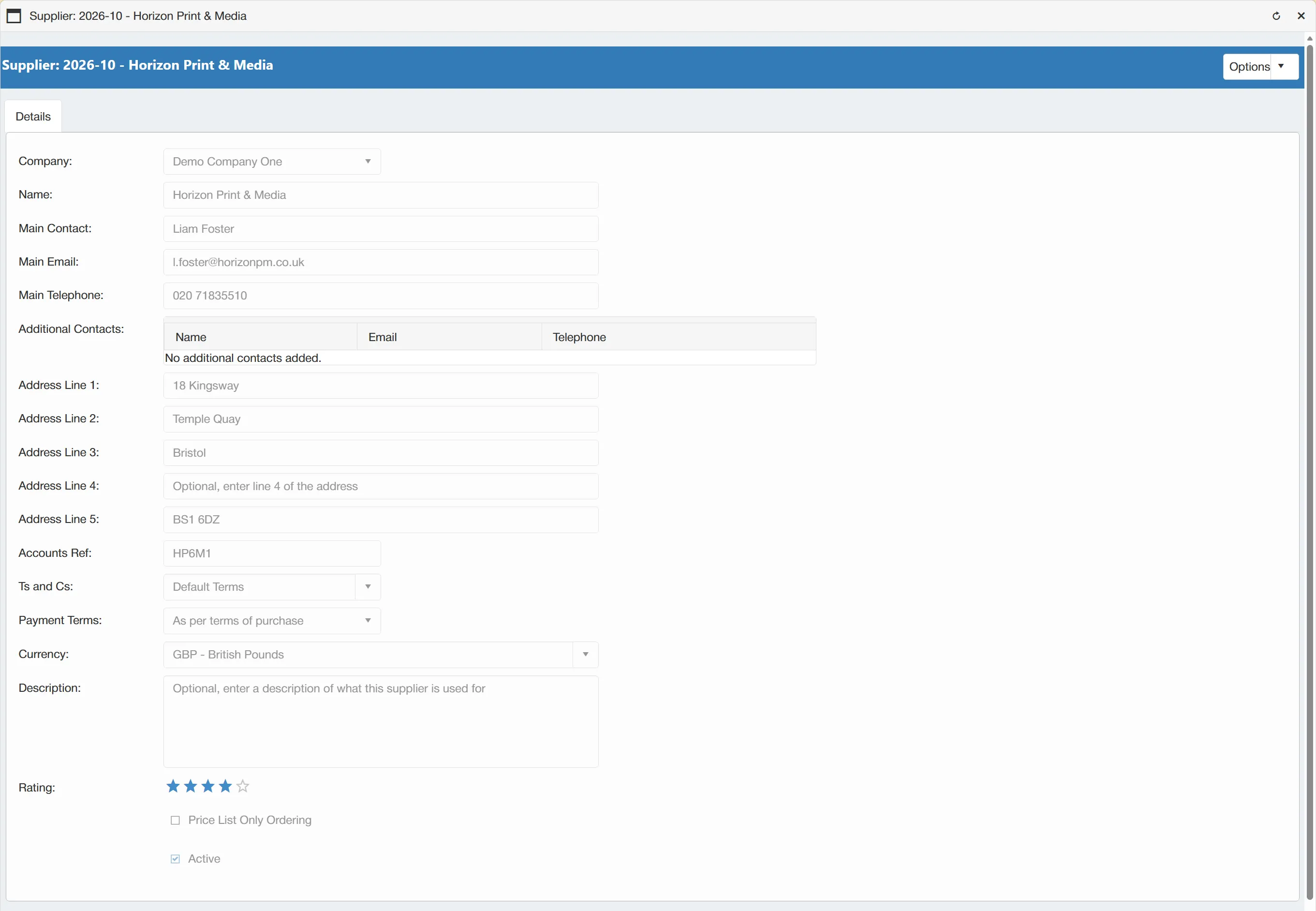
This window displays all relevant information to the supplier such as contact details, payment terms and supplier ratings.
Running a Supplier Account Report
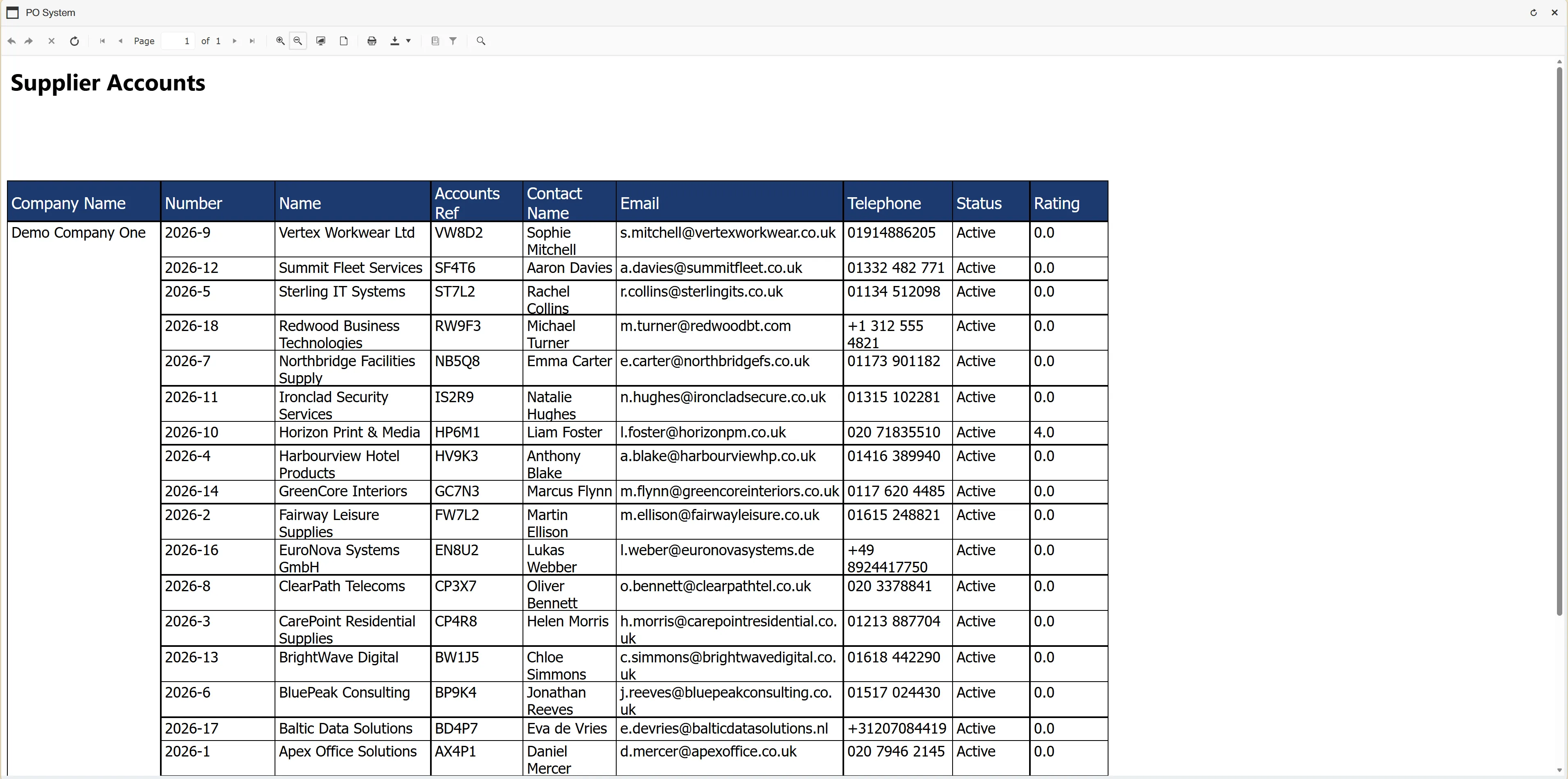
To create a supplier account report from the Suppliers grid, simply click and select .

This will generate an easy-to-read, formatted report which can be printed or downloaded in various formats.
Supplier Prices Search
To search for Supplier Prices, select from the Suppliers menu.
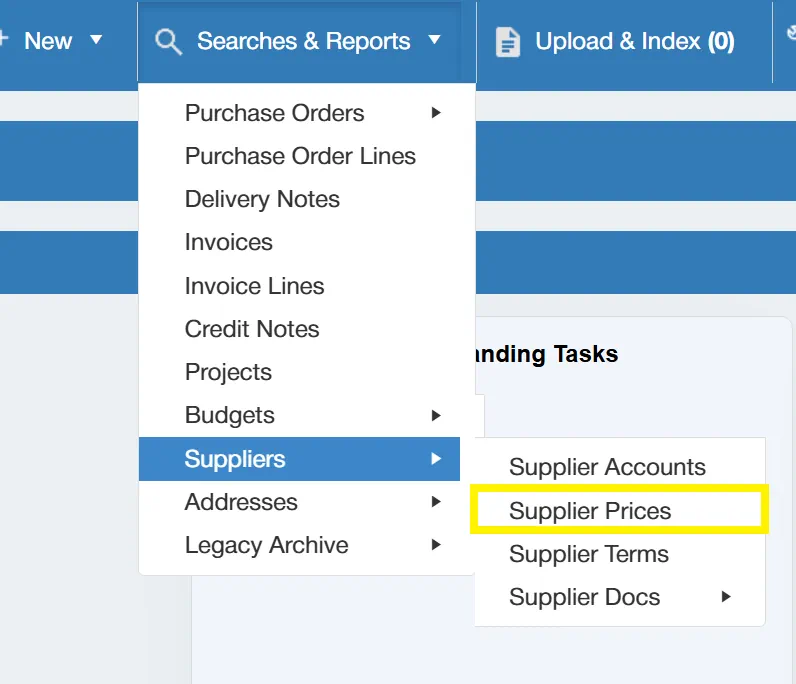
This opens a new window, with some parameters allowing you to search through all supplier prices in the system.
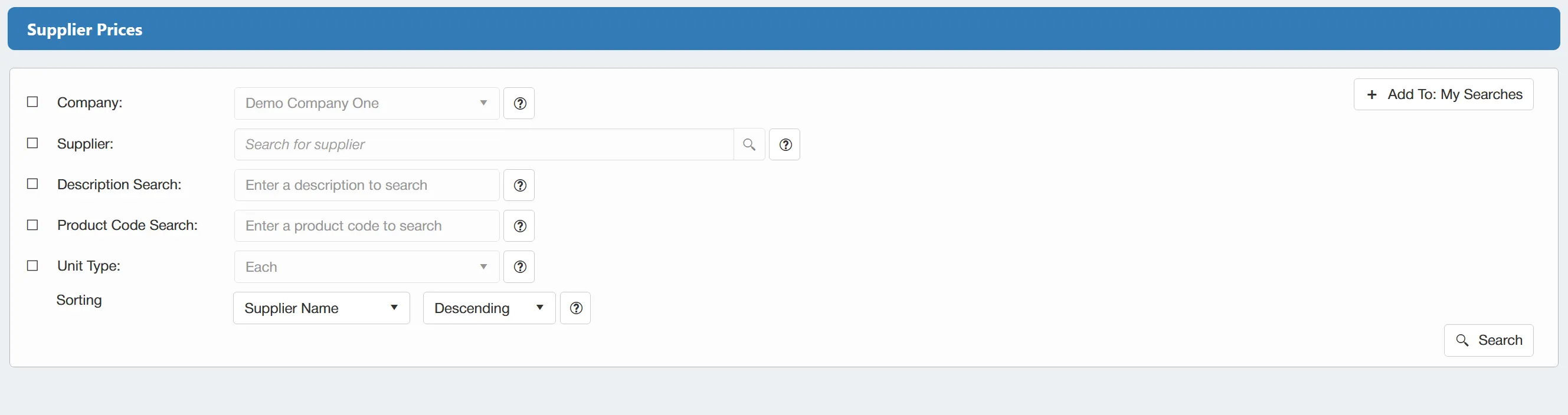
The available filters are as follows:
- ☐ Company: This allows you to filter the search by Company.
- ☐ Supplier: This allows you to filter the search by Supplier.
- ☐ Description Search: This allows you to filter by a specific product description.
- ☐ Product Code Search: This allows you to filter by a specific product code.
- ☐ Unit Type: This allows you to filter by the unit type.
There is also a sorting option that allows you to sort your results by Supplier Name, Product Code or Product Description in an ascending or descending manner.
There is a button available which will save your set filter parameters for future use. This is particularly useful if you are regularly carrying out the same searches. For more information on My Searches click here
If you want to carry out a search for ALL supplier prices with no filters enabled, simply click on the without any filters ticked.
Once you have carried out the search, a new window will open showing a grid containing the relevant supplier prices.
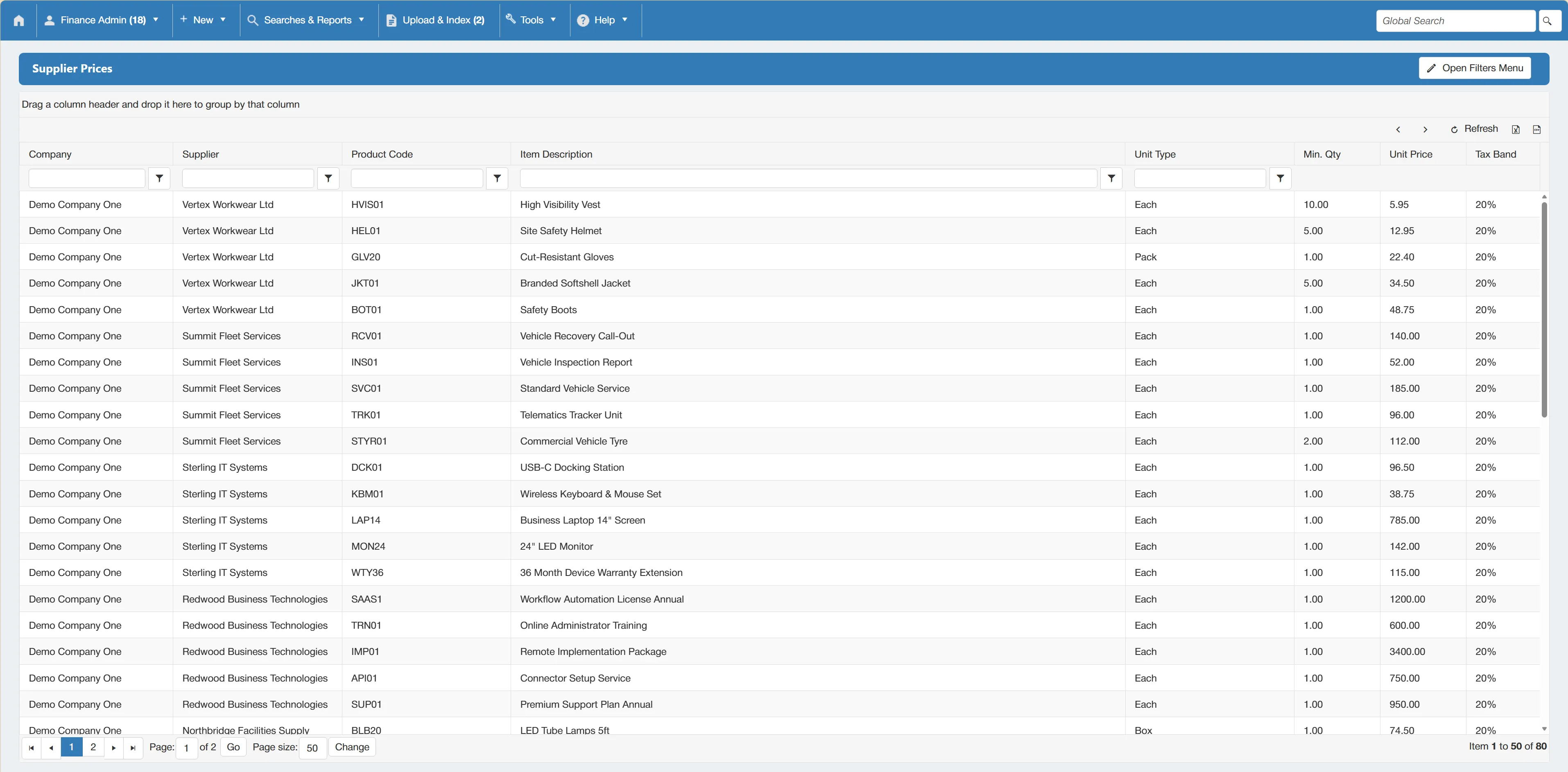
There are several columns providing an overview of details for each supplier price. Each column can be sorted and filtered using the parameters at the top.
You can amend the search results by enabling filters within this window. Simply click to expand the filter options.
Supplier Terms Search
To search for Supplier Terms, select from the Suppliers menu.
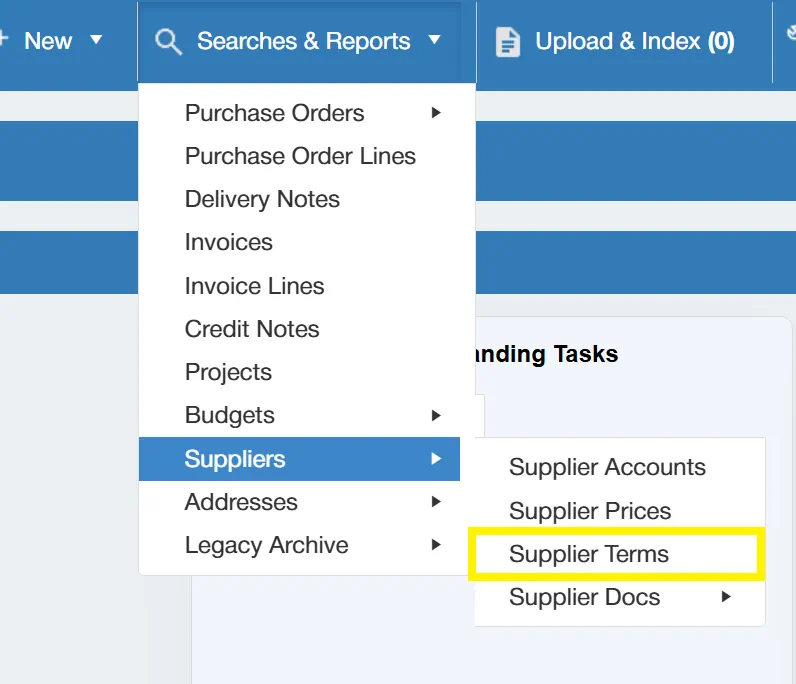
This opens a new window, with some parameters allowing you to search through all supplier terms in the system.

The available filters are as follows:
- ☐ Company: This allows you to filter the search by Company.
- ☐ Active?: This allows you to specify whether the results consist of active or inactive terms.
If you want to carry out a search for ALL supplier terms with no filters enabled, simply click on the without any filters ticked.
Once you have carried out the search, a new window will open showing a grid containing the relevant supplier terms.
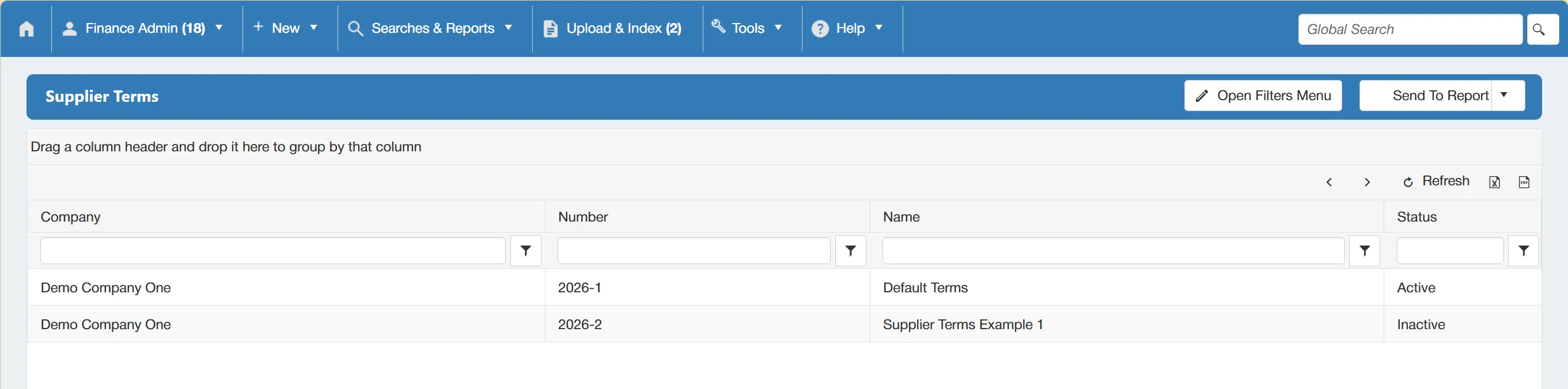
There are several columns providing an overview of details for each supplier term. Each column can be sorted and filtered using the parameters at the top.
?>You can amend the search results by enabling filters within this window. Simply click to expand the filter options.
Running a Supplier Terms Report
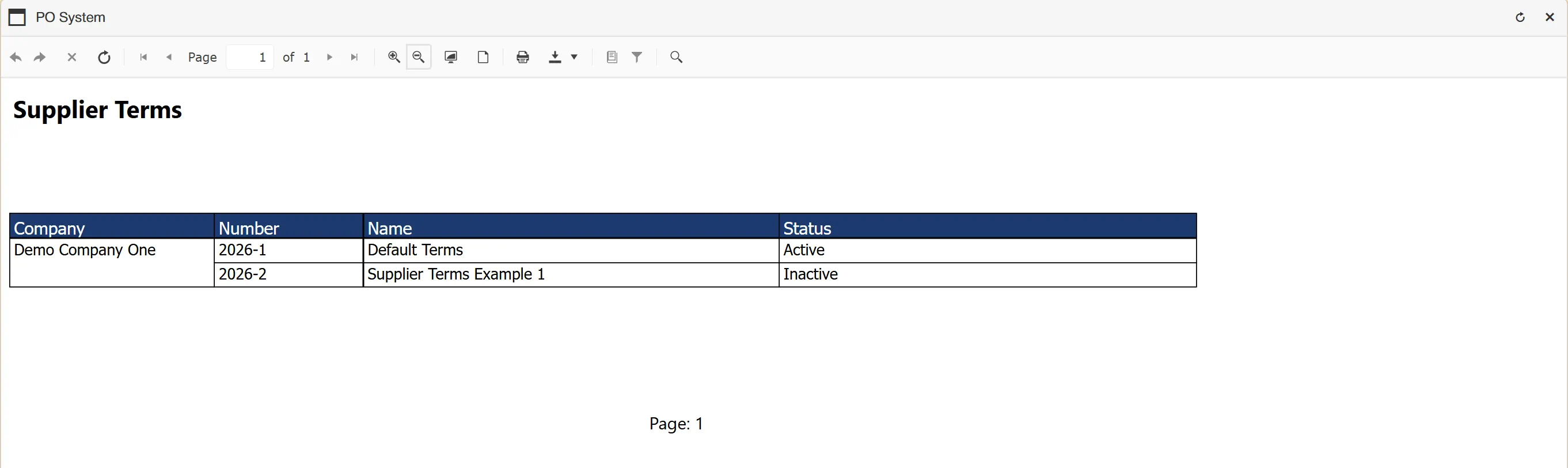
To create a supplier terms report from the Supplier Terms grid, simply click and select .

This will generate an easy-to-read, formatted report which can be printed or downloaded in various formats.
Supplier Documents Search
To search for Supplier Documents, hover over within the Suppliers menu. This will display all Supplier Document Types.
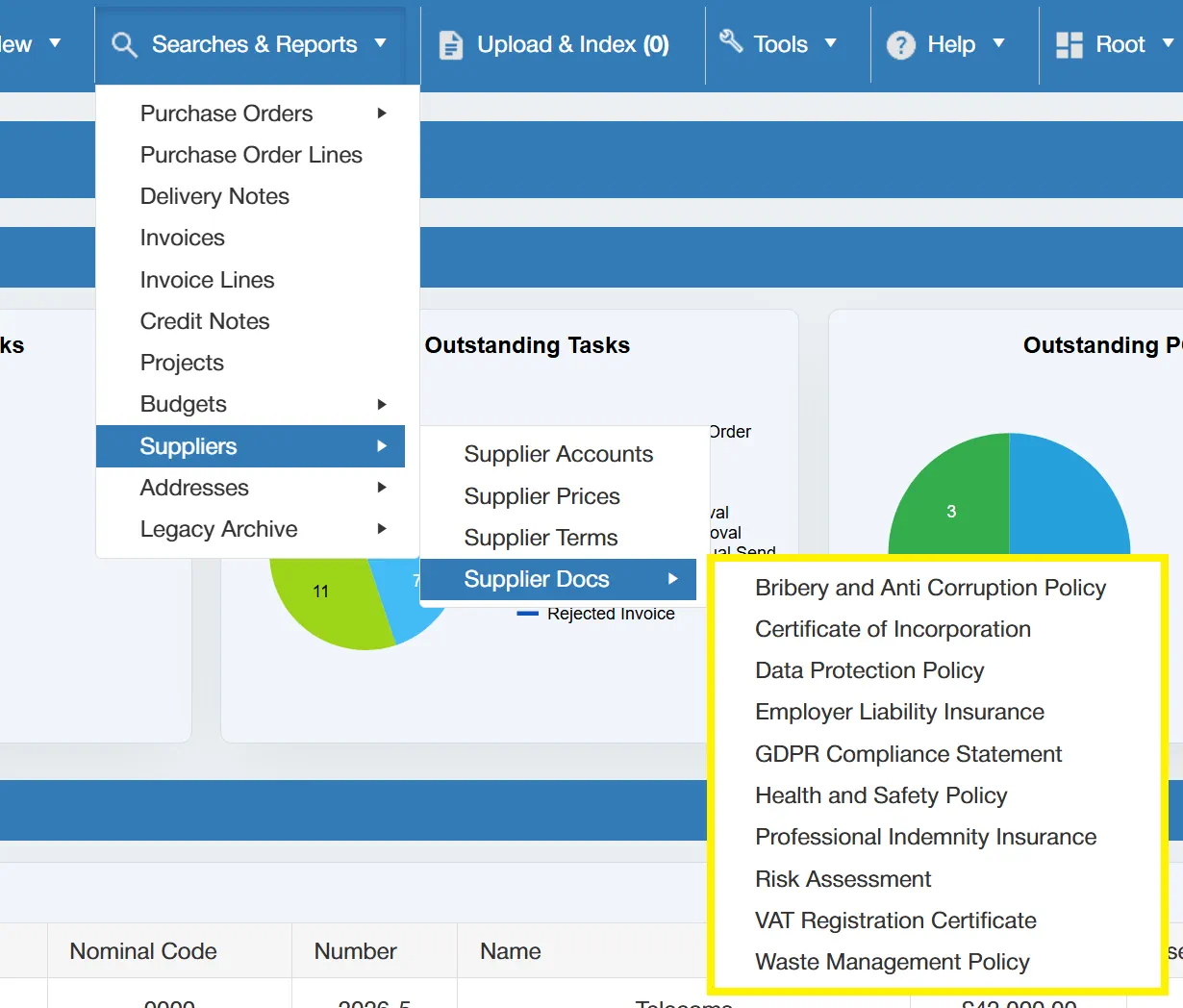
Clicking on one of these types will take you to a new window containing various filters.
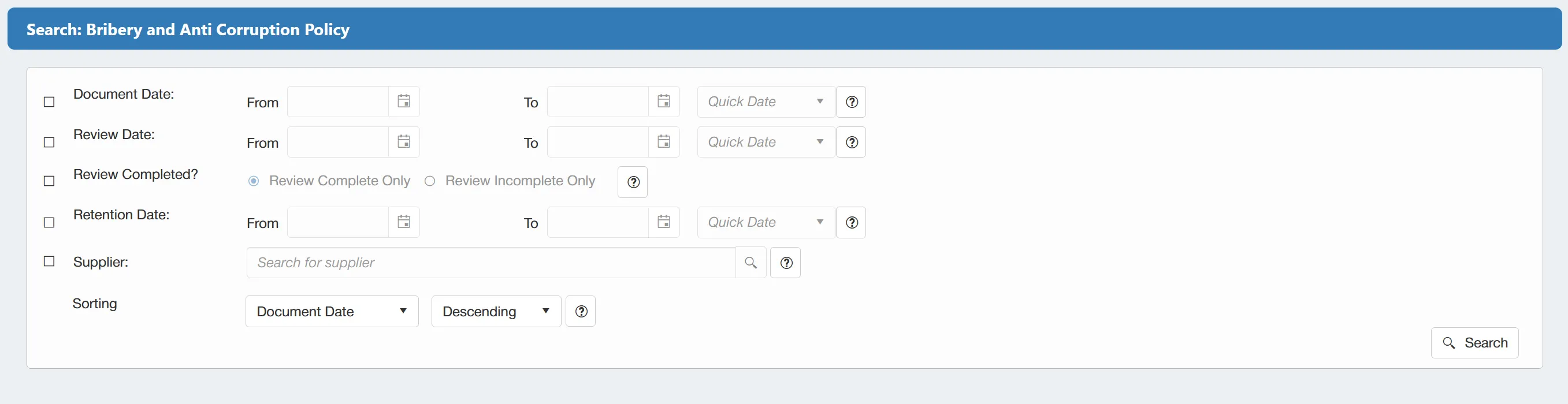
The standard filters available are:
- ☐ Document Date: This allows you to select a date range for the Document Date.
- ☐ Review Date: This allows you to select a date range for the Review Date.
- ☐ Review Completed?: This allows you to narrow the results down by documents that have had their reviews completed.
- ☐ Retention Date: This allows you to select a date range for the Retention Date.
- ☐ Supplier: This allows you to narrow down the results by supplier.
There is also a sorting option that allows you to sort your results by Document Date, Review Date, or Retention Date in an ascending or descending manner.
The search filters can be configured when creating or editing a Document Type. For more information on this, please see the Search By information within the Supplier Document Type Properties section.
Once you have carried out the search, a new window will open showing a grid containing the relevant supplier documents.
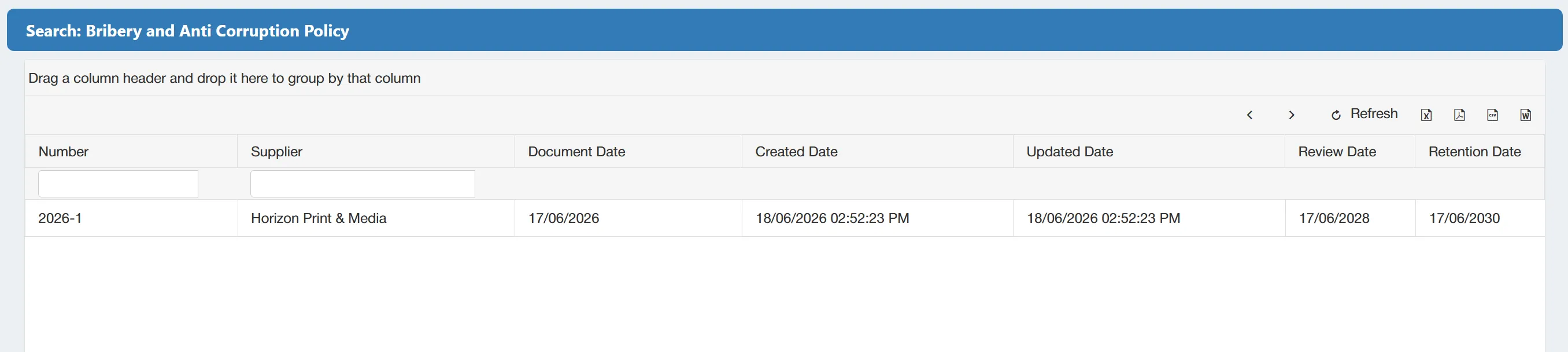
There are several columns providing an overview into the details of each document. These columns can be configured when creating or editing a Document Type. For more information on this, please see the Show In Search Grids information within the Supplier Document Type Properties section.
?>You can amend the search results by enabling filters within this window. Simply click to expand the filter options.
Addresses Search
Hovering over will expand another menu consisting of:
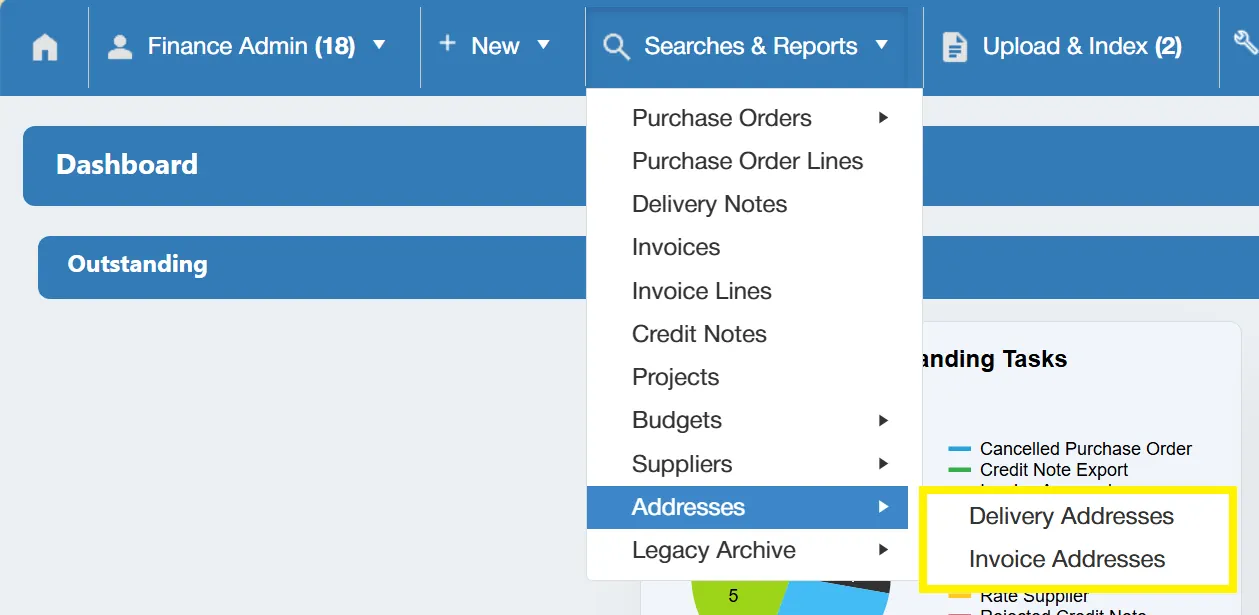
This allows you to search for both Delivery and Invoice Addresses.
Delivery Addresses Search
To search for Delivery Addresses, select from the Addresses menu.
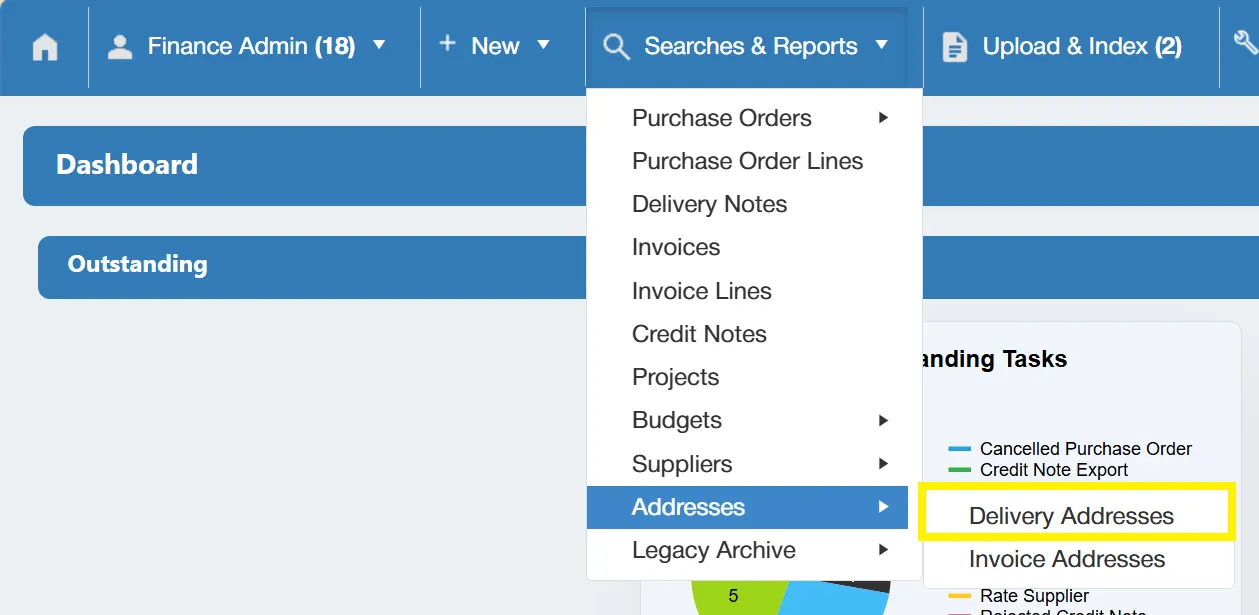
This opens a new window, with some parameters allowing you to search through all delivery addresses in the system.

The available filters are as follows:
- ☐ Company: This allows you to filter the search by Company
- ☐ Active?: This allows you to specify whether the results consist of active or inactive addresses.
If you want to carry out a search for ALL delivery addresses with no filters enabled, simply click on the without any filters ticked.
Once you have carried out the search, a new window will open showing a grid containing the relevant delivery addresses.
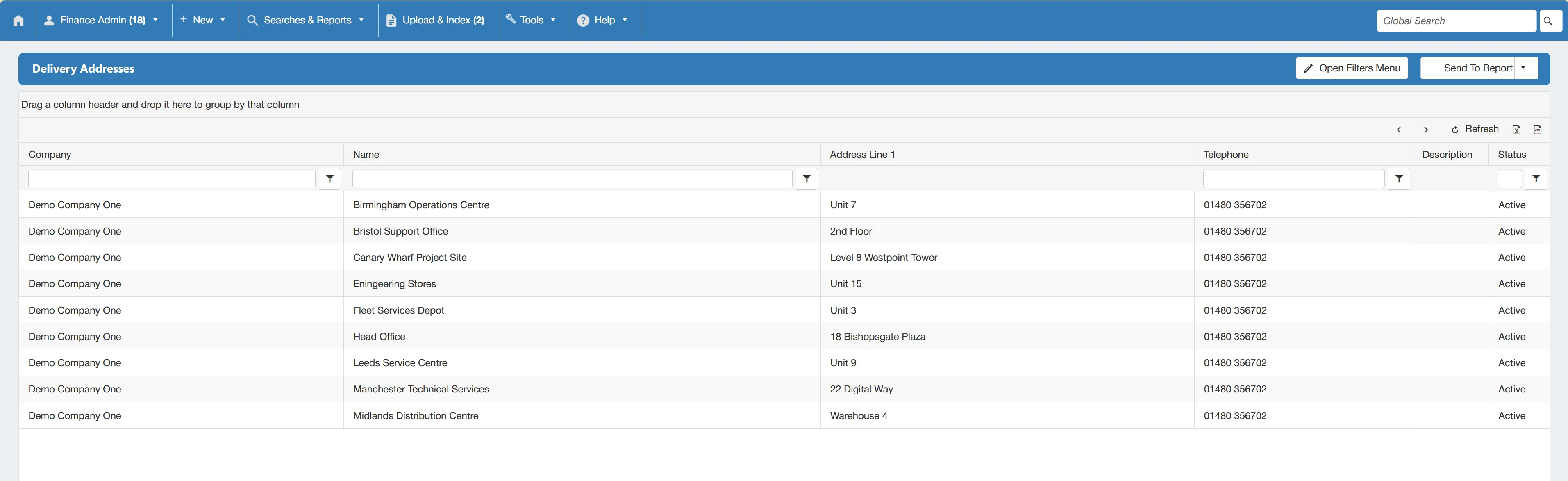
There are several columns providing an overview of details for each delivery address. Each column can be sorted and filtered using the parameters at the top.
You can amend the search results by enabling filters within this window. Simply click to expand the filter options.
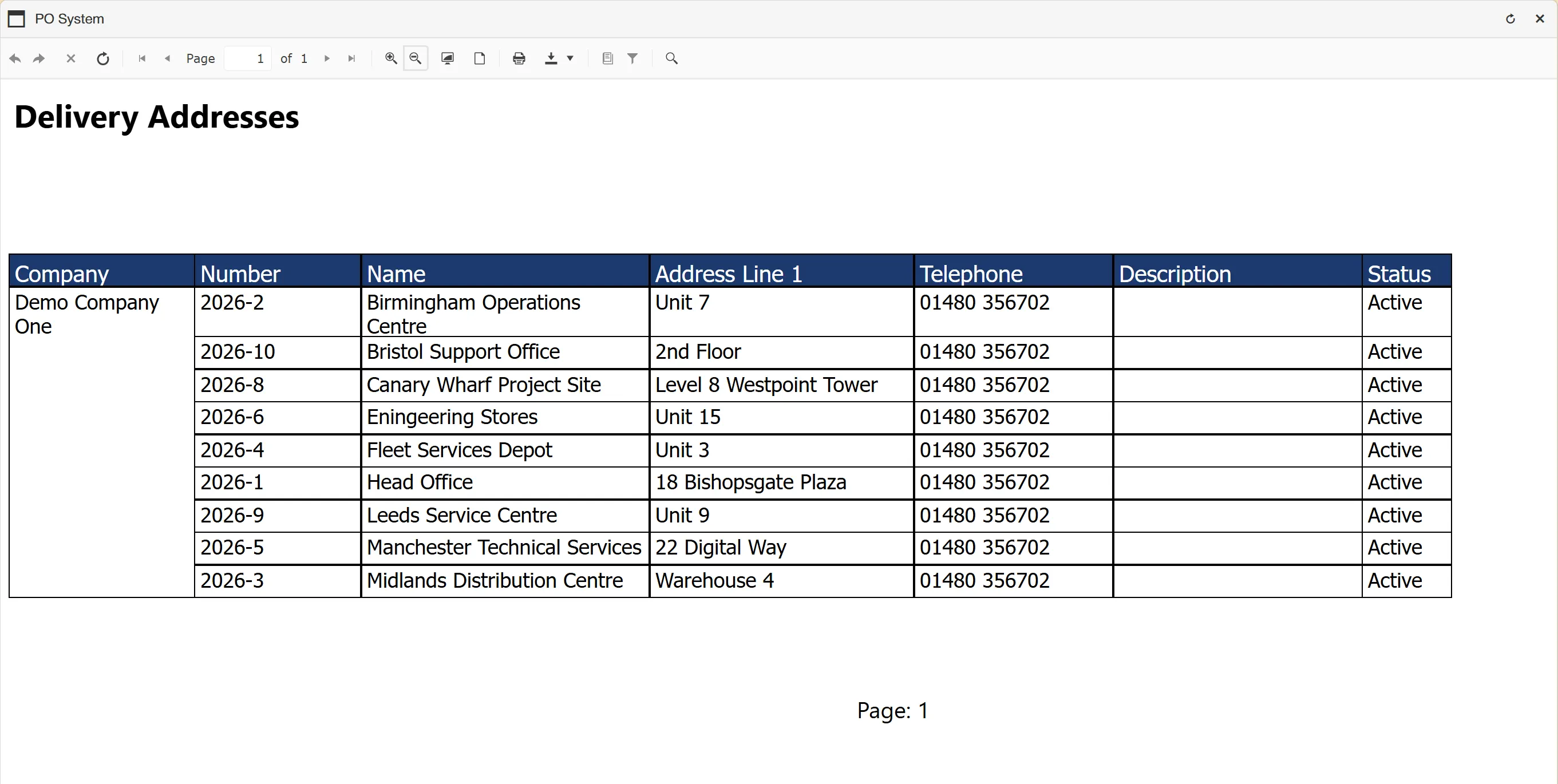
Running a Delivery Address Report
To create a delivery address report from the Delivery Addresses grid, simply click and select .

This will generate an easy-to-read, formatted report which can be printed or downloaded in various formats.
Invoice Addresses Search
To search for Invoice Addresses, select from the Addresses menu.
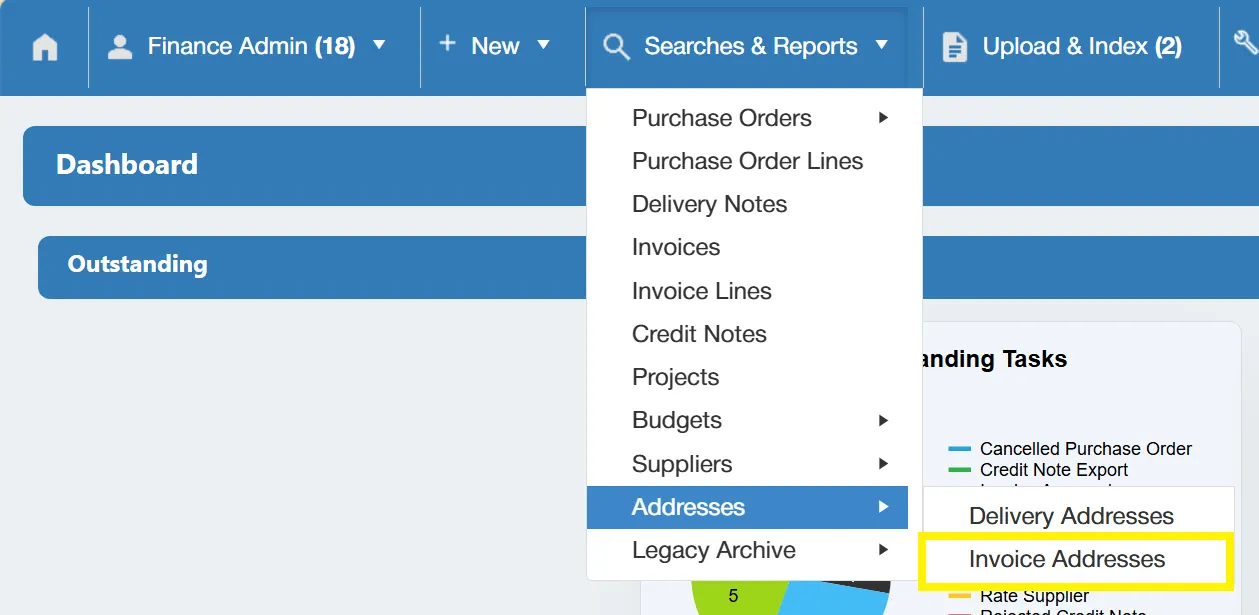
This opens a new window, with some parameters allowing you to search through all invoice addresses in the system.

The available filters are as follows:
- ☐ Company: This allows you to filter the search by Company
- ☐ Active?: This allows you to specify whether the results consist of active or inactive addresses.
If you want to carry out a search for ALL invoice addresses with no filters enabled, simply click on the without any filters ticked.
Once you have carried out the search, a new window will open showing a grid containing the relevant invoice addresses.

There are several columns providing an overview of details for each invoice address. Each column can be sorted and filtered using the parameters at the top.
You can amend the search results by enabling filters within this window. Simply click to expand the filter options.
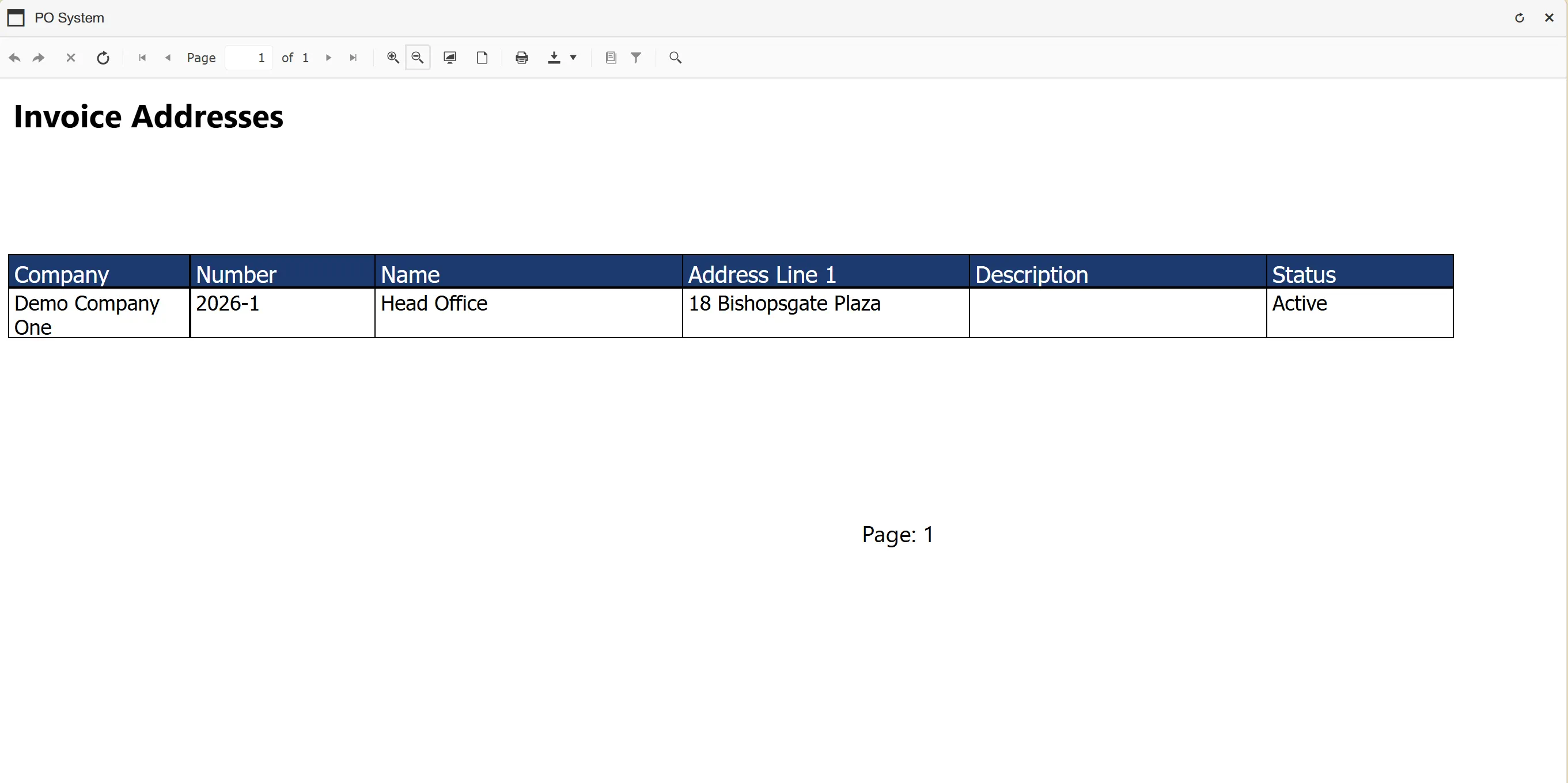
Running an Invoice Address Report
To create an invoice address report from the Invoice Addresses grid, simply click and select .
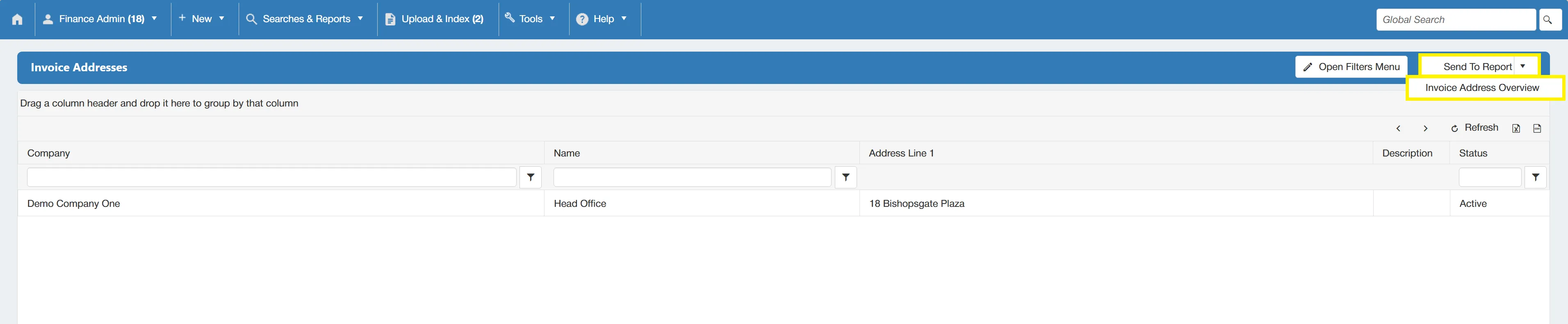
This will generate an easy-to-read, formatted report which can be printed or downloaded in various formats.
Legacy Archive Search
If you have upgraded from an old system to a new one, there will be a Legacy Archive section available under the Searches & Reports menu. This allows you to view records that have been imported from your legacy system. This ensures that you are still able to access these despite the legacy system no longer being available.
These documents are in a read-only state, meaning that you can only view them as records rather than carrying out actions on them.
Hovering over on the Searches & Reports menu, will expand another menu consisting of:
This allows you to search for a variety of items from your legacy system.
Legacy Archive Purchase Orders Search
To search for Legacy Archive Purchase Orders, select from the Legacy Archive menu.
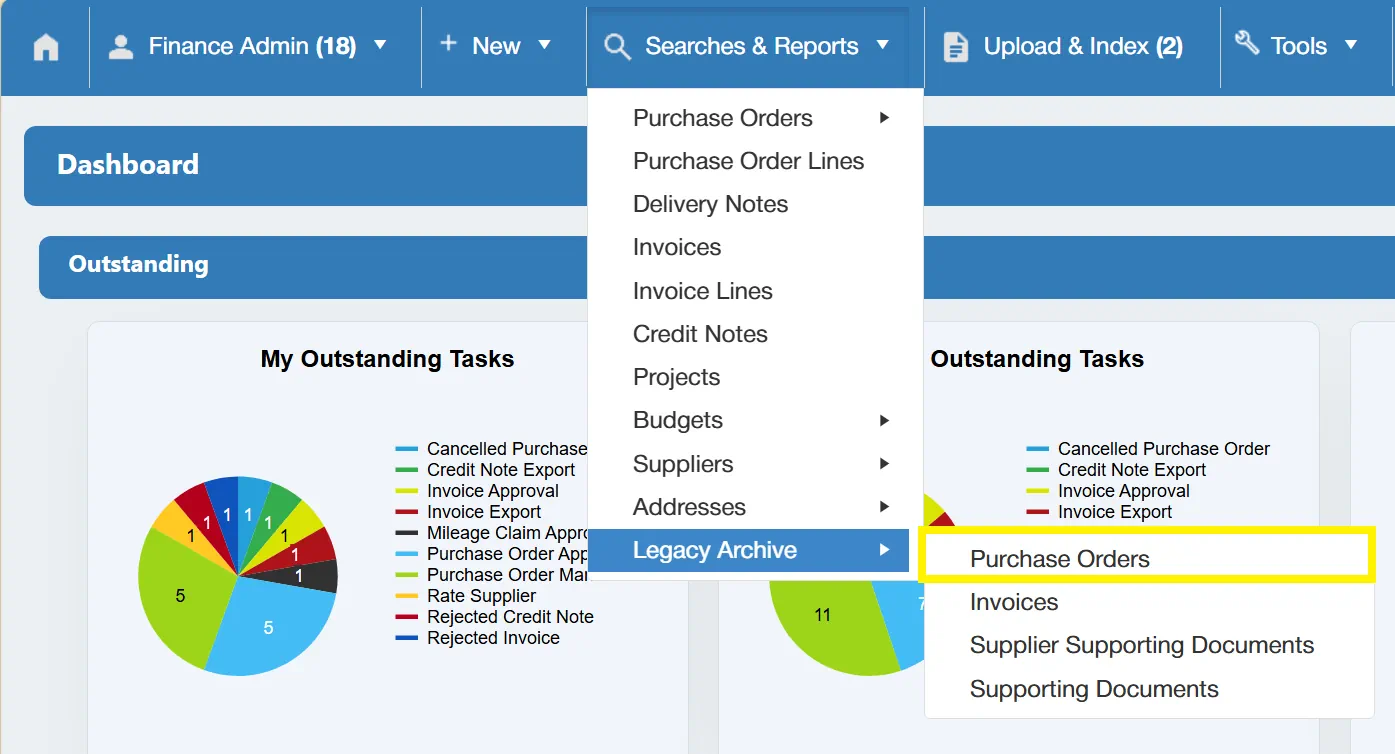
This opens a new window, with some parameters allowing you to search through all archive purchase orders in the system.

The available filters are as follows:
- ☐ Company: This allows you to filter the search by Company.
- ☐ Supplier: This allows you to filter the search by Supplier.
- ☐ Purchase Order Date From & To: This allows you to specify a range of dates for the system to search between.
- ☐ Status: This allows you to filter the search by Purchase Order Status.
If you want to carry out a search for ALL archive purchase orders with no filters enabled, simply click on the without any filters ticked.
Once you have carried out the search, a new window will open showing a grid containing the relevant purchase orders.
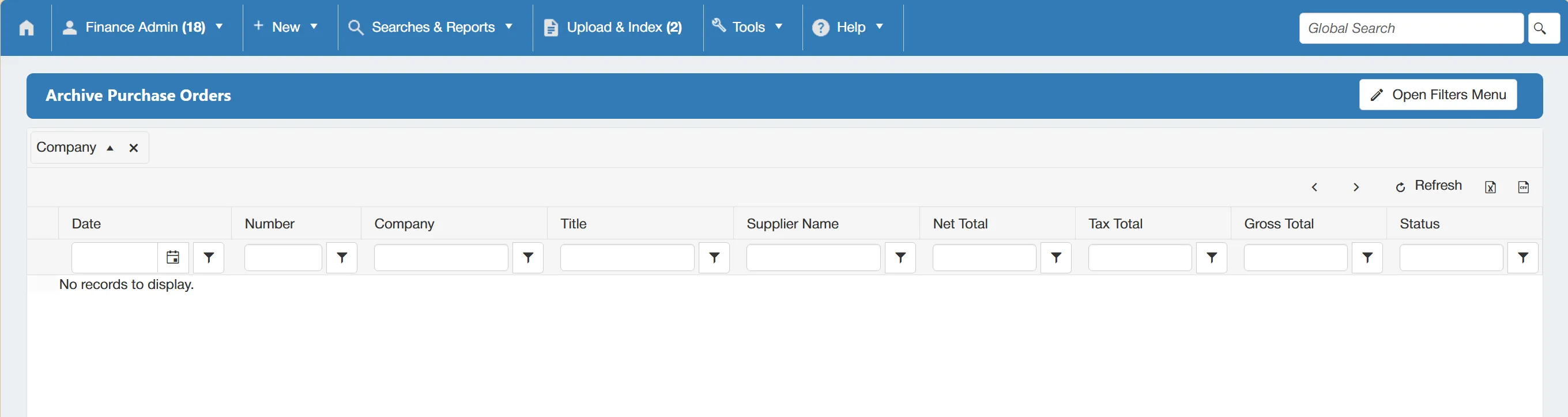
There are several columns providing an overview of details for each purchase order. Each column can be sorted and filtered using the parameters at the top.
You can amend the search results by enabling filters within this window. Simply click to expand the filter options.
Legacy Archive Invoices Search
Legacy Archive Invoice search functionality is only available on systems with Invoice Processing features enabled.
To search for Legacy Archive Invoices, select from the Legacy Archive menu.
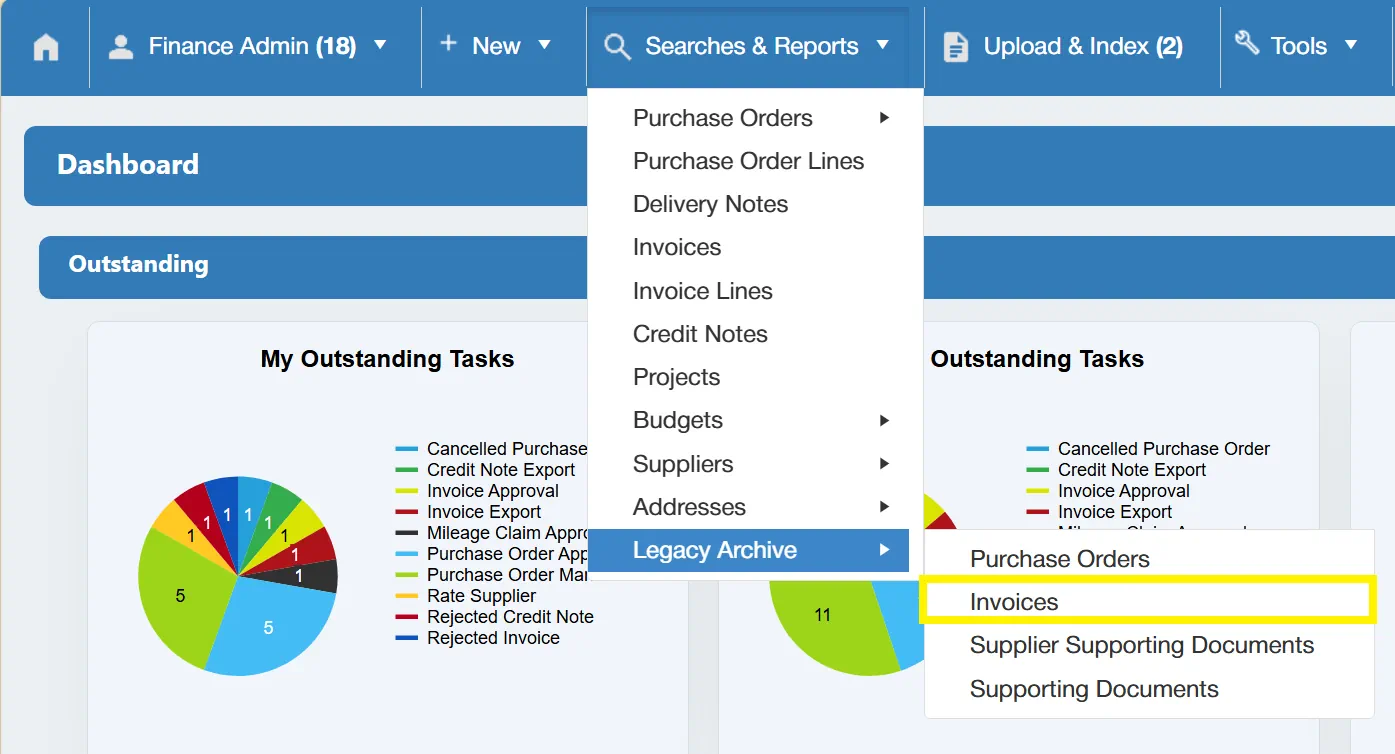
This opens a new window, with some parameters allowing you to search through all archive invoices in the system.
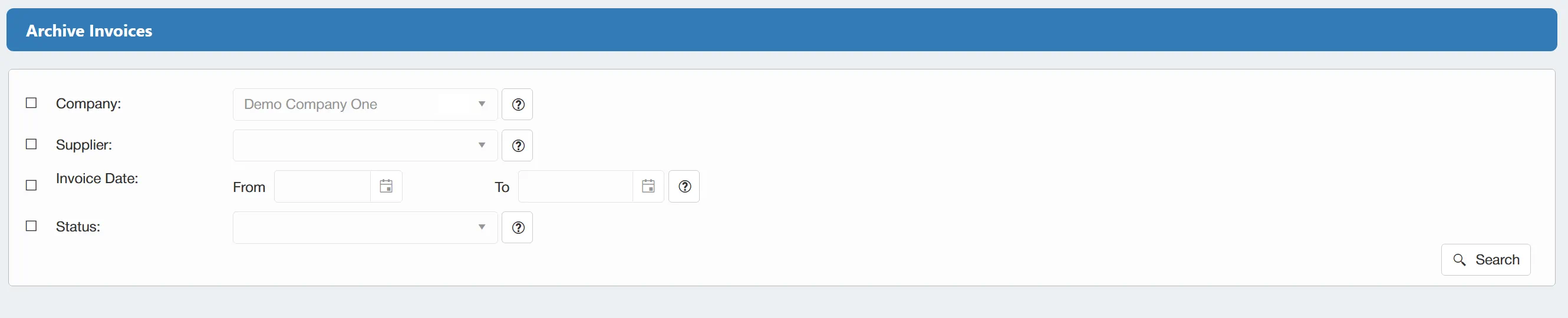
The available filters are as follows:
- ☐ Company: This allows you to filter the search by Company.
- ☐ Supplier: This allows you to filter the search by Supplier.
- ☐ Invoice Date From & To: This allows you to specify a range of dates for the system to search between.
- ☐ Status: This allows you to filter the search by Invoice Status.
If you want to carry out a search for ALL archive invoices with no filters enabled, simply click on the without any filters ticked.
Once you have carried out the search, a new window will open showing a grid containing the relevant invoices.
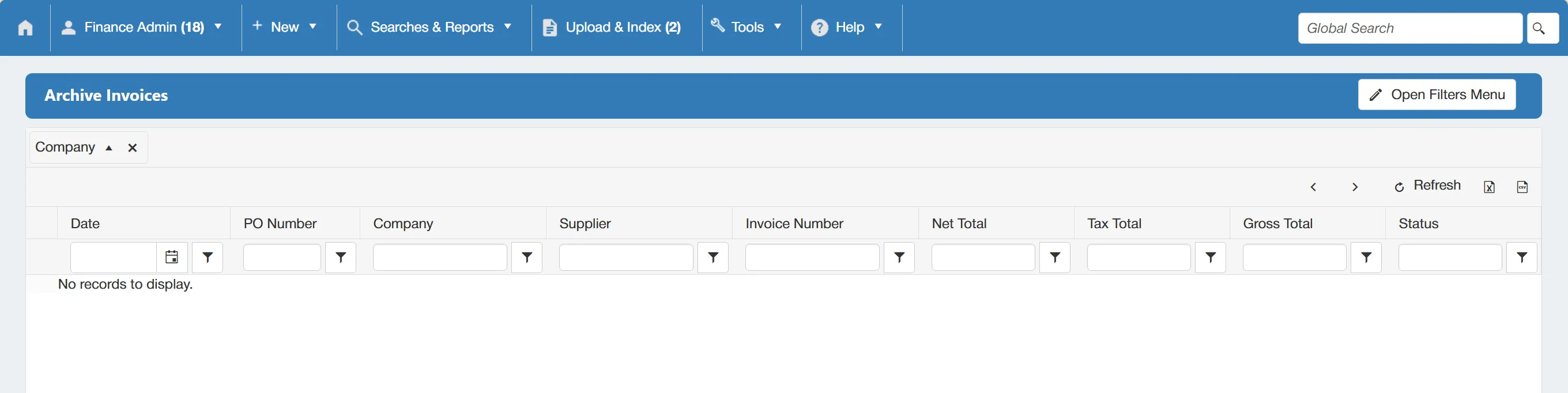
There are several columns providing an overview of details for each invoice. Each column can be sorted and filtered using the parameters at the top.
You can amend the search results by enabling filters within this window. Simply click to expand the filter options.
Legacy Archive Supplier Supporting Documents Search
To search for Legacy Archive Supplier Supporting Documents, select from the Legacy Archive menu.
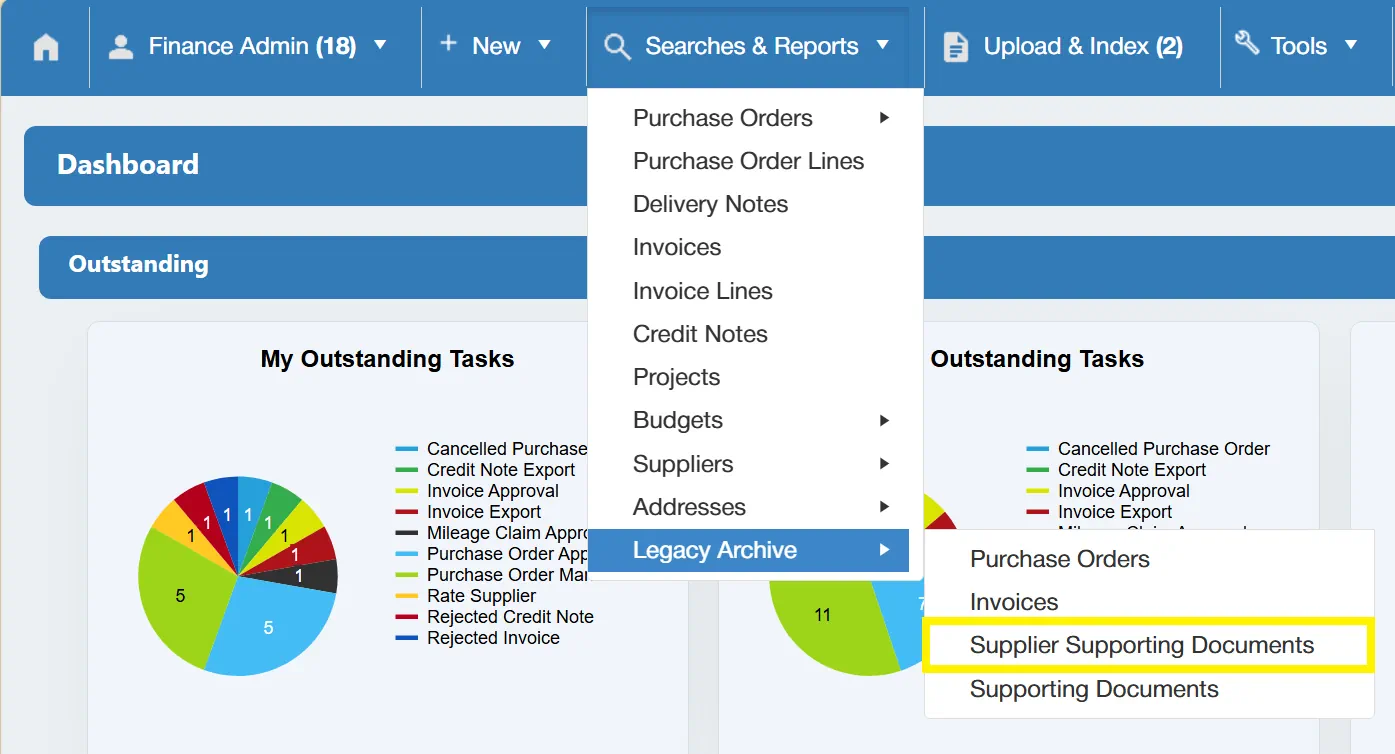
This opens a new window, with some parameters allowing you to search through all archive supplier supporting documents in the system.
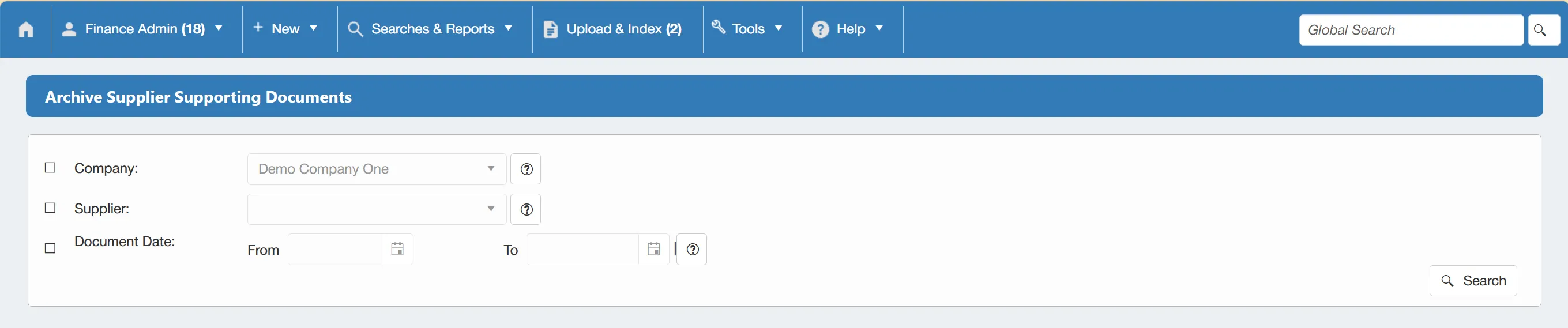
The available filters are as follows:
- ☐ Company: This allows you to filter the search by Company.
- ☐ Supplier: This allows you to filter the search by Supplier.
- ☐ Document Date From & To: This allows you to specify a range of dates for the system to search between.
If you want to carry out a search for ALL archive supplier supporting documents with no filters enabled, simply click on the without any filters ticked.
Once you have carried out the search, a new window will open showing a grid containing the relevant documents.
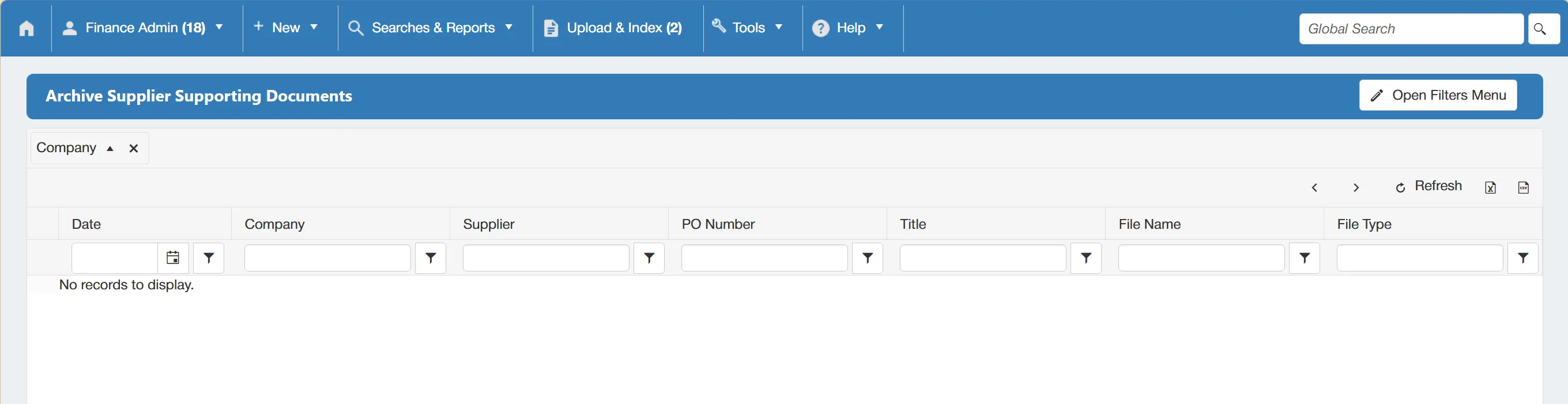
There are several columns providing an overview of details for each document. Each column can be sorted and filtered using the parameters at the top.
You can amend the search results by enabling filters within this window. Simply click to expand the filter options.
Legacy Archive Supporting Documents Search
To search for Legacy Archive Supporting Documents, select from the Legacy Archive menu.
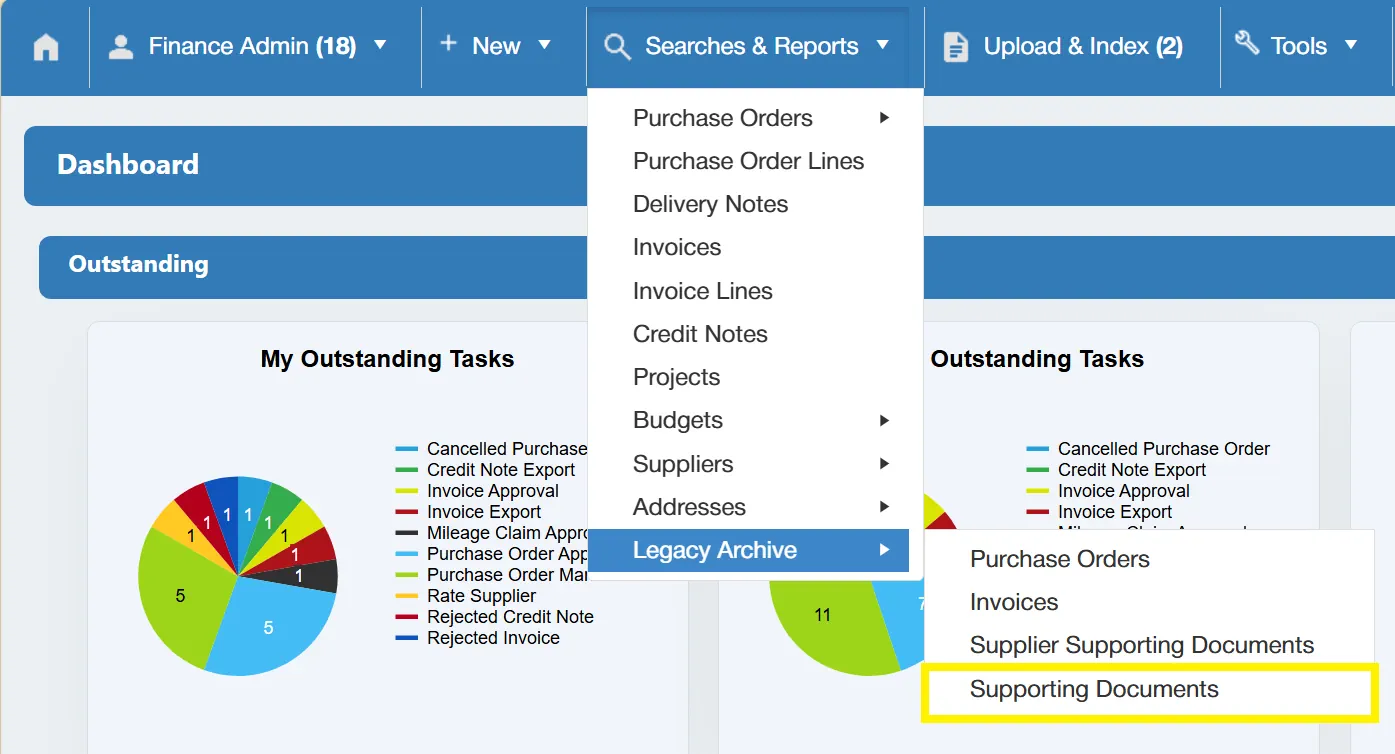
This opens a new window, with some parameters allowing you to search through all archive supporting documents in the system.

The available filters are as follows:
- ☐ Company: This allows you to filter the search by Company.
- ☐ Document Type: This allows you to filter the search by Document Type.
- ☐ Document Date From & To: This allows you to specify a range of dates for the system to search between.
If you want to carry out a search for ALL archive supporting documents with no filters enabled, simply click on the without any filters ticked.
Once you have carried out the search, a new window will open showing a grid containing the relevant documents.
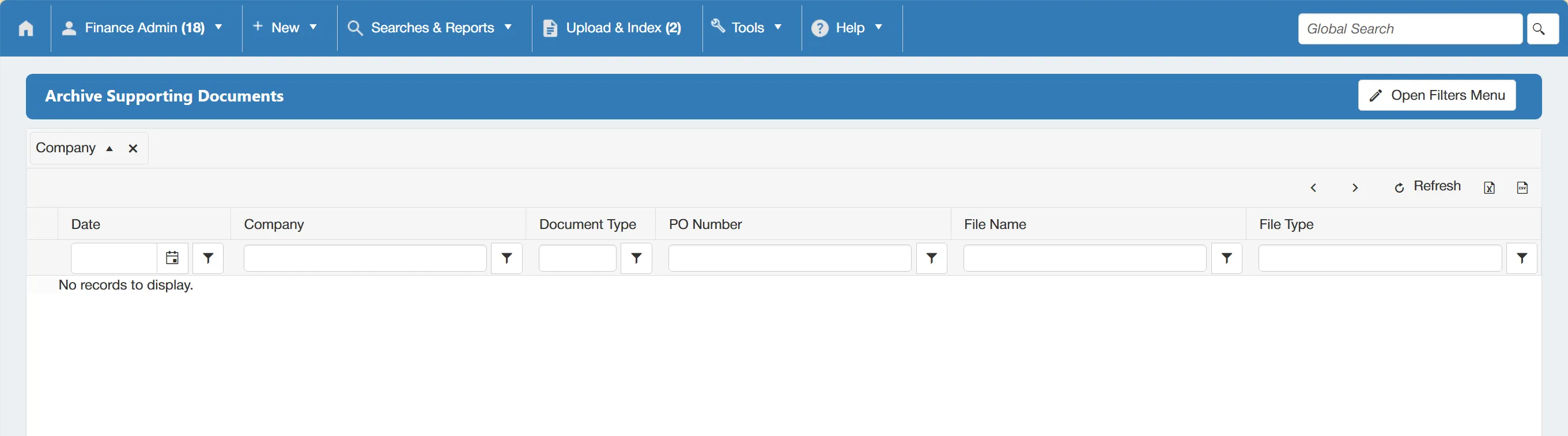
There are several columns providing an overview of details for each document. Each column can be sorted and filtered using the parameters at the top.
You can amend the search results by enabling filters within this window. Simply click to expand the filter options.